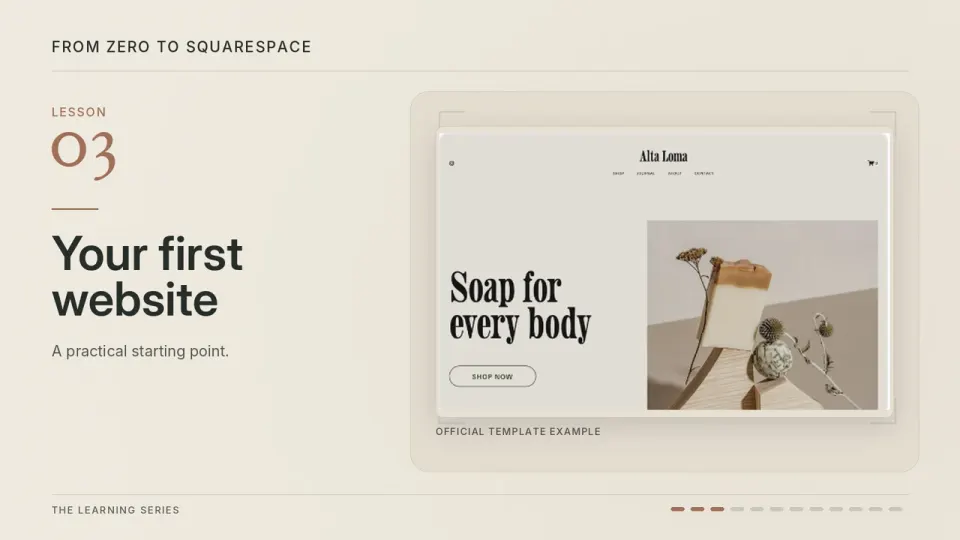
Research-based lesson; follow the current vendor documentation for the live interface.
Write five page briefs and gather owned images.
Create private draft pages with native settings.
Check links and contact destination outside the edit canvas.
Save a native baseline before improving the design.
Prepare the content outside the builder
Gather a logo if you have one, three original photos, one clear offer, a short business introduction and the correct contact information. Save copies in an organized project folder. A builder cannot turn unfinished business information into a finished website.
Use the official Squarespace getting-started instructions to create a site and choose a starting design. Interface wording can vary with account and version. Record the selected site version so later customization instructions apply to the right environment.
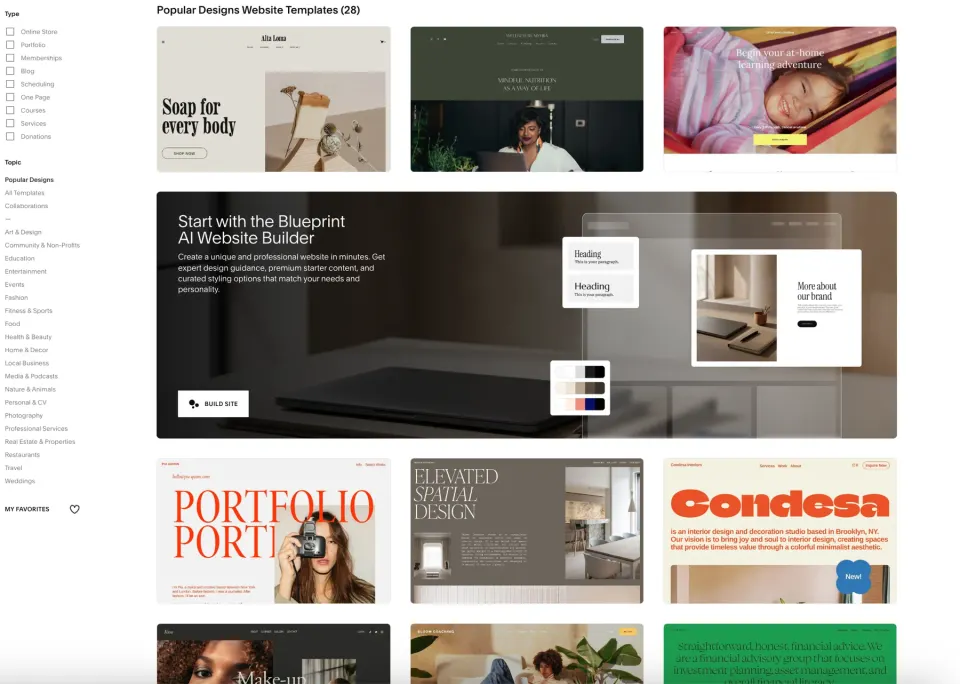
Vendor website · 2026-11-26 · Source / documentation
Build one page that has a job
For Northline, create a home page with a concise headline, a paragraph describing the service, two project examples and an inquiry link. Add only enough navigation to reach Work, Services and Contact. Replace placeholder content as you go; don’t publish a demo email address or a stock testimonial.
Preview the result on desktop and phone. Try editing a heading and replacing an image. This helps you judge whether the editor fits the person who will maintain it. Use the platform’s site availability controls to keep work private until it is ready, rather than assuming a page removed from navigation is private.
Exercise: save a baseline
Keep a screenshot of your draft and a written list of what still needs work. Add one clear action and check it reaches the expected destination. Do not connect a production domain or enable payment processing until you understand the current plan and settings.
Checkpoint: A private working draft exists with actual content. Your page is readable on a narrow screen and the planned visitor action is identifiable.
Prepare five small content files
Before opening the builder, write a first draft for each Northline page. The homepage states who the studio helps, shows one project and leads to an inquiry. The services page explains what is included in each offer. The portfolio page shows a small set of representative work. The about page explains who is responsible for delivery. The contact page tells the visitor how to inquire and what response to expect. Use content you own; for a practice site, label the business and images as fictional or illustrative.
The point of preparing content first is to avoid shaping the business around whatever placeholder sections a template happens to include. A template is a starting arrangement. It cannot tell you which service is most important, what the customer should know or what proof is credible. If the portfolio currently has no appropriate project, leave that section out instead of inventing a testimonial or case study.
Open a trial or existing authorized site and follow the current vendor onboarding. Keep it private while working, using the site’s documented visibility options. Create the intended pages and build the homepage with the native controls. The first version needs only an introduction, evidence of work, service summary and contact action. Leave optional integrations out. A lean initial version gives us a reference against which to evaluate future changes.
Check the page outside the editing canvas
Use the available preview or permitted private viewing method. The edit canvas may show controls that visitors never see. Verify the order of the content, link destinations and the readability of the page. If the page is not public, do not share private access links or credentials in a tutorial. Record only the test outcome and a screenshot that does not expose account information.
Add an inquiry destination using an appropriate native form or contact method. If you create a form, label it clearly and ask only for the information needed to respond. Send a test message with non-sensitive data if the environment supports the required submission flow. Confirm the actual recipient; a successful-looking submission alone does not prove that the business received the inquiry. If testing is not available yet, mark that row unresolved for launch.
Capture a baseline
Save the original text and image files in your own folder. Keep a screenshot of the page at desktop and phone widths for your private reference if you have access to the real editor. Include the date, page and what you changed. If you are following on paper, draw the same four sections and label them as a wireframe. We will compare this baseline with later changes rather than try to remember what the old design looked like.
Deliverable: the first homepage draft, five page names, an asset folder and a short record of preview and inquiry tests. The official getting started documentation is the source for current UI steps. We will choose a template and refine the design in the next lesson; no visual add-on is necessary at this point.
Project notebook: lesson 03
Open the Northline Project Workbook and save 03-draft-baseline. Work on an authorized private site if available; otherwise complete the planning version and mark any execution checks as not tested.
Acceptance check: No demo contact details remain; the primary action points to the intended destination; private visibility and preview results are recorded.