The argument for having backups is obvious. The part people skip is actually setting them up before something goes wrong.
This article defines the strategy. The next three articles implement it.
What Actually Needs Backing Up
The database — everything WordPress. Posts, pages, users, settings, plugin data, WooCommerce orders. If the database is gone and you have no backup, the site’s content is gone. Files without the database give you WordPress but not the site.
wp-content directory — themes, plugins, and uploads. The uploads directory (media library) is irreplaceable. Themes and plugins can be reinstalled, but uploaded images and documents cannot.
WordPress core files — these can always be reinstalled fresh. Not worth backing up routinely unless you’ve made unusual customizations to core files (which you shouldn’t have).
Nginx and server config files — your server blocks, PHP-FPM config, Fail2ban rules. Small files, rarely change, but recreating them from memory after a disaster is painful. Back them up once after setup and after any significant changes.
What you don’t need to back up: Redis data (it rebuilds from the database), log files, PHP-FPM cache, Nginx FastCGI cache.
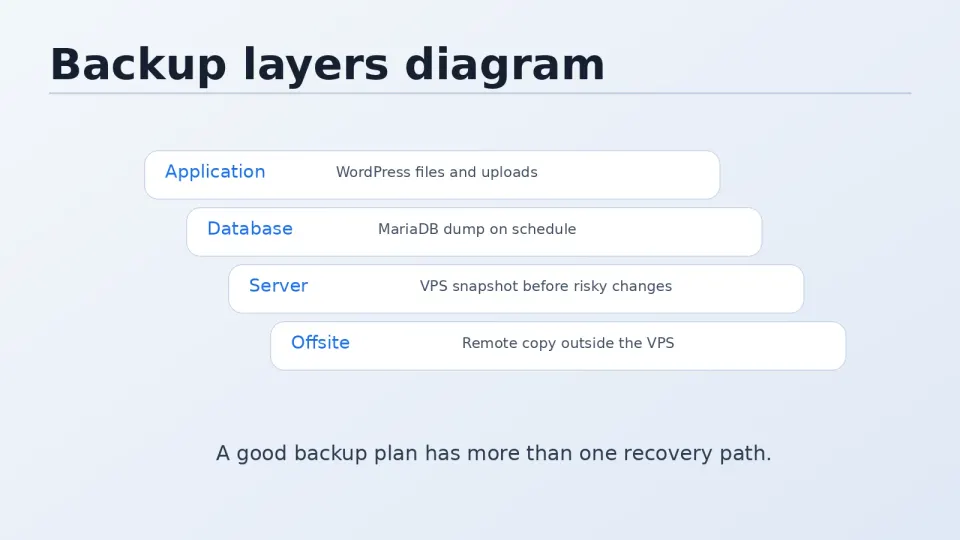
The Three-Layer Strategy
Layer 1 — Vultr Snapshots (weekly or before major changes)
A snapshot captures the entire server state — OS, all files, all databases, all config. Restoration deploys a complete working server. Cost: a few cents per snapshot per month based on disk size.
Limitations: restoring from a snapshot replaces everything, including any data added since the snapshot. Doesn’t replace database backups for point-in-time recovery.
Layer 2 — Daily Database Backup (automated, offsite)
mysqldump exports the WordPress database to a SQL file. Compressed and uploaded offsite. This is the backup that matters most — it’s what recovers actual content.
Frequency: daily, retained for 7–30 days depending on how much content changes.
Layer 3 — Weekly Files Backup (automated, offsite)
The wp-content/uploads directory backed up weekly using rclone to Cloudflare R2 or any S3-compatible storage. If the media library is critical and changes frequently, consider daily.
Where to Store Backups
Not on the same server. A backup stored on the VPS is deleted along with everything else when the server is compromised or accidentally destroyed. This is what made the rm -rf / incident recoverable — files were on Google Drive, not on the server.
Offsite options:
- Cloudflare R2 — S3-compatible, no egress fees, free tier for small backups. Works natively with rclone. My current choice.
- Google Drive — free up to 15GB, easy to set up, good for personal use. What saved the recovery after the rm -rf / incident.
- AWS S3 — reliable, pay-per-use, standard for production. More setup than R2.
- Backblaze B2 — cheap, S3-compatible, works with rclone.
For a personal VPS with a few WordPress sites, Cloudflare R2’s free tier (10GB storage, no egress) is sufficient and costs nothing.
Recommended Backup Schedule
| What | Frequency | Retention | Where |
|---|---|---|---|
| Vultr snapshot | Weekly + before major changes | Keep last 2 | Vultr |
| Database (mysqldump) | Daily at 2am | 30 days | R2 / Drive |
| wp-content/uploads | Weekly | 4 copies | R2 / Drive |
| Server configs (/etc/nginx, etc.) | After changes | Last 3 | R2 / Drive |
This covers the realistic failure scenarios: accidental deletion, database corruption, server compromise, VPS provider issues.
The Recovery Story
After rm -rf / deleted everything:
- Provisioned a new Vultr VPS — 60 seconds
- Reinstalled Rocky Linux, Nginx, PHP-FPM, MariaDB — 2 hours following the same steps as original setup
- Downloaded WordPress source files from Google Drive — the files that were backed up
- Restored databases from partial exports that existed locally — painful, incomplete
- Rebuilt what couldn’t be recovered from available data
Total time: most of a day. With proper database backups in place, that recovery drops to 30–60 minutes: provision server, install stack, restore database, copy files, update DNS.
The difference between “most of a day” and “30 minutes” is a daily mysqldump running on a cron job. That’s what the next article sets up.