Official references: For the caching layer behind this stack, start with the WordPress cache handbook and LiteSpeed Cache for WordPress docs. These explain the primitives; this guide explains the decision order.
Most WordPress performance guides start with a plugin recommendation. Install WP Rocket, run Lighthouse, share the before/after score. This is not wrong, but it skips the part that actually determines whether the plugin helps.
WP Rocket cannot fix slow hosting. Nginx FastCGI cache cannot fix a theme that generates 3MB of CSS. Redis cannot fix a server with 512MB RAM that is already running out of memory. Each layer of the performance stack has a ceiling, and that ceiling is set by the layers below it.
The order matters more than the tools.
WordPress Performance Is a Stack, Not a Plugin
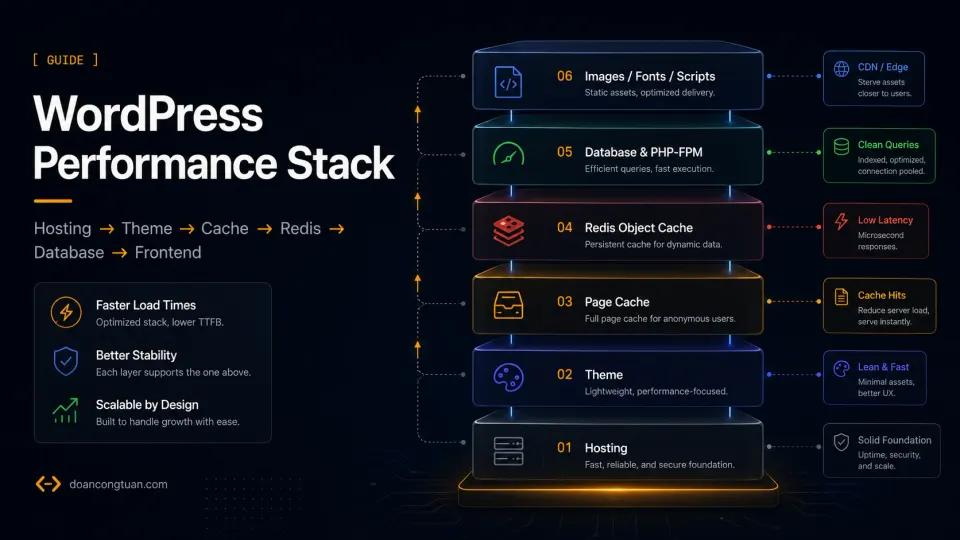
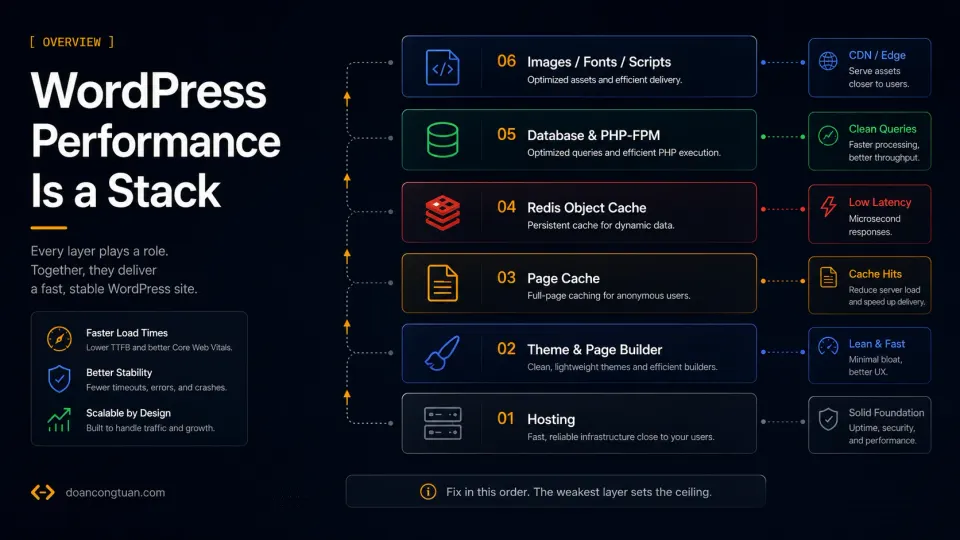
Think of WordPress performance as a layered system. Each layer has a maximum potential. The weakest layer sets the ceiling for everything above it.
Layer 1 — Hosting: Server CPU, RAM, disk I/O, and network latency. The hardware floor everything else runs on.
Layer 2 — Theme and page builder: How many HTTP requests, how much CSS, how much JavaScript, how complex the DOM.
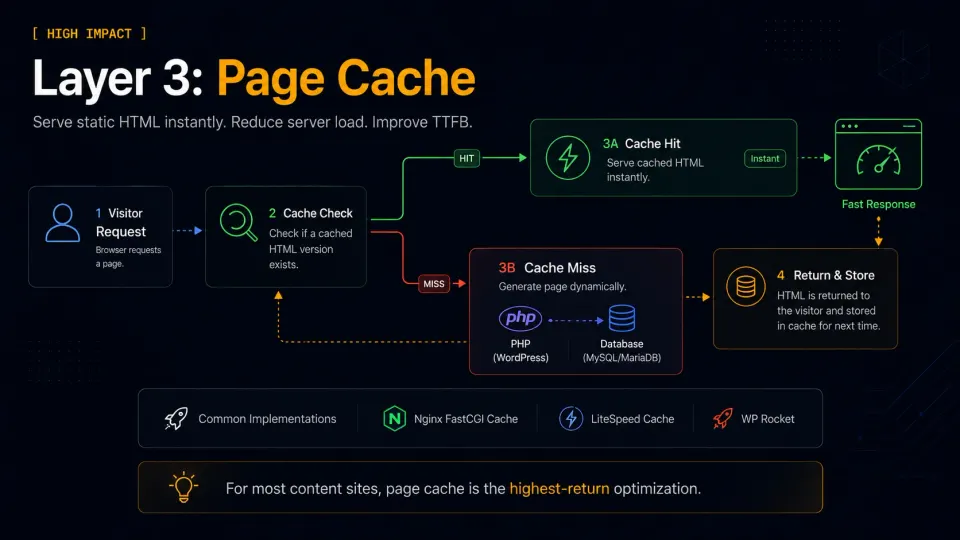
Layer 3 — Page cache: Serving pre-generated HTML instead of running PHP + database queries on every visit.
On an Nginx VPS, the underlying mechanism is usually FastCGI cache; the low-level behavior is documented in the Nginx FastCGI module docs.
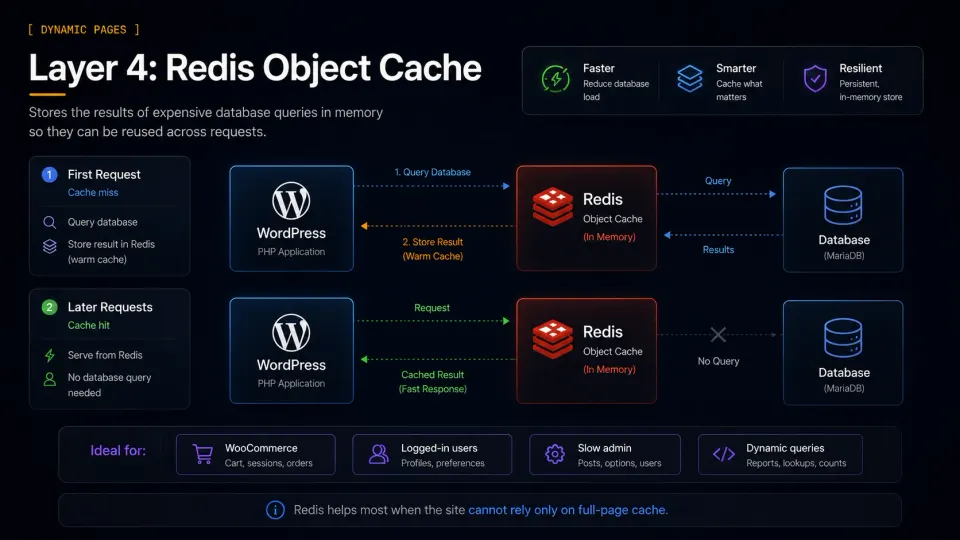
Layer 4 — Object cache: Storing database query results in memory (Redis) so frequently-requested data does not hit the database on every page load.
For dynamic WordPress workloads, the object-cache layer usually means Redis, so the Redis docs are the useful technical reference behind the WordPress plugin settings.
Layer 5 — Database and PHP-FPM: How efficiently WordPress queries the database. How many PHP workers are available.
Layer 6 — Images, fonts, and external scripts: Page weight from unoptimized images, render-blocking fonts, third-party scripts.
Fix in this order. Starting with Layer 6 while Layer 1 is broken produces visible results in Lighthouse and almost nothing for real users.
Layer 1: Hosting and Server Resources
This is the most impactful layer and the most frequently glossed over in performance guides because recommending better hosting feels like an upsell rather than technical advice.
It is not. Hosting is the literal foundation.
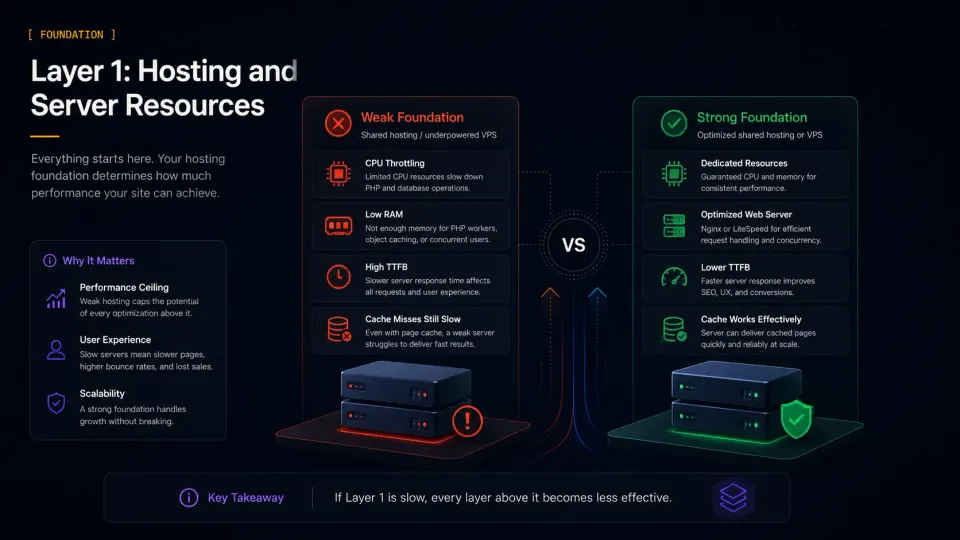
What bad hosting looks like in practice: A shared hosting account that throttles CPU during peak hours. An underpowered VPS with 512MB RAM running WordPress, Nginx, PHP-FPM, and MariaDB simultaneously. A server where Time to First Byte (TTFB) is 800ms before any page content has been generated. No caching layer fixes a server that is already resource-constrained.
What good hosting looks like: For shared hosting, LiteSpeed servers (Hostinger) offer meaningfully better performance than Apache-based shared hosts because LiteSpeed Cache integrates directly with the server. For VPS, a $12-20/mo Vultr instance with properly configured Nginx + PHP-FPM gives a WordPress site dedicated resources and server-level control.
The test is simple: check TTFB on a page with all caching disabled. If it is consistently above 400-500ms, the hosting is a bottleneck worth addressing before anything else.
Layer 2: Theme and Page Builder Choices
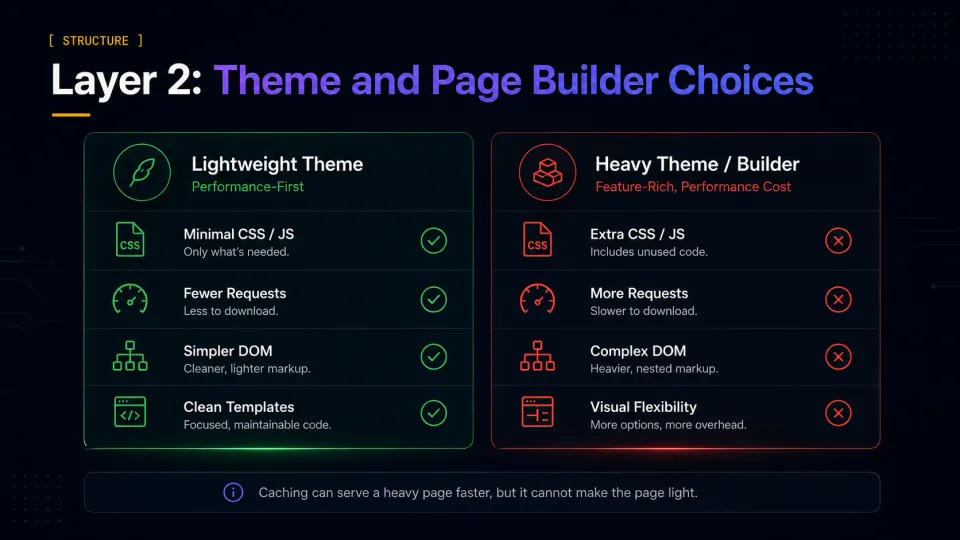
A theme determines the structural complexity of every page on the site. This is not something caching can undo — it can only serve the same complex page faster.
A page builder theme generating 400 DOM elements, 150 HTTP requests, and 2MB of CSS has a structural performance ceiling. Serve it from a fast server with full caching enabled and it will still score lower than a lightweight theme on comparable infrastructure.
Lightweight base themes (GeneratePress, Blocksy, Astra) start with minimal CSS, load only what is activated, and do not include features you did not ask for. The practical difference on Lighthouse is often 10-20 points compared to a multipurpose theme doing the same job.
Page builders (Elementor, WPBakery) generate heavier markup than hand-coded or block-editor templates. This is a known trade-off, not a reason to avoid them categorically. For landing pages and campaign pages where design flexibility is the point, the overhead is acceptable. For every post template on a content site, it is not.
The honest rule: match the theme to the job. A product comparison site with ReHub has structural weight because the features require it. A content blog running Elementor on every post template has structural weight it could avoid.
Layer 3: Page Cache
Page cache is the highest-return optimization for most WordPress sites. It works by generating a static HTML version of each page and serving that to subsequent visitors — no PHP execution, no database query.
On a self-managed VPS with Nginx: Nginx FastCGI cache stores generated pages on disk and serves them directly. Cache misses are fast. Cache hits are extremely fast. Configuration is in the Nginx server block and requires a corresponding cache-bypass logic for logged-in users and dynamic pages. The VPS series covers this configuration in detail.
On shared hosting or without server-level cache: WP Rocket’s page cache does the same job at the PHP level. Less efficient than Nginx-level cache but significantly better than no cache. On Hostinger with LiteSpeed, LiteSpeed Cache provides server-level integration that is equivalent to Nginx FastCGI for that environment.
WP Rocket and Nginx FastCGI cache running together: This is my current setup. WP Rocket handles frontend optimization — Remove Unused CSS, JS deferral, lazy loading, database cleanup — while Nginx FastCGI handles the actual page caching. On this configuration, I disable WP Rocket’s own page cache to avoid conflict and let Nginx handle it. This is documented in WP Rocket’s own documentation for VPS configurations.
One practical thing nobody mentions in WP Rocket guides: when running WP Rocket alongside FastCGI cache, WP Rocket still generates cache files in wp-content/cache/ for its own optimization work. On a small VPS instance, this fills disk space faster than expected. Check it with du -sh /var/www/*/wp-content/cache/ occasionally.
WordPress caching and frontend optimization. Page cache, Remove Unused CSS, lazy loading, JS deferral. Works on any host — most impactful on non-LiteSpeed environments.
Get WP Rocket →Affiliate link — I may earn a commission at no cost to you.
Layer 4: Object Cache and Redis
Object cache stores the results of expensive database queries in memory so WordPress does not re-run them on every page load.
WordPress has a built-in object cache, but it is request-scoped — it only persists for the duration of a single PHP request. A persistent object cache (Redis, Memcached) keeps results in memory across requests, meaning the second visitor to a page that queries complex data gets that data from memory instead of re-hitting the database.
When Redis makes a noticeable difference:
- WooCommerce stores with live inventory and cart sessions
- Sites with logged-in users (members, subscribers, editors) who see uncached dynamic content
- WordPress admin that feels slow due to complex queries
- High-traffic sites where database connection overhead accumulates
When Redis adds little:
- Simple content sites where most visitors see fully cached static pages
- Sites where the database is not the bottleneck
- Low-traffic sites where the server has plenty of headroom
On my current VPS stack, Redis is installed and configured as the WordPress object cache backend via the Redis Object Cache plugin. On a $20/mo Vultr instance with sufficient RAM, the overhead is minimal and the benefit on dynamic pages is measurable.
If you are on shared hosting, Redis is typically not available or is a paid add-on. Prioritize page cache first and add Redis when the site has grown enough to run its own VPS.
Layer 5: Database and PHP-FPM Tuning
This layer is where performance guides often go too deep too early. Most WordPress sites running on adequate hardware with page cache enabled do not need database or PHP-FPM tuning. The defaults work.
Tune this layer when you have specific evidence of a bottleneck:
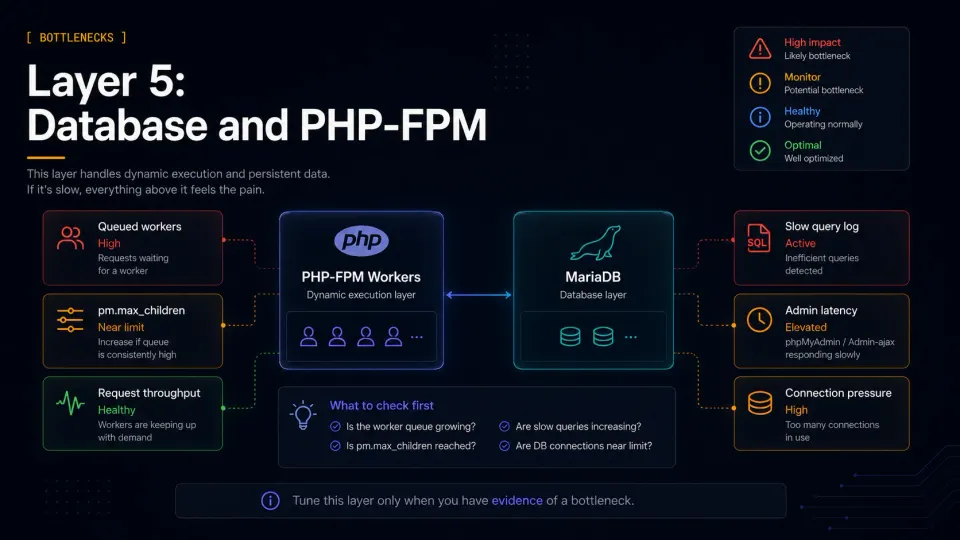
Signs you need PHP-FPM tuning: PHP processes are being queued during traffic spikes. Error logs show “server reached pm.max_children.” Admin requests are slow even when frontend caching is working.
Signs you need database tuning: MySQL slow query log shows queries taking more than 1-2 seconds. wp-admin feels slower than the frontend. WooCommerce order processing is sluggish under load.
For the VPS series articles covering PHP-FPM configuration and MariaDB tuning, the adjustments are practical rather than deep DBA work: pm.max_children sized to available RAM, innodb_buffer_pool_size set to 50-70% of available RAM for database-heavy sites, and slow query logging enabled so you know what is actually slow before changing anything.
One thing I learned configuring MariaDB for the first time after years away: MariaDB is a community fork of MySQL created after Oracle acquired MySQL. They behave identically for WordPress purposes. If a WordPress guide says “MySQL,” it means MariaDB too.
Layer 6: Images, Fonts, and Third-Party Scripts
This layer gets the most attention in beginner performance guides and the least attention from developers who have fixed Layers 1-5. That ordering reveals the priority.
Images are the most impactful fix here. Unoptimized uploads — full-resolution photos used as thumbnails, PNG screenshots used as hero images, no lazy loading — add real page weight that affects mobile users and initial load times.
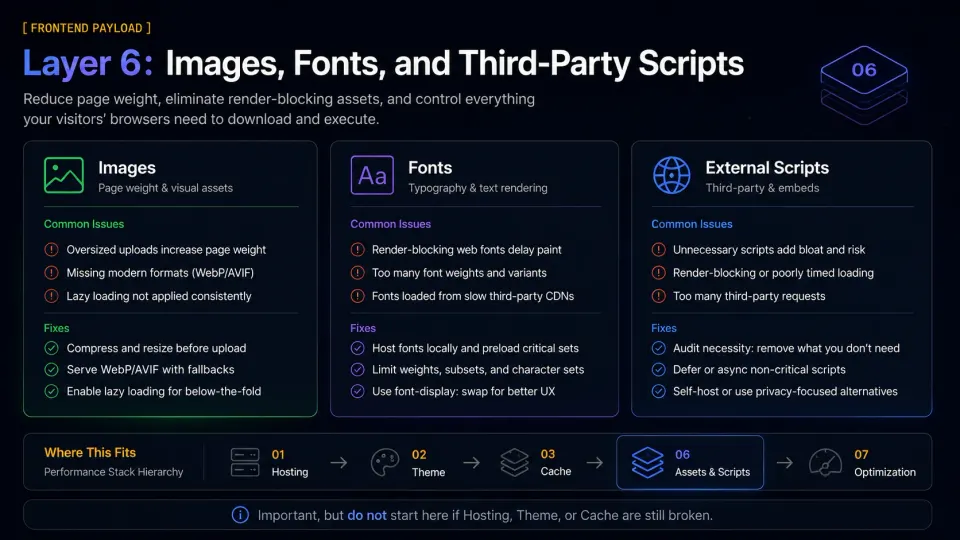
Practical image habits:
- Compress images before uploading (Squoosh, TinyPNG, or an image optimization plugin)
- Use WebP format where browser support allows — most modern WordPress image plugins handle conversion
- Enable lazy loading for images below the fold — WP Rocket and most caching plugins include this
Fonts: Google Fonts loaded from Google’s servers add an external DNS lookup and a render-blocking request. Host fonts locally or use a plugin that handles this. WP Rocket has a Google Fonts optimization option.
Third-party scripts: Analytics, ad scripts, live chat widgets, and social sharing buttons loaded from external servers add latency that is entirely outside your control. Each one is a separate HTTP request to an external server. Audit which third-party scripts are actually being used and remove anything that is not pulling its weight.
My Practical Performance Stack
What I actually run on production WordPress sites:
- Hosting: Vultr VPS, $12-20/mo, Singapore datacenter
- OS + web server: Rocky Linux + Nginx with FastCGI cache
- PHP: PHP-FPM with worker count sized to available RAM
- Database: MariaDB with
innodb_buffer_pool_sizetuned for the instance - Object cache: Redis via Redis Object Cache plugin
- Plugin caching: WP Rocket for frontend optimization — page cache delegated to Nginx
- Theme: Blocksy or a purpose-appropriate theme — not a page builder theme for content templates
- Images: Compressed uploads, WebP via plugin, lazy loading via WP Rocket
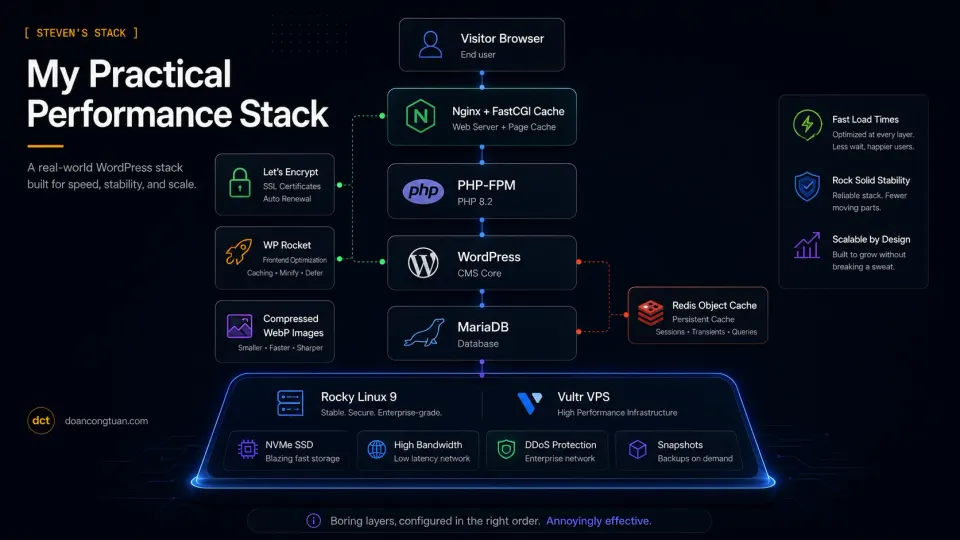
For a WordPress site on this stack, On a correctly cached VPS stack, cached pages can feel very fast because most anonymous visitors avoid PHP and database work. Strong Lighthouse scores are achievable without heroic optimization. Most of that comes from Layers 1-4 being correct, not from fine-tuning Layer 6.
What I Would Not Optimize Too Early
PHP-FPM and MariaDB tuning before you have traffic data and slow query logs. The defaults are adequate for most sites. Premature server tuning introduces complexity without measurable benefit at low traffic.
Remove Unused CSS without testing on a staging environment. WP Rocket’s Remove Unused CSS is one of the most impactful frontend optimizations available, and also the one most likely to visually break a site if theme or plugin CSS is incorrectly excluded. Enable it, check every page type, and configure exclusions before pushing to production.
Cloudflare as a first performance move. Cloudflare adds caching and protection but also adds a layer that can cause cache confusion during WordPress updates and plugin changes. It is worth the configuration work for a site with real traffic. For a new site still being built and updated frequently, configure the origin server correctly first.
More plugins to fix plugin problems. If a site is slow because of too many plugins, adding a performance plugin does not solve the root cause. Audit the plugin list. Remove everything not earning its place. Then optimize what remains.
Frequently Asked Questions
Does WP Rocket make WordPress faster?
Is VPS faster than shared hosting for WordPress?
Do I need Redis for WordPress?
What slows down WordPress the most?
Is a lightweight theme important for WordPress speed?
Should beginners tune PHP-FPM and MariaDB?
Related Pillar Guides
- WordPress VPS hosting — when hosting becomes the real performance bottleneck.
- Best WordPress tools for affiliate sites — practical plugin and tool choices for content and affiliate sites.
- Best WordPress themes for affiliate sites — why theme choice affects performance more than many plugins.
- WordPress vs modern stack — when performance problems are a reason to rethink the stack.
- Astro for WordPress developers — what static output changes compared with dynamic WordPress.