Most “getting started with VPS” guides give you a list of prerequisites that reads like a job description. Linux proficiency. Command line experience. Server administration basics. Understanding of DNS and networking.
If you have all of that, great. But if you’re reading this series, you probably don’t — or you wouldn’t be starting at Part 0.
Here’s the actual minimum.
What You Actually Need
1. A domain — and the ability to point it to an IP
You probably have this already. Anyone who’s run a WordPress site has pointed a domain somewhere. The specific thing you need: access to your domain’s DNS settings, and the knowledge that pointing an A record to an IP address is how a domain finds a server.
You don’t need to understand how DNS works in detail. Just that it works, and that changes take time to propagate. That’s enough to start.
I buy domains from Namecheap. The DNS interface is clean and the pricing is honest. You can use whatever registrar you’re already using — the process is the same.
2. A payment method for the VPS
Vultr accepts credit cards and PayPal. A Visa card works. PayPal works. Either is fine.
Start with a $6/month plan — 1 vCPU, 1GB RAM. That’s enough for learning and for running a small WordPress site. You can upgrade later when you need to.
More importantly: you can destroy the server and start over as many times as you want. Each hour of running time costs a fraction of a cent at that price. If something goes wrong and you need to rebuild, it’s not a financial event — it’s just the learning process.
A developer-friendly cloud VPS provider with simple instances, predictable infrastructure building blocks, and global locations. This is the kind of hosting I use when I want to own the WordPress stack instead of renting a polished control panel.
Get Vultr →Affiliate link — I may earn a commission at no cost to you.
3. Basic awareness of what SSH is
Not deep knowledge. Not hands-on experience. Just awareness.
SSH (Secure Shell) is how you connect to a remote server and control it from your local computer. When you SSH into a VPS, you open a terminal window on your local machine and type commands that execute on the server — which could be physically located anywhere in the world.
I didn’t know this when I started. The concept of “my keyboard controlling a computer in Singapore” seemed like something from a hacker movie. When I first connected to my Vultr VPS via terminal, it felt exactly like a scene from a film I’d watched years ago — a guy with a foldable phone tapping commands to control systems remotely. Turns out that’s just SSH. Normal, documented, widely used technology.
You’ll get hands-on experience with it in Part 2. For now, just knowing that it exists and roughly what it does is enough.
4. An SSH client — Terminal or Termius
You need something to connect with. Two good options:
Mac Terminal (built-in): If you’re on a Mac, you already have this. Open Terminal, type ssh root@your-server-ip, and you’re connected. That’s it. I used a third-party client for months before I realized this — don’t make the same mistake.
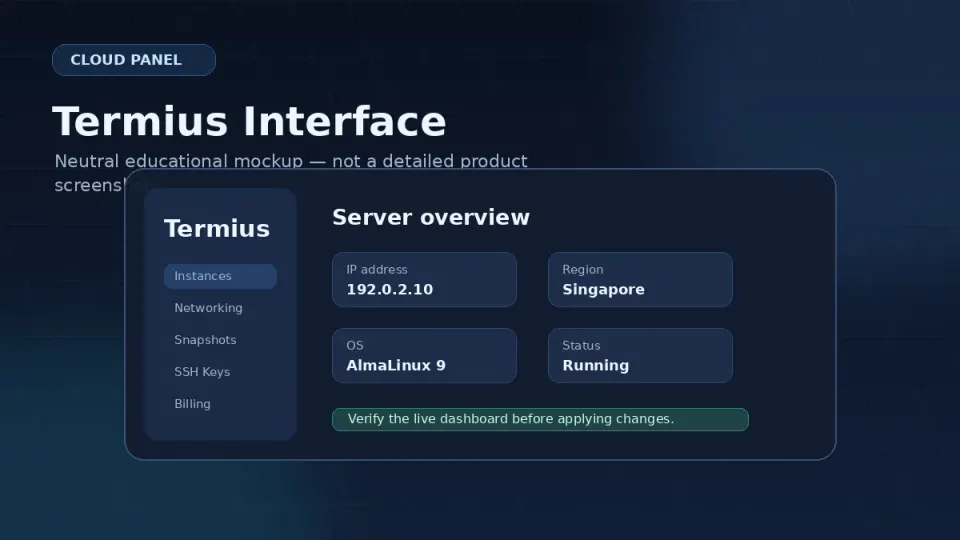
Termius (recommended): A dedicated SSH client with a clean interface, connection profiles, and a free tier that covers everything a beginner needs. The main advantage over Terminal: you save your server connections with labels, so you’re not retyping IPs and usernames every session. When you have multiple servers, this matters.
Download Termius free at termius.com. No referral link — I just use it and it’s good.
Windows: Use Windows Terminal with OpenSSH (built into Windows 10/11) or Termius. PuTTY also works but looks like it was designed in 1998, because it was. Termius is the better choice.
5. A realistic time budget — and the right mindset about errors
Your first full VPS setup — from buying the server to having WordPress running with SSL — will take somewhere between a few hours and a full day. This isn’t slow. It’s learning time.
My first attempt: 1–3 hours of reading, trying, hitting errors, and rebuilding. The second attempt was faster. By the third, I knew the sequence without referring to notes.
The mindset that matters: Errors are not failures. When something doesn’t work, you rebuild and try again. On a $6/month VPS, “start over” means destroying the server, creating a new one, and beginning the process again. The server takes about 60 seconds to deploy. The knowledge from the failed attempt stays with you.
This is genuinely how server skills are built — not by understanding everything before you start, but by doing it, breaking it, and doing it again slightly better.
What You Don’t Need
This list is longer than the one above.
You don’t need:
- Linux certification or formal training
- Sysadmin experience
- Knowledge of networking protocols
- An understanding of how DNS actually works internally
- Coding skills in any language
- A backup plan for everything before you start
- A perfectly configured local development environment
- Experience with any specific SSH client
The people who wait until they have all of this before starting are still waiting.
Your Goal for the First VPS
Keep it simple. One concrete outcome:
WordPress running on your domain, with SSL, accessible from a browser.
That’s it. Not a perfectly optimized stack. Not Redis caching. Not multiple sites. Just WordPress, your domain, HTTPS working.
When you’ve hit that goal, you’ll have covered: creating a server, connecting via SSH, installing the web stack, pointing DNS, setting up SSL, and completing the WordPress installer. That’s the foundation everything else builds on.
The rest of this series goes further — performance tuning, backup automation, running multiple sites, troubleshooting. But the first milestone is simple. Keep it that way.
The Quick Checklist
Before you buy a VPS and start Part 1, confirm you have:
- A domain (or comfort using an IP address while learning)
- A Visa card or PayPal account
- Termius installed, or Terminal open on your Mac
- 2–3 hours set aside for the first session
- Acceptance that you will hit errors and that’s completely normal
That’s the full list. If you have all five, you’re ready.
Frequently Asked Questions
Do I need to know Linux before buying a VPS?
Which SSH client should I use?
How much does a starter VPS cost?
What if I make mistakes and have to start over?
A developer-friendly cloud VPS provider with simple instances, predictable infrastructure building blocks, and global locations. This is the kind of hosting I use when I want to own the WordPress stack instead of renting a polished control panel.
Get Vultr →Affiliate link — I may earn a commission at no cost to you.