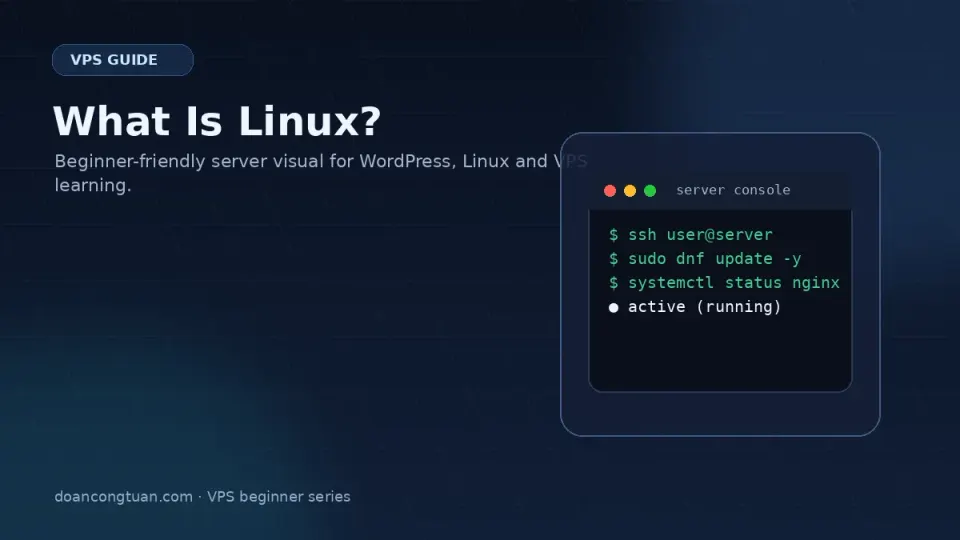
When you create a VPS on Vultr, one of the first choices is the operating system. You’re presented with a list of names — Ubuntu, Debian, Rocky Linux, AlmaLinux, Fedora — and no clear explanation of what makes them different or which one you should pick.
If you’ve never used Linux before, that list looks like a menu at a restaurant where you don’t speak the language.
This article is the translation.
What Linux Actually Is
Linux is an operating system — like Windows or macOS — except it’s open source and free. It was created in 1991 by Linus Torvalds and has been developed collaboratively ever since.
The reason servers run Linux instead of Windows comes down to three things:
Cost. Linux is free. Windows Server licenses cost money, and at scale that adds up significantly.
Performance. Linux runs efficiently with minimal resources. A Linux server with 1GB of RAM can run a web stack that would struggle on Windows with the same specs.
Control. Linux gives you deep access to configure exactly how the system runs. The tools for web serving, database management, caching, and security are all designed to run on Linux first.
The result: the overwhelming majority of web servers run Linux. When you host a WordPress site on shared hosting, it’s almost certainly running on Linux — you just never saw it because cPanel hid it from you.
The Desktop You’ll Never See
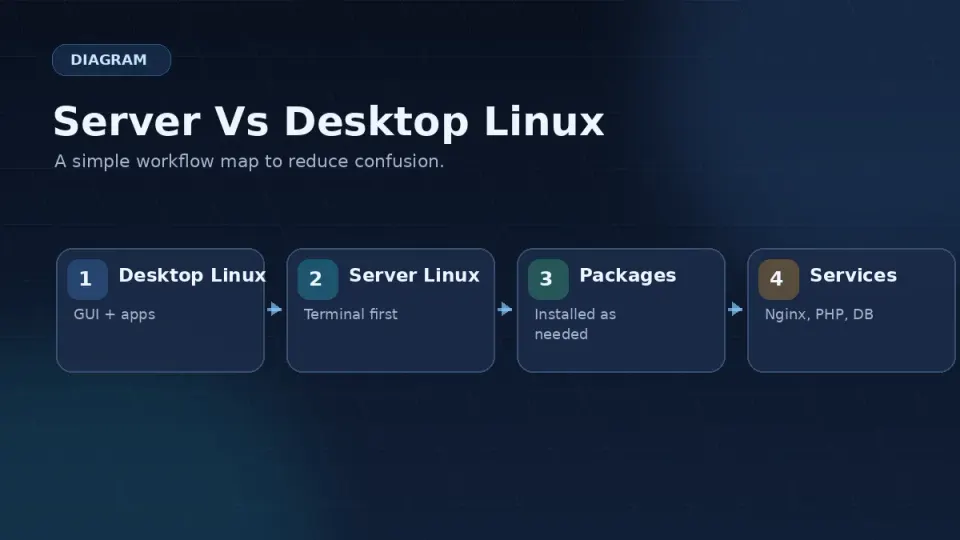
On your laptop or desktop, an operating system comes with a visual interface — windows, icons, a mouse pointer. You interact with the computer by clicking.
A server Linux installation has none of this. No desktop. No file manager. No GUI.
You interact with it entirely through a terminal — by typing commands. This is why the terminal skill matters, and why Part 1 of this series is dedicated to it before anything else.
This might sound like a step backward. It isn’t. The terminal is faster and more precise than any GUI for server work. Once you’re comfortable with a handful of commands, you can do in seconds what would take minutes clicking through a control panel.
Distros — Why There Are So Many
Linux itself is a kernel — the core of the operating system. Around that kernel, different groups have built different complete operating systems, each with their own package management, default software, and support model. These are called distributions, or distros.
For a beginner, the distro choice feels more significant than it is. The underlying system is the same. The commands that matter for this series — installing Nginx, configuring PHP-FPM, setting up SSL — work on all of them with small differences in syntax.
The ones you’ll encounter on Vultr:
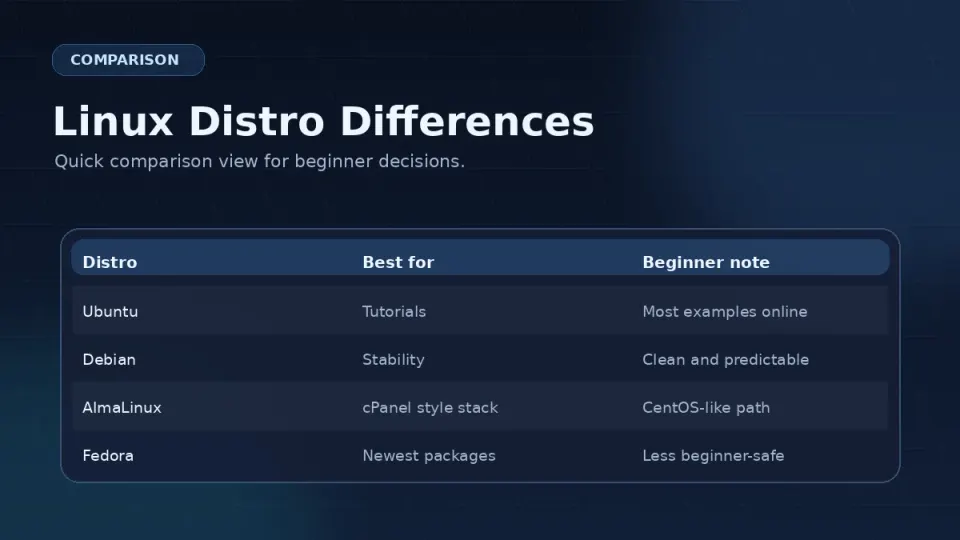
Ubuntu LTS — The safest choice for beginners. Uses apt for package management. Has the largest community, the most tutorials, and the most Stack Overflow answers. If you’re following a tutorial from the internet and it says “Ubuntu,” you’re less likely to hit distro-specific friction.
Debian — Stable, minimal, well-regarded. Uses apt like Ubuntu. Fewer tutorials than Ubuntu but a solid choice for those who know what they want.
Rocky Linux — A community rebuild of Red Hat Enterprise Linux, created after CentOS changed its support model. Uses dnf for package management. Stable, long-term support, trusted in enterprise environments. This is what I use.
AlmaLinux — Similar to Rocky Linux, same RHEL-compatible foundation. Interchangeable with Rocky for most purposes.
What Happened With CentOS
I started on CentOS. Many tutorials from that era recommended it — it was the dominant choice for web servers for years.
In 2021, Red Hat announced that CentOS would shift from a stable downstream release to CentOS Stream — a rolling release that tracks closer to Red Hat’s development branch. This changed the support model significantly. Many server administrators who wanted a stable, long-term-supported system moved away from it.
Vultr removed CentOS from its recommended options around the same time. I noticed the change, looked into it briefly, and switched to Rocky Linux — which was designed specifically as a CentOS replacement with the same stability model.
I didn’t do deep research. Rocky Linux came up repeatedly in the communities I follow, it felt familiar coming from CentOS, and it’s worked well. That’s the full explanation.
Something You Might Not Expect About Linux and Mac
If you’re using a Mac, you’re already running a Unix-based operating system. macOS is built on the same Unix foundation as Linux. The terminal commands are largely the same.
I didn’t know this when I started. I learned to use the terminal on my VPS, and then one day realized the same commands worked in Mac Terminal. The same ls, cd, grep, find, chmod — all of it.
This has practical value beyond VPS work. I now use Mac Terminal regularly for things that have nothing to do with servers:
- Batch converting PNG images to WebP:
for f in *.png; do cwebp "$f" -o "${f%.png}.webp"; done - Resizing a folder of images in one command with ImageMagick
- Creating multiple files or directories at once
- Running local scripts that automate repetitive tasks
None of this requires VPS knowledge — but learning the terminal on a Linux server is what made the Mac terminal feel accessible. The skills transfer completely.
Which Distro Should You Use for This Series
If you want the most beginner-friendly experience: Use Ubuntu 24.04 LTS. More tutorials, more community answers, same results.
If you want to follow this series exactly: Use Rocky Linux 9. Every command in Parts 1–8 is written and tested for Rocky Linux 9.
The honest truth: It matters less than it looks like it does. Pick one. The goal is WordPress running on your domain with SSL — not winning a debate about operating system choices.
I’ve been running Rocky Linux on my Vultr VPS for over a year. The site works. That’s the full evaluation.
What You Actually Need to Know About Linux to Start
Almost nothing. Here’s the minimum:
- Linux is an OS that runs on your VPS — you interact with it through a terminal
- Different distros exist — for this series, use Rocky Linux 9 or Ubuntu 24.04 LTS
- The terminal is how you control everything — Part 1 covers this from scratch
- You don’t need to understand Linux internals to set up a working WordPress VPS
That’s it. Part 0 is done. Part 1 starts with the terminal — the single skill that everything else depends on.