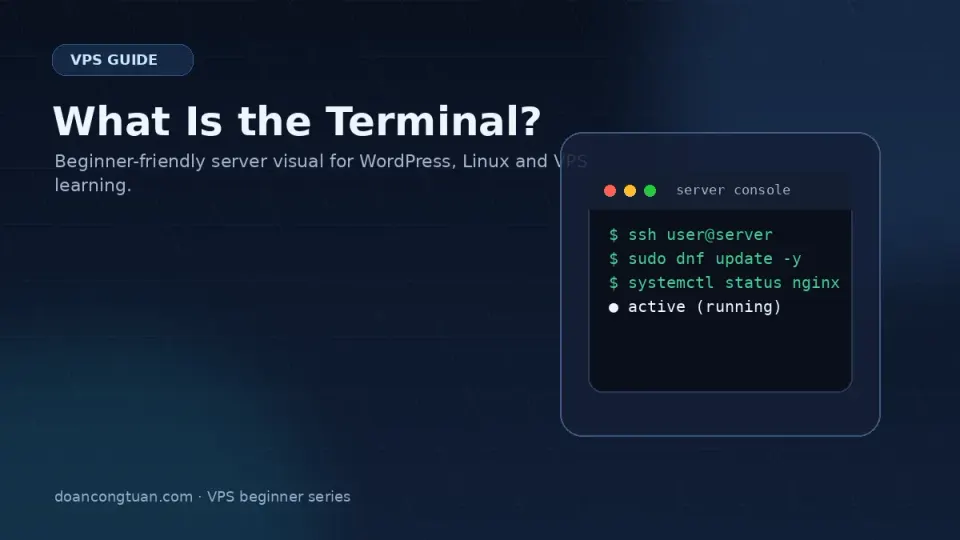
The terminal is the part of VPS that looks the most intimidating from outside — a black screen, a blinking cursor, nothing telling you what to do.
Inside, it’s just a tool. A very direct one.
What a Terminal Actually Is
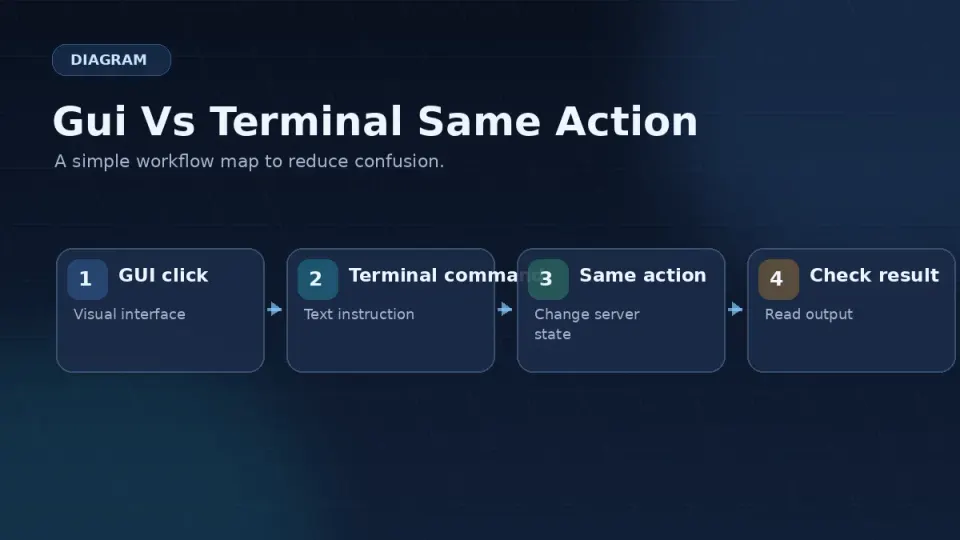
A terminal is a text-based interface for controlling a computer. Every action you take on a computer — opening a file, installing software, creating a folder, checking what’s running — can be expressed as a command. The terminal is where you type those commands.
On a desktop, the same actions have visual representations: you double-click a folder, drag a file, click an install button. The terminal strips all of that away and gives you direct text access to the same operations.
Neither approach is inherently better. For server work, terminal wins because:
- Servers don’t have the resources to run a graphical interface
- Text commands can be automated, scripted, and repeated exactly
- Remote connections over SSH transmit text efficiently — a GUI over a slow connection is painful, a terminal works fine
What You See When You Open One
When you connect to a VPS via SSH, you see something like this:
[root@vps-hostname ~]#Or on some systems:
steven@vps:~$This is the prompt. It tells you three things:
- Who you are — the username you’re logged in as (
rootorsteven) - Where you are — the current directory (
~means your home directory) - What kind of access you have —
#means root (full admin),$means a regular user
The cursor blinks after the prompt, waiting for your input. Nothing happens until you type something and press Enter. The terminal does nothing on its own.
How to Open a Terminal
On Mac: Press Cmd + Space, type “Terminal”, press Enter. That’s the built-in app. It works for everything in this series.
For VPS work specifically, Termius is worth installing. It’s a dedicated SSH client — you save your server connections with labels, so connecting to your Vultr VPS takes one click instead of typing the IP address every time. The free tier covers everything you need.
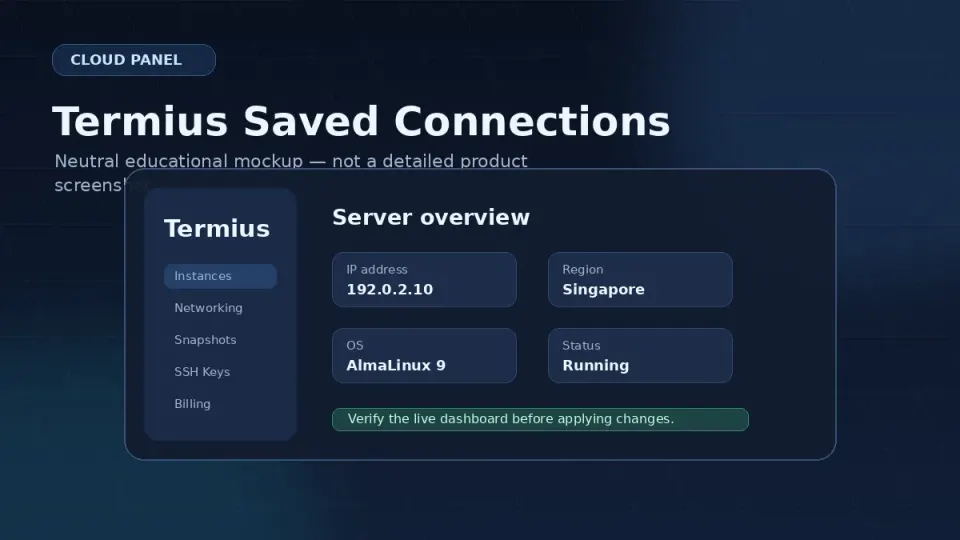
On Windows: Windows Terminal (from the Microsoft Store) with OpenSSH works well. Termius is also available for Windows and is the simpler option.
On Linux desktop: You already have a terminal. Any terminal emulator works.
Your First Three Commands
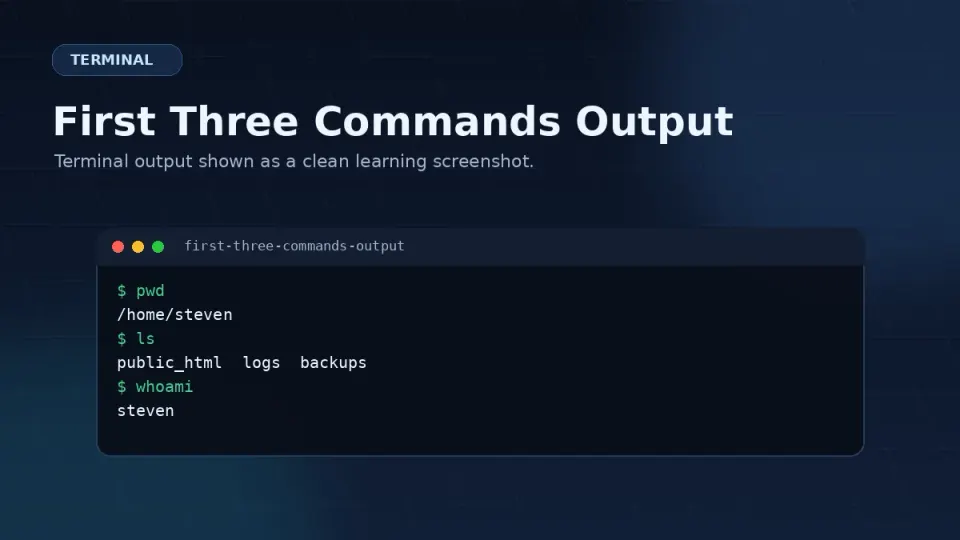
Don’t try to learn everything at once. Start with three commands that answer the most basic questions about where you are and what’s around you.
pwd — Where am I?
pwdOutput:
/rootpwd stands for “print working directory.” It tells you the full path of the directory you’re currently in. Run this any time you’re disoriented and need to know your location in the filesystem.
ls — What’s here?
lsOutput:
file1.txt folder1 folder2ls lists the contents of your current directory. Add -la for more detail — file permissions, sizes, hidden files:
ls -lacd — Move to a different directory
cd /var/wwwcd stands for “change directory.” The path after it is where you want to go. cd .. moves up one level. cd ~ takes you back to your home directory.
These three commands — pwd, ls, cd — are what I ran in that exact order the first time I connected to a VPS. They still come up in almost every server session.
The Right Approach to Learning Commands
Here’s the advice I’d give anyone starting with the terminal:
Don’t try to memorize commands before you need them. That’s the wrong way to learn this. You learn terminal commands by using them in context — not by studying a list.
Keep a personal command reference file. A plain text file, stored wherever you keep project notes. When you run a command that works, write it down with a note about what it does. Over time this becomes your personal library.
Mine looks something like this:
# Restart Nginx
sudo systemctl restart nginx

# Check PHP-FPM status
sudo systemctl status php-fpm

# Tail Nginx error log live
sudo tail -f /var/log/nginx/error.log

# Bulk convert PNG to WebP (Mac or Linux)
for f in *.png; do cwebp "$f" -o "${f%.png}.webp"; done
I don’t write commands from memory. I open this file, find what I need, copy it, adjust the variables if needed, and paste it into the terminal. This is not a crutch — it’s exactly how experienced developers work.
Copy, paste, and understand. When you follow a tutorial and copy a command, read it before you run it. What is this command doing? What are the parts? You don’t need to understand every flag — but knowing the intent of a command is the minimum before running it.
The next article covers 20 commands you’ll use regularly. The goal isn’t to memorize them. It’s to have a reference you’ll come back to.
What It Feels Like When You Get Used To It
The terminal goes from intimidating to invisible. You stop thinking about it as a special environment and start thinking about it as just where certain work happens.
And then one day you run something like:
tar -xvf archive.tar.gzAnd you watch it extract a hundred files in two seconds, each filename scrolling past — and there’s something genuinely satisfying about it. A single line of text doing exactly what you asked, instantly, without a progress bar or a dialog box asking if you’re sure.
That feeling is not a beginner’s wonder that fades. It stays.