There are thousands of Linux commands. You need about 20 for everything covered in this series.
This article is a reference — not a lesson you need to complete before moving on. Scan it once to know what’s here. Come back when you need something specific.
Group 1 — Navigation
These are the first commands you’ll use on any new server. They answer where you are, what’s around you, and how to move.
pwd — Where am I right now?
pwd
# Output: /var/www/html
Print Working Directory. Run this when you’re disoriented and need to know your current location.
ls — What’s in this directory?
ls
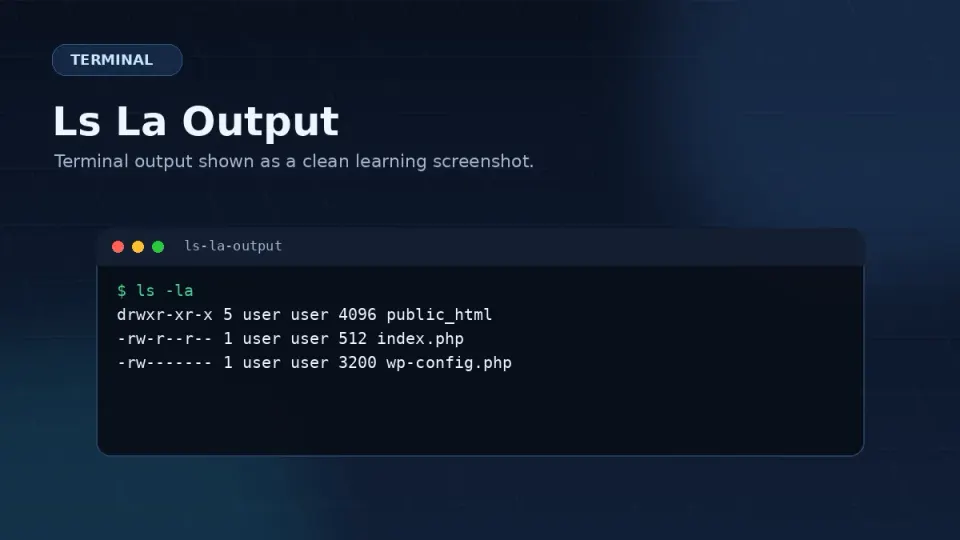
ls -la
ls lists files. ls -la shows everything — including hidden files (starting with .), permissions, sizes, and timestamps. Use ls -la by default on a server.
cd — Move to a different directory
cd /var/www          # go to specific path
cd ..                # go up one level
cd ~                 # go to home directory
cd -                 # go back to previous directory
cd - (go back) is underused. When you jump into a deep path to fix something and want to return to where you were, cd - takes you back instantly.
find — Locate a file by name
find /var/www -name "wp-config.php"
find /etc/nginx -name "*.conf"
When you need to find a file and don’t remember where it is. The -name flag accepts wildcards — *.conf finds all files ending in .conf.
Group 2 — File & Directory Operations
mkdir — Create a directory
mkdir /var/www/newsite.com
mkdir -p /var/www/newsite.com/public_html
-p creates parent directories if they don’t exist yet. Without it, creating /var/www/newsite.com/public_html fails if /var/www/newsite.com doesn’t exist.
cp — Copy a file or directory
cp wp-config.php wp-config.php.bak          # copy file
cp -r /var/www/site1 /var/www/site1-backup  # copy directory
Always make a backup copy before editing a config file: cp nginx.conf nginx.conf.bak. Takes two seconds and has saved hours of debugging.
mv — Move or rename
mv oldname.conf newname.conf      # rename
mv file.txt /var/www/site/        # move to directory
mv is also how you rename files. There’s no separate rename command in Linux.
rm — Delete
rm file.txt              # delete a file
rm -r /tmp/old-folder # delete a directory and its contentscat — Print file contents to screen
cat /etc/nginx/nginx.conf
cat wp-config.php
Fast way to read a file without opening an editor. For long files, use less instead — it lets you scroll.
nano — Edit a file
nano /etc/nginx/conf.d/site.conf
sudo nano /etc/php-fpm.d/www.conf
Nano is the editor you’ll use for config files throughout this series. It shows keyboard shortcuts at the bottom of the screen — Ctrl+O to save, Ctrl+X to exit. No mode switching, no memorization required.
Group 3 — Permissions
chmod — Change file permissions
chmod 644 wp-config.php          # file: owner read/write, others read
chmod 755 /var/www/site/         # directory: owner full, others read/execute
chmod -R 755 /var/www/site/      # apply recursively to all contents
The two numbers you’ll use constantly for WordPress:
644for files — owner can read and write, everyone else can only read755for directories — owner has full access, others can read and enter
chown — Change file ownership
chown nginx:nginx /var/www/site/
chown -R nginx:nginx /var/www/site/
On Rocky Linux, Nginx runs as the nginx user. WordPress files should be owned by that user so the web server can read and write them. -R applies the change to everything inside the directory.
Group 4 — System Management
sudo — Run as administrator
sudo systemctl restart nginx
sudo nano /etc/nginx/nginx.conf
Most server configuration requires root privileges. sudo grants them for a single command. Running everything as root is bad practice — using sudo when needed is the right approach.
systemctl — Manage services
sudo systemctl start nginx          # start
sudo systemctl stop nginx           # stop
sudo systemctl restart nginx        # stop then start
sudo systemctl reload nginx         # reload config without downtime
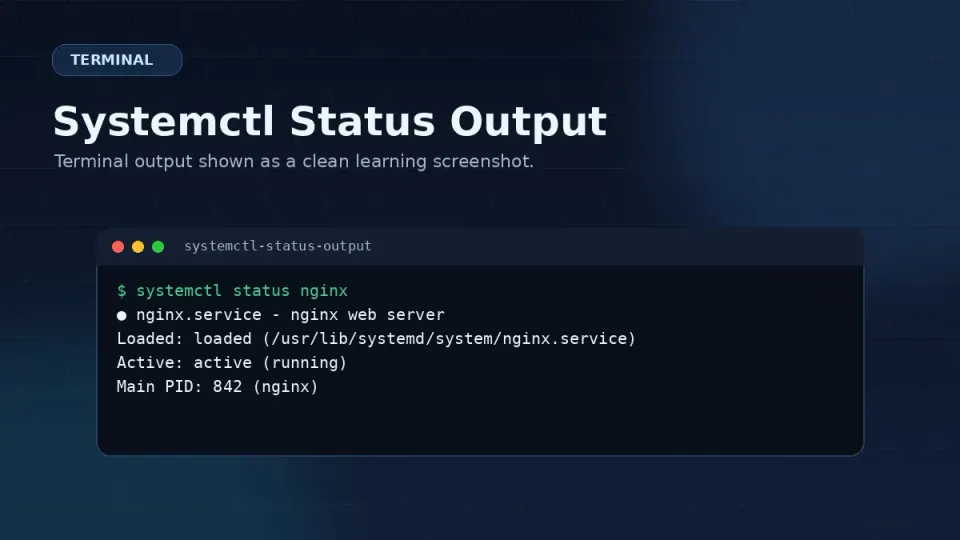
sudo systemctl status nginx         # check if running
sudo systemctl enable nginx         # start automatically at boot
sudo systemctl enable --now nginx   # enable and start in one command
This is the most-used command group for day-to-day server work. status is the first thing to check when something isn’t working. reload vs restart — use reload for Nginx config changes to avoid downtime.
dnf — Install and manage packages (Rocky Linux)
sudo dnf install nginx              # install
sudo dnf update                     # update all packages
sudo dnf remove package-name        # uninstall
sudo dnf list installed             # show installed packages
On Ubuntu, replace dnf with apt — the structure is identical.
df — Check disk usage
df -h-h makes the output human-readable (GB/MB instead of bytes). Run this when your server feels slow or something stops working unexpectedly — a full disk causes strange failures.
free — Check memory usage
free -mShows RAM usage in megabytes. Useful for diagnosing whether your VPS plan has enough memory for the current workload.
htop — Live process monitor
htopAn interactive view of what’s running, how much CPU and RAM each process uses, and the system load. Press q to exit. Install first if not present: sudo dnf install htop.
Group 5 — Logs & Search
tail — Read the end of a log file
tail -n 50 /var/log/nginx/error.log          # last 50 lines
tail -f /var/log/nginx/error.log             # follow live updates
tail -f is essential for debugging. It shows new log entries as they appear in real time. When you’re testing a broken site, run tail -f /var/log/nginx/error.log in one terminal window and reload the site in a browser — you see the error the moment it happens.
grep — Search for text in files or output
grep "ERROR" /var/log/nginx/error.log
grep -r "define('DB_NAME'" /var/www/site/
tail -f /var/log/nginx/error.log | grep "502"
grep filters output to lines matching a pattern. Piping tail -f into grep lets you watch a live log and only see lines matching what you care about. When a log has thousands of lines, this narrows it down immediately.
Saving Your Own Command Reference
Termius has a Snippets feature — a dedicated place to save commands with labels. It’s the right tool for this. Open Termius, go to Snippets, add a new entry for each command you want to keep.
Practically, many developers end up with command notes scattered through project files — a README, a notes.txt in the project root, a comment in a shell script. That’s not the ideal system, but it works because the command is near the context where you need it.
Whatever system you use: have one. The goal is finding a command in under 30 seconds when you need it, without relying on memory or searching the internet for something you’ve done before.