When I started with VPS, debugging a server error meant opening a dozen browser tabs. Search the error message. Find a forum post from 2014. Try the suggested fix. Get a different error. Search that one. Spend two hours making things worse before accidentally stumbling on the actual solution.
That was the experience. Not theoretical — that’s what actually happened, repeatedly.
The skill that would have helped most wasn’t knowing more Linux commands. It was knowing how to read an error message properly. Most errors tell you exactly what’s wrong. The problem is knowing which part to pay attention to.
How to Read an Error Message
Terminal errors follow a predictable structure. Most contain:
- The service or program that encountered the problem
- The file and line number where the problem occurred
- The error description — what actually went wrong
Example — an Nginx config error:
nginx: [emerg] unknown directive "servername" in /etc/nginx/conf.d/site.conf:3Reading it:
nginx— which service[emerg]— severity level (emerg = emergency, prevents startup)unknown directive "servername"— the actual problem (typo: should beserver_name)/etc/nginx/conf.d/site.conf:3— exact file and line number
Everything you need to fix this is in the error: go to line 3 of that file and change servername to server_name.
Read from the bottom up. When an error produces multiple lines, the most specific cause is usually at the bottom. The lines above are often context about what was being attempted when the failure occurred.
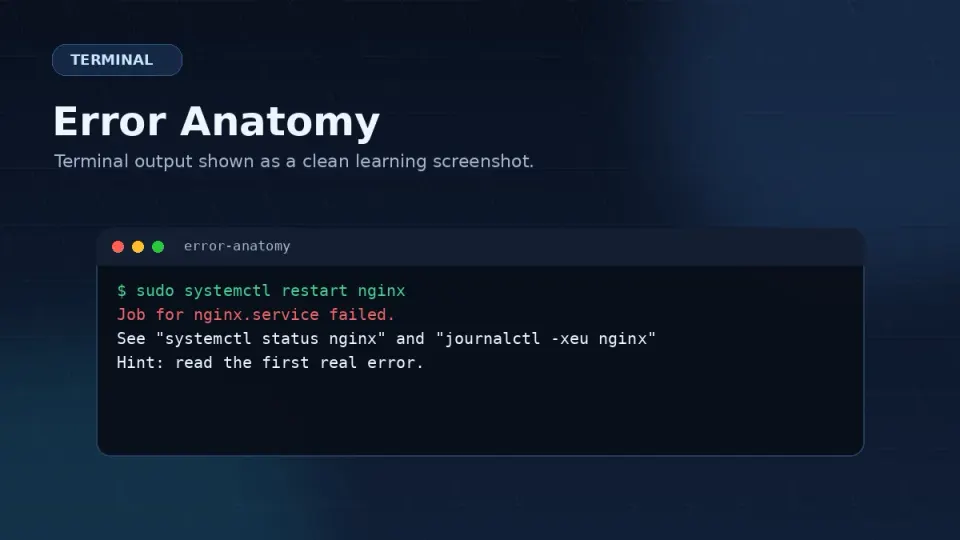
The Four Errors You’ll See Most
Permission denied
nginx: [warn] could not build optimal types_hash
open() "/var/www/site/wp-config.php" failed (13: Permission denied)
What it means: A process is trying to read or write a file it doesn’t have access to.
Why it happens on WordPress VPS: Nginx runs as the nginx user on Rocky Linux. If your WordPress files are owned by a different user, Nginx can’t read them.
How to fix it:
First, check who owns the files:
ls -la /var/www/yoursite/Then check which user Nginx is running as:
ps aux | grep nginxFix ownership to match:
sudo chown -R nginx:nginx /var/www/yoursite/Fix permissions:
sudo find /var/www/yoursite/ -type f -exec chmod 644 {} \;
sudo find /var/www/yoursite/ -type d -exec chmod 755 {} \;Real scenario: You upload WordPress files via SFTP as your own user. The files get owned by you, not by nginx. Nginx tries to serve them, gets permission denied, and your site returns a 403 error. Fix: chown -R nginx:nginx /var/www/yoursite/.
502 Bad Gateway
2026/06/01 14:23:11 [error] 1234#1234: *1 connect() to unix:/run/php-fpm/www.sock failed
(111: Connection refused) while connecting to upstream
What it means: Nginx received the request but couldn’t get a response from PHP-FPM.
Most common causes:
- PHP-FPM isn’t running
- The socket path in your Nginx config doesn’t match where PHP-FPM is actually listening
How to diagnose:
# Check if PHP-FPM is running
sudo systemctl status php-fpm

# If it's stopped, start it
sudo systemctl start php-fpm

# Check the socket path PHP-FPM is using
sudo grep -r "listen" /etc/php-fpm.d/www.conf
Then check that your Nginx config references the same socket path:
sudo grep -r "fastcgi_pass" /etc/nginx/conf.d/Both need to reference the same socket file. If they don’t match, that’s your problem.
Connection refused
curl: (7) Failed to connect to localhost port 80: Connection refusedWhat it means: Nothing is listening on that port. The service is either not running or crashed on startup.
How to diagnose:
sudo systemctl status nginx
sudo systemctl status php-fpm
sudo systemctl status mariadb
One of these will show a failure. Start with the one related to what you were trying to do. The status output usually contains the specific error that caused the startup failure.
No such file or directory
open() "/etc/nginx/conf.d/site.conf" failed (2: No such file or directory)What it means: Exactly what it says. The file or path doesn’t exist.
Common causes:
- Typo in a file path
- File was created in the wrong location
- File was accidentally deleted
How to check:
ls /etc/nginx/conf.d/If the file isn’t there, either create it or check whether you made a typo in the path.
The Old Way and the New Way
Before AI: Debugging a server error meant a specific sequence of frustration.
Copy the error message. Search it on Google. Find a forum post that’s almost-but-not-quite the same problem. Try the suggested fix. Get a different error. Search that. Read three more forum posts with conflicting advice. Eventually find something that works, or give up and rebuild the server.
Nginx config errors were the worst. The error messages were technically accurate but required enough context to interpret that a beginner couldn’t easily connect them to a solution. I spent hours on single errors. There were points where I seriously considered abandoning VPS entirely and going back to managed hosting.
Now: Copy the exact error message. Open Claude or ChatGPT. Paste the error and add a sentence of context: what you were trying to do, what OS you’re on. Ask what the error means and how to fix it.
In most cases you get a clear explanation and specific commands within 30 seconds.
This is a genuine change in what’s practical for a VPS beginner. The knowledge barrier still exists — you need to understand what the AI is telling you well enough to verify it makes sense before running it. But the research time that used to make debugging exhausting is largely gone.
A Debug Workflow That Actually Works
When something breaks, run through this sequence before doing anything else:
# 1. Check service status — which service failed?
sudo systemctl status nginx
sudo systemctl status php-fpm
sudo systemctl status mariadb

# 2. Read the error log for that service
sudo tail -n 50 /var/log/nginx/error.log
sudo tail -n 50 /var/log/php-fpm/error.log

# 3. Test Nginx config for syntax errors
sudo nginx -t

# 4. If still unclear — paste the error into AI with context
This sequence catches 80% of problems. The remaining 20% — paste the exact error into AI and describe what you were trying to do.
The goal isn’t to become a server debugging expert. The goal is to know enough to identify what’s wrong and get it fixed without rebuilding from scratch.