There’s a famous meme about Vim: “How do I exit Vim?” It has millions of views. The Stack Overflow question asking exactly that has been viewed over two million times.
This is not because developers are incompetent. It’s because Vim has a genuinely steep learning curve, an interface that gives you no hints, and a mode system that behaves in ways that surprise almost everyone the first time.
For a VPS beginner, the answer is simple: don’t start with Vim. Use Nano.
Nano — The Editor That Tells You What to Do
Nano is a terminal text editor that shows its keyboard shortcuts at the bottom of the screen at all times.
^G Help      ^O Write Out  ^W Where Is  ^K Cut       ^T Execute
^X Exit      ^R Read File  ^\ Replace   ^U Paste     ^J Justify
The ^ symbol means Ctrl. So ^X means Ctrl+X to exit.
This changes everything for a beginner. You never have to remember the commands — they’re right there.
Opening a file with Nano:
nano /etc/nginx/conf.d/site.conf
sudo nano /etc/nginx/conf.d/site.conf   # for files that need root access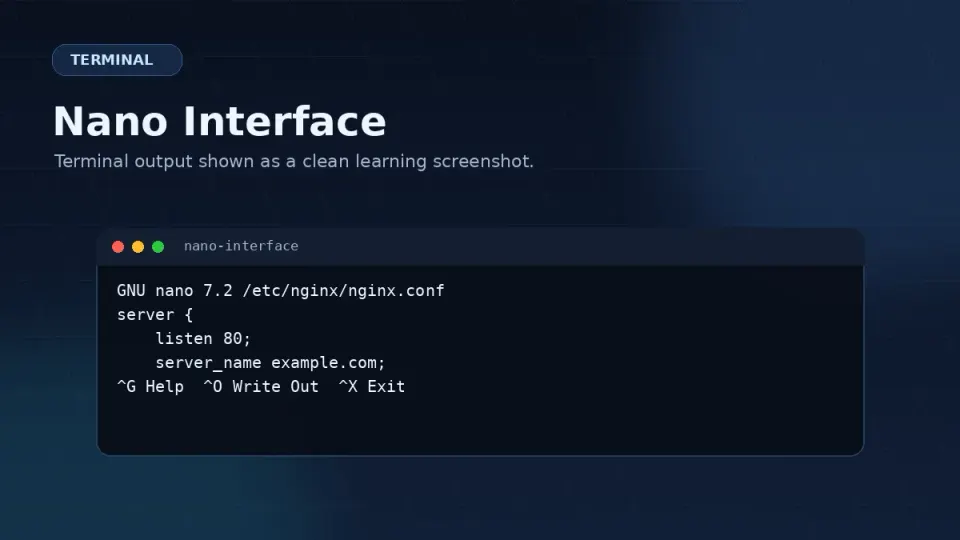
The four Nano actions you’ll use constantly:
| Action | Keys |
|---|---|
| Save file | Ctrl+O → Enter |
| Exit | Ctrl+X |
| Save and exit | Ctrl+O → Enter → Ctrl+X |
| Search for text | Ctrl+W |
That’s it. Everything else in Nano is optional.
Editing an Nginx config in Nano — what it looks like:
# Open the file
sudo nano /etc/nginx/conf.d/yoursite.conf

# Make your changes using arrow keys to navigate
# Save: Ctrl+O, then Enter
# Exit: Ctrl+X

# After saving, test the config
sudo nginx -t

# If test passes, reload Nginx
sudo systemctl reload nginx
This is the exact sequence you’ll repeat dozens of times while setting up WordPress on a VPS. Nano makes it predictable.
Vim — What It Is and Why It’s Confusing
Vim is a modal editor. It has different modes, and keys behave differently depending on which mode you’re in.
In Normal mode (where Vim starts), pressing i doesn’t type the letter i. It switches you to Insert mode, where you can type text. Pressing Escape takes you back to Normal mode.
This is not intuitive. When you open Vim for the first time, you press keys expecting to type — and nothing visible happens, or something unexpected happens, or your cursor jumps somewhere strange.
There is no shortcut bar. Vim gives you no hints. It assumes you already know how it works.
The modes you need to know:
| Mode | How to enter | What it does |
|---|---|---|
| Normal | Escape | Navigate, run commands. Default when you open Vim |
| Insert | i from Normal | Type text like a normal editor |
| Command | : from Normal | Run commands like save and quit |
Vim Survival — The Commands You Must Know
You don’t need to learn Vim. But there’s a real chance you’ll open it by accident — some tutorials use vi instead of nano, and vi often opens Vim. You need to know how to get out.
How to exit Vim without saving:
Escape
:q!
Enter
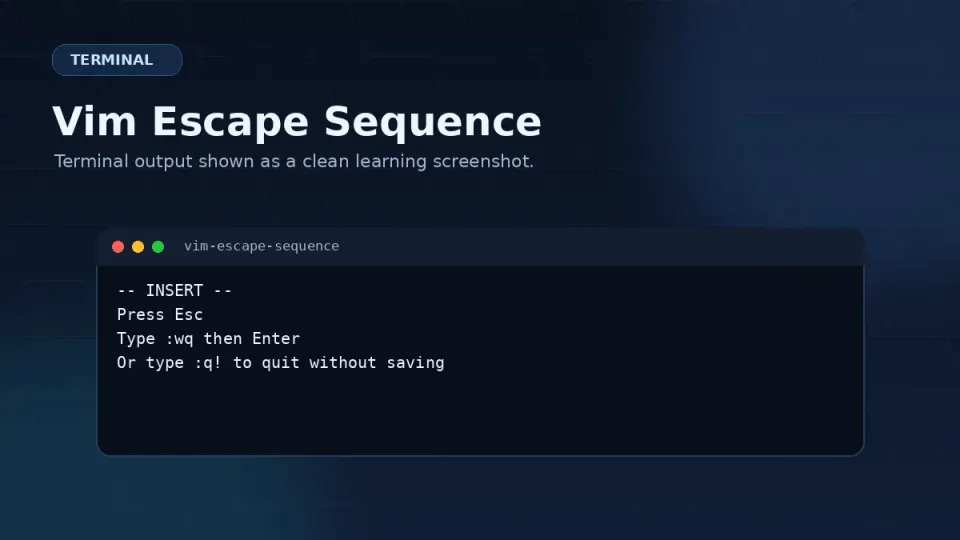
Step by step: press Escape to make sure you’re in Normal mode. Type :q! — the colon starts a command, q means quit, ! forces quit without saving. Press Enter.
How to save and exit Vim:
Escape
:wq
Enter
w writes (saves) the file, q quits.
How to enter Insert mode to actually type something:
iPress i from Normal mode. You’ll see -- INSERT -- at the bottom of the screen. Now you can type. When done, press Escape to return to Normal mode, then :wq to save and quit.
What You’ll Actually Edit on a VPS
The files you’ll edit most throughout this series — and in general VPS management:
Nginx configs (/etc/nginx/conf.d/*.conf) — the most frequent. Every site you add means creating or editing a server block. You’ll do this repeatedly.
PHP-FPM pool config (/etc/php-fpm.d/www.conf) — once during setup, occasionally when tuning performance.
wp-config.php — during WordPress installation, and occasionally when adding Redis object cache configuration.
SSH config (/etc/ssh/sshd_config) — once during security setup in Part 3.
Crontab — when setting up backup automation in Part 7.
All of these work perfectly in Nano. Open the file, make the change, Ctrl+O to save, Ctrl+X to exit, test the config, reload the service. That’s the complete workflow.
A Note on VSCode Remote
If you’re comfortable with VSCode, there’s a Remote SSH extension that lets you edit server files in a full graphical editor. You connect to your VPS and browse the filesystem in VSCode’s sidebar.
It’s a legitimate option — particularly useful when making changes to multiple files or doing more complex work. The downside: it requires a stable internet connection and isn’t available in all server contexts (emergency recovery, minimal servers, scripts).
For this series, Nano is the right choice because it works in every scenario without dependencies. Once you’re comfortable with VPS work, VSCode Remote is worth exploring.
The Short Version on Editor Wars
Vim enthusiasts are passionate. There are developers who have used Vim for decades and can edit files faster than most people can think. That’s real.
It’s also not relevant to where you are right now.
You need to edit an Nginx config file. Nano opens, shows you what to do, lets you make the change, and gets out of your way. That’s what you need.
Learn Vim when you’re curious about it, not because you feel like you’re supposed to.