Every file on a Linux server has a permission attached to it. That permission controls who can read it, write to it, or execute it — and which users fall into which category.
When this is set up correctly, you never think about it. When it’s wrong, you get a wall of permission errors and a WordPress site that can’t do basic things.
This article explains the system once, clearly, so you can fix any permission error you encounter without reaching for chmod 777.
How Permissions Work
Run ls -la in any directory and you’ll see something like this:
-rw-r--r--  1 nginx nginx  4521 Jun 1 10:00 wp-config.php
drwxr-xr-x  5 nginx nginx  4096 Jun 1 10:00 wp-content
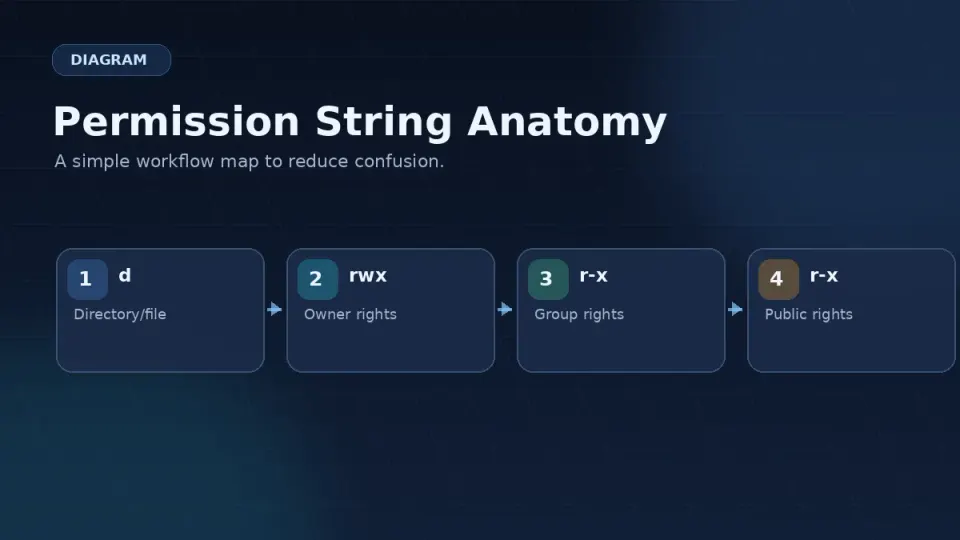
The first column — -rw-r--r-- or drwxr-xr-x — is the permission string. It has 10 characters.
Character 1 — file type:
-= regular filed= directory
Characters 2–4 — owner permissions (what the file’s owner can do)
Characters 5–7 — group permissions (what members of the file’s group can do)
Characters 8–10 — everyone else (any other user on the system)
Each group of three uses the same letters:
r= read (view file contents or list directory)w= write (modify file or create files in directory)x= execute (run file as a program, or enter directory)-= permission not granted
Reading a Real Example
-rw-r--r-- nginx nginx wp-config.phpBreaking this down:
-— regular file (not a directory)rw-— owner (nginx) can read and write. Cannot executer--— group (nginx) can read onlyr--— everyone else can read only
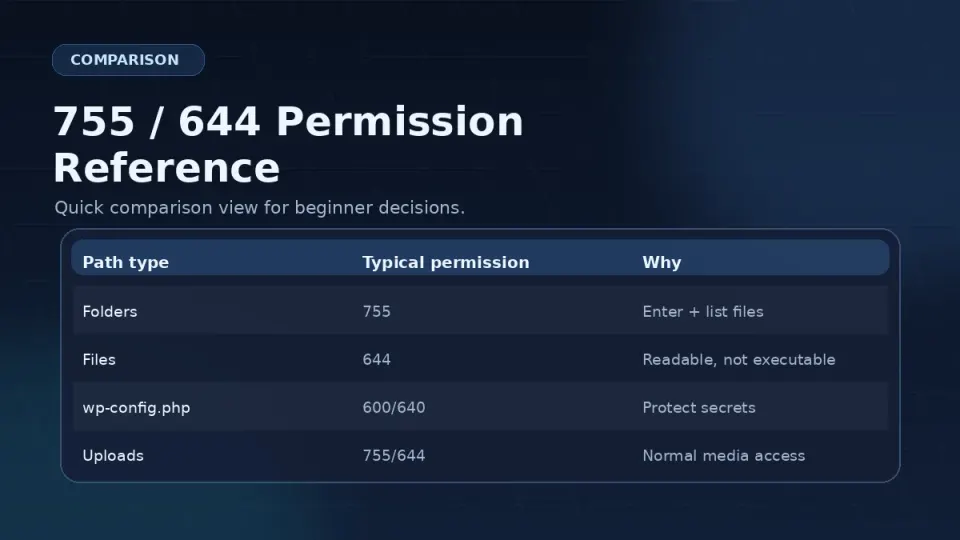
This is 644 in numeric notation — the standard for WordPress files.
drwxr-xr-x nginx nginx wp-contentd— directoryrwx— owner (nginx) can read, write, and enterr-x— group can read and enter, but not create files insider-x— everyone else can read and enter
This is 755 — the standard for WordPress directories.
The Numbers — How 644 and 755 Work
Each permission (r, w, x) has a numeric value:
r= 4w= 2x= 1
Add them for each group:
rwx= 4+2+1 = 7r-x= 4+0+1 = 5rw-= 4+2+0 = 6r--= 4+0+0 = 4
So:
- 755 = owner rwx (7), group r-x (5), others r-x (5)
- 644 = owner rw- (6), group r— (4), others r— (4)
You don’t need to calculate this from scratch every time. Just remember the two numbers that matter for WordPress: 644 for files, 755 for directories.
Why Ownership Matters as Much as Permissions
Permissions tell you what’s allowed. Ownership tells you who the rules apply to.
On Rocky Linux, Nginx runs as the nginx user. When Nginx serves a WordPress page, it’s doing so as nginx. If your WordPress files are owned by a different user — say, your SSH login user — Nginx hits the “everyone else” permission tier, not the “owner” tier.
This means even files with 644 permissions can fail if ownership is wrong. The owner gets rw-. Everyone else gets r--. Nginx is everyone else.
Fix: make nginx the owner.
sudo chown -R nginx:nginx /var/www/yoursite/-R applies the change recursively to everything inside the directory.
The Four WordPress Permission Errors and How to Fix Them
1. WordPress can’t upload images
Symptom: Media uploader fails. Error: “Unable to create directory wp-content/uploads.”
Cause: The wp-content/uploads directory isn’t owned by nginx, or doesn’t have write permissions.
Fix:
sudo chown -R nginx:nginx /var/www/yoursite/wp-content/uploads
sudo chmod -R 755 /var/www/yoursite/wp-content/uploads
2. Nginx returns 403 Forbidden
Symptom: Browser shows a 403 error. Nginx error log shows: open() "/var/www/yoursite/index.php" failed (13: Permission denied)
Cause: Nginx can’t read the files — wrong ownership or overly restrictive permissions.
Fix:
sudo chown -R nginx:nginx /var/www/yoursite/
sudo find /var/www/yoursite/ -type f -exec chmod 644 {} \;
sudo find /var/www/yoursite/ -type d -exec chmod 755 {} \;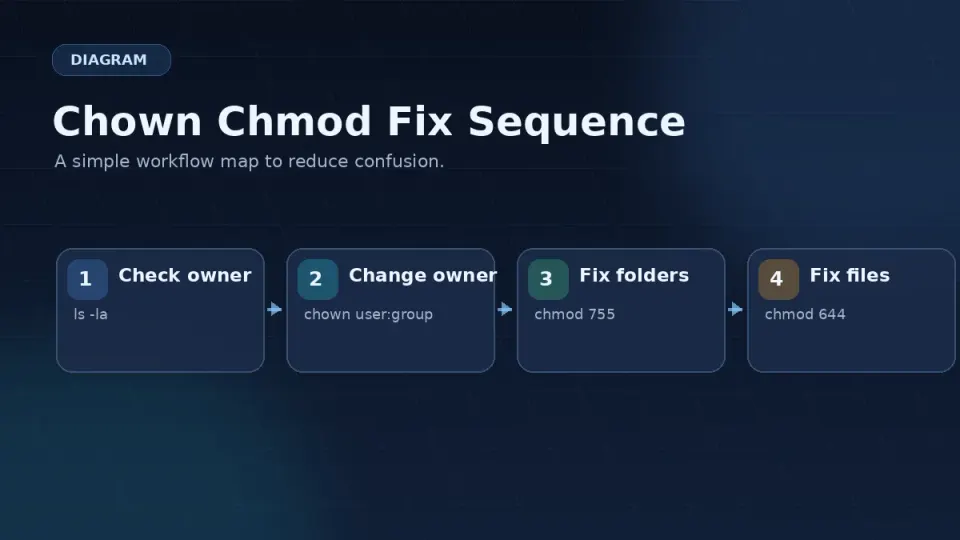
3. WordPress can’t install or update plugins
Symptom: Plugin installation fails with “Could not create directory.”
Cause: The wp-content/plugins directory isn’t writable by Nginx.
Fix:
sudo chown -R nginx:nginx /var/www/yoursite/wp-content/
sudo chmod -R 755 /var/www/yoursite/wp-content/
4. SSH won’t connect — “bad permissions” on key file
Symptom: SSH refuses to use your key file. Error: WARNING: UNPROTECTED PRIVATE KEY FILE! Permissions 0644 for '/home/user/.ssh/id_rsa' are too open.
Cause: SSH requires private key files to be readable only by the owner. Group or world-readable keys are rejected as a security measure.
Fix:
chmod 600 ~/.ssh/id_rsa
chmod 700 ~/.ssh/
600 means owner read/write only — no group, no others.
Why chmod 777 Is Always the Wrong Answer
777 gives read, write, and execute to everyone — owner, group, and any other process or user on the system.
When you’re frustrated by a permission error, chmod 777 fixes it immediately. That’s why people use it. The problem: it stays that way.
On a web server, 777 means any PHP script executed by your site — including code inside an insecure plugin — can write to that file. It’s not a theoretical risk. Compromised WordPress plugins that write malicious files to the server are real and common.
The correct fix takes two commands instead of one. That’s the full cost of doing it right.
The Quick Reference
# Set standard WordPress permissions
sudo chown -R nginx:nginx /var/www/yoursite/
sudo find /var/www/yoursite/ -type f -exec chmod 644 {} \;
sudo find /var/www/yoursite/ -type d -exec chmod 755 {} \;

# Fix uploads directory specifically
sudo chown -R nginx:nginx /var/www/yoursite/wp-content/uploads
sudo chmod -R 755 /var/www/yoursite/wp-content/uploads

# Fix SSH key permissions
chmod 600 ~/.ssh/id_rsa
chmod 700 ~/.ssh/

# Check current permissions
ls -la /var/www/yoursite/
Save these. You’ll come back to them.