Part 1.5 covered file permissions in detail. This article applies that knowledge specifically to WordPress on Rocky Linux with Nginx — the right commands, in the right order.
The Two Commands That Fix Everything
Run these from the web root directory after extracting WordPress:
# Set ownership — nginx user and group owns everything
sudo chown -R nginx:nginx /var/www/yourdomain.com/

# Set permissions — 644 for files, 755 for directories
sudo find /var/www/yourdomain.com/ -type f -exec chmod 644 {} \;
sudo find /var/www/yourdomain.com/ -type d -exec chmod 755 {} \;
Then secure wp-config.php separately:
sudo chmod 640 /var/www/yourdomain.com/wp-config.phpThat covers the entire WordPress installation. The rest of this article explains why, and fixes for when things still don’t work.
Why nginx and Not www-data
Rocky Linux runs Nginx as the nginx user. Ubuntu runs it as www-data. This is the single most common source of permission confusion when following tutorials written for Ubuntu.
If your files are owned by www-data on Rocky Linux, Nginx can’t read them — it’s a different user.
Verify which user your Nginx process runs as:
ps aux | grep nginx | grep -v grepThe second column after nginx in the output shows the user. On Rocky Linux it will be nginx.
WordPress-Specific Directories
Some WordPress directories need write access for specific features:
wp-content/uploads/ — media library uploads wp-content/plugins/ — plugin installations wp-content/themes/ — theme installations wp-content/cache/ — caching plugins
All of these are covered by chown -R nginx:nginx and chmod 755 on directories. Nginx can write to them because it owns them.
If WordPress still can’t write to these directories after setting permissions:
# Check SELinux context on Rocky Linux
sudo ls -laZ /var/www/yourdomain.com/wp-content/

# Fix SELinux context if needed
sudo restorecon -R /var/www/yourdomain.com/
SELinux on Rocky Linux adds a second layer of access control beyond standard Unix permissions. restorecon resets file contexts to their defaults — fixes most SELinux-related WordPress permission issues.
The Three Errors and Their Fixes
403 Forbidden on the site:
# Ownership wrong — fix it
sudo chown -R nginx:nginx /var/www/yourdomain.com/
sudo chmod 755 /var/www/yourdomain.com/
WordPress can’t upload images:
sudo chown -R nginx:nginx /var/www/yourdomain.com/wp-content/uploads/
sudo chmod -R 755 /var/www/yourdomain.com/wp-content/uploads/
WordPress can’t install plugins or themes:
sudo chown -R nginx:nginx /var/www/yourdomain.com/wp-content/
sudo chmod -R 755 /var/www/yourdomain.com/wp-content/
All three fixes follow the same pattern: chown to nginx, chmod 755 on the affected directory.
Verify
# Check WordPress root
ls -la /var/www/yourdomain.com/ | head -5

# Check wp-config.php specifically
ls -la /var/www/yourdomain.com/wp-config.php

# Check uploads directory
ls -la /var/www/yourdomain.com/wp-content/uploads/
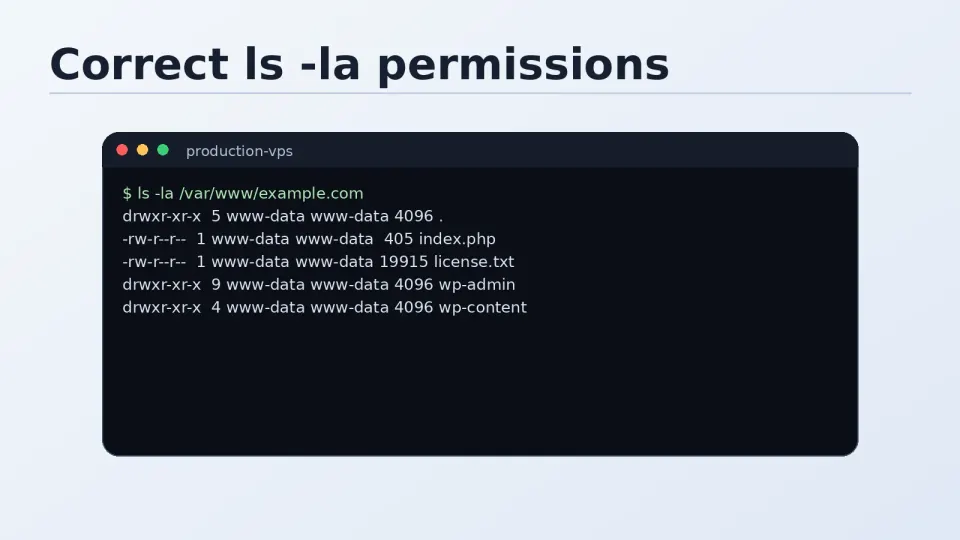
Expected output pattern:
-rw-r--r-- nginx nginx  wp-cron.php
drwxr-xr-x nginx nginx  wp-content/
-rw-r----- nginx nginx  wp-config.php   ← 640, not 644
Permissions set — next step is SSL.