This is not a theoretical article about commands you might someday encounter. Every mistake described here has happened to real people — including me. Some happened to me more than once before the habits stuck.
Read this before you need it.
The Story of How I Lost 10 Websites
I was working inside a project folder. The path was something like:
/home/mydomain.com/public_html/tmp/I wanted to delete the tmp directory — a temporary folder full of cache files I didn’t need anymore. The correct command was:
rm -rf /home/mydomain.com/public_html/tmp/What I actually typed, after a moment of not paying attention:
rm -rf /One missing path segment. The space between rf and / — that forward slash without anything after it means the root of the entire filesystem.
The command ran immediately. No confirmation. No “are you sure?” Linux trusts you to know what you’re asking for.
Within seconds, system files started disappearing. Nginx gone. MariaDB gone. PHP gone. The WordPress files for every site I was hosting — gone. The server became unresponsive before I could do anything. When I tried to SSH back in, there was nothing left to connect to.
More than 10 websites. Gone instantly. Not a single warning.
I had backups on Google Drive — source files, not databases. I had no database backups at that moment. Recovery took the better part of a day: provision a new server, reinstall everything, restore files, rebuild databases from partial exports I happened to have lying around.
The databases I couldn’t fully recover, I rebuilt from scratch.
That was the day I started taking snapshots seriously.
The Commands Worth Understanding
rm -rf — The Most Dangerous Routine Command
rm -rf /path/to/delete # correct — specific pathrm -rf / # catastrophic — root filesystem
rm -rf ./ # deletes everything in current directoryrm deletes files. -r makes it recursive (deletes directories and their contents). -f forces deletion without confirmation prompts.
Used correctly — rm -rf /var/www/oldsite/ — it’s a normal part of server work. Used with a wrong path, it’s irreversible data loss.
The specific risk for beginners: When you’re new to working with file paths, it’s easy to lose track of where you are and what a relative path like ./ or ../ points to. Always run pwd before rm -rf to confirm your current directory.
> — The Silent File Overwriter
echo "new content" >> important-config.conf # appends to the end ✓echo "new content" > important-config.conf # overwrites everything in the file ✗The > operator redirects output into a file. If the file exists, it replaces the entire contents with whatever comes before the >. This happens silently — no warning, no confirmation.
I’ve overwritten Nginx config files this way. The entire server block, gone, replaced with a single line of text. Recovery: restore from the .bak file I’d made before editing.
The habit: Before editing any config file, copy it:
cp /etc/nginx/conf.d/site.conf /etc/nginx/conf.d/site.conf.bakTakes two seconds. Has saved hours multiple times.
dd — Low-Level Disk Operations
dd if=/dev/sda of=/dev/sdb # copy disk sda to disk sdbdd if=/dev/zero of=/dev/sda # overwrite disk sda with zeros — unrecoverabledd operates directly on disk devices, bypassing the filesystem. Used correctly, it’s a powerful tool for disk cloning and backup. With a wrong device path, it overwrites an entire disk — including the operating system — with no recovery possible.
For VPS work in this series, you won’t need dd. If you ever encounter it in a tutorial, read carefully before running it.
kill -9 1 — Stopping the Init Process
kill -9 1 # sends SIGKILL to process ID 1 — immediate system shutdownProcess ID 1 is the init process — the first process the kernel starts, the parent of everything else running on the system. Killing it with signal 9 (SIGKILL, which cannot be ignored) causes an immediate system shutdown or kernel panic.
On a VPS, this means your server goes offline. You reconnect through the Vultr console, reboot, and investigate. It’s recoverable — but disruptive.
Again: you won’t encounter this in normal work. But knowing it exists means you won’t accidentally run it while debugging something else.
Three Habits That Protect You
These aren’t suggestions. After losing 10 websites to a typo, these are the habits I follow without exception.
Habit 1: Take a Vultr Snapshot Before Significant Changes
A snapshot captures the entire state of your server at a point in time. If something goes catastrophically wrong after the snapshot, you restore it and lose only the work done since then.
When to take a snapshot:
- Before major system updates
- Before changing Nginx or PHP-FPM configuration significantly
- Before installing new server software
- Before anything you’re not fully confident about
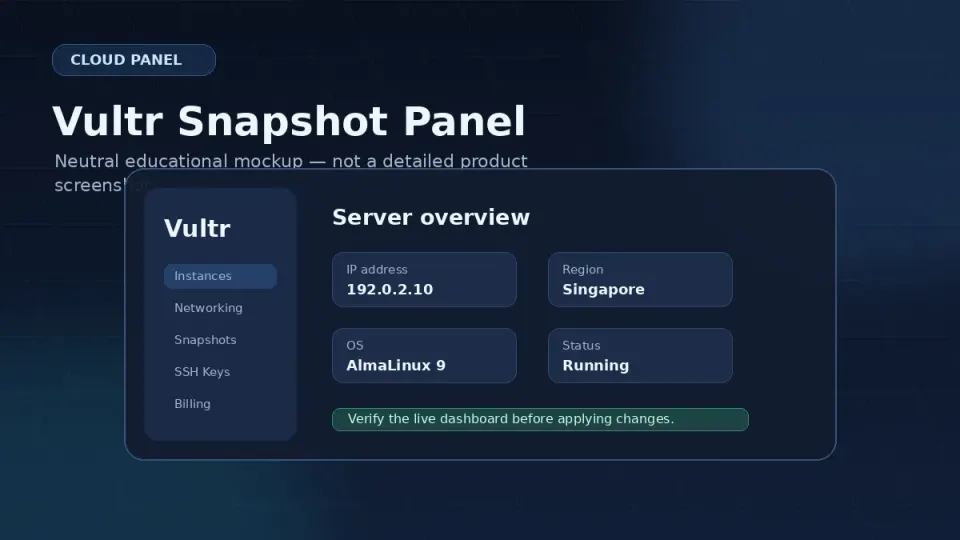
Snapshots on Vultr cost a small amount (based on server size). For the protection they provide, it’s the most cost-effective insurance on the server.
A developer-friendly cloud VPS provider with simple instances, predictable infrastructure building blocks, and global locations. This is the kind of hosting I use when I want to own the WordPress stack instead of renting a polished control panel.
Get Vultr →Affiliate link — I may earn a commission at no cost to you.
Habit 2: Read the Full Command Before Pressing Enter
This sounds obvious. It isn’t always practiced.
Before pressing Enter on any destructive command — especially rm, dd, or anything with sudo — read the entire command. Check:
- Is the path correct?
- Am I in the directory I think I’m in? (
pwd) - Does this do what I intend, or what I think I typed?
The rm -rf / incident happened because I was moving quickly and didn’t read what I’d typed. One extra second of attention would have caught it.
For rm specifically, always verify your current location first:
pwd                           # confirm where you are
ls                            # confirm what's here
rm -rf ./tmp/                 # then delete
Habit 3: Backup Before You Edit
Before editing any configuration file:
cp /etc/nginx/conf.d/site.conf /etc/nginx/conf.d/site.conf.bakBefore any database operation that modifies data:
mysqldump -u root -p database_name > backup_$(date +%Y%m%d).sqlBefore a major WordPress update or plugin change:
- Take a Vultr snapshot, or
- Run your backup script manually
These habits don’t prevent every problem. They convert catastrophes into inconveniences.
Part 1 Complete
This is the last article in Part 1 — Terminal & Linux Basics.
You now have what you need to work in a terminal without being afraid of it, read and respond to error messages, edit configuration files, understand file permissions, and recognize the commands worth being careful around.
Part 2 moves into the practical work: buying a VPS, connecting to it for the first time, and doing the initial setup that makes it safe to build on.