PHP is the engine that runs WordPress. Every time someone visits a WordPress page, PHP processes the request, talks to the database, and generates the HTML. PHP-FPM (FastCGI Process Manager) is how PHP runs alongside Nginx — as a separate process that Nginx communicates with via a socket or TCP port.
Why Rocky Linux Needs the Remi Repository
Rocky Linux 9’s default repositories include PHP 8.1. This works for WordPress, but PHP 8.1 reaches end of life in November 2025 — meaning no more security updates. PHP 8.2 and 8.3 are the currently maintained versions.
The Remi repository is a well-maintained third-party source that provides current PHP versions for RHEL-based systems including Rocky Linux. It’s widely used, trusted, and what most Rocky Linux hosting guides recommend.
Step 1 — Add the Remi Repository
# Install EPEL first (Remi depends on it)
sudo dnf install epel-release -y

# Add the Remi repository
sudo dnf install https://rpms.remirepo.net/enterprise/remi-release-9.rpm -y
Step 2 — Enable PHP 8.3
Rocky Linux uses module streams to manage PHP versions. Reset any existing PHP module and enable 8.3:
sudo dnf module reset php -y
sudo dnf module enable php:remi-8.3 -y
To use PHP 8.2 instead, replace remi-8.3 with remi-8.2. Both are fine for WordPress.
Step 3 — Install PHP-FPM and WordPress Extensions
sudo dnf install php php-fpm php-mysqlnd php-xml php-gd php-mbstring php-curl php-zip php-pecl-redis php-intl -yWhat each extension does:
| Extension | Purpose |
|---|---|
php-fpm | PHP FastCGI Process Manager |
php-mysqlnd | MariaDB/MySQL connection (required) |
php-xml | XML processing — sitemaps, feeds |
php-gd | Image resizing and manipulation |
php-mbstring | Multibyte string support |
php-curl | HTTP requests — API calls, updates |
php-zip | Plugin/theme installation |
php-pecl-redis | Redis object cache connection |
php-intl | Internationalization support |
Verify the installation:
php -vOutput should show PHP 8.3.x.
Step 4 — Configure PHP-FPM
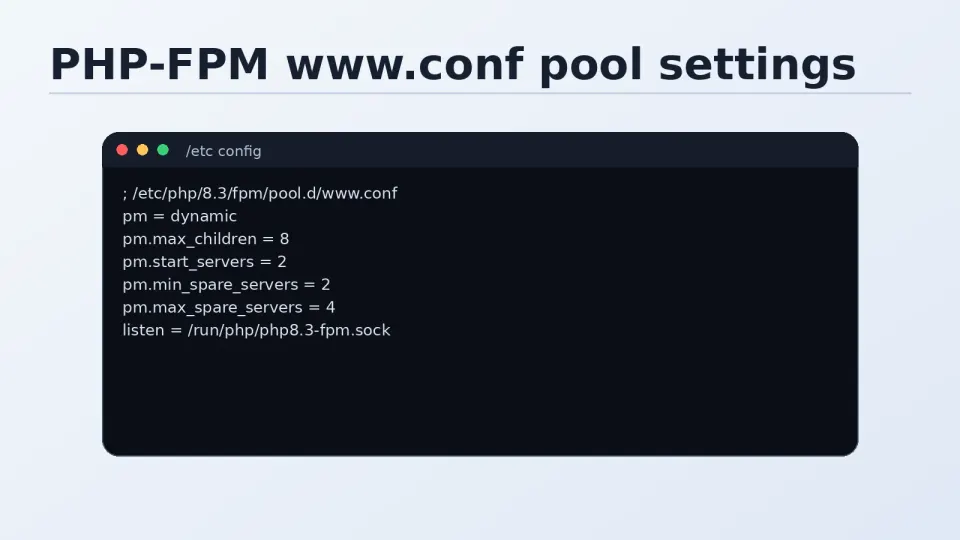
PHP-FPM’s main config for the default pool is at /etc/php-fpm.d/www.conf. Open it:
sudo nano /etc/php-fpm.d/www.confFind and update these values:
Change the user and group to nginx:
user = nginx
group = nginx
By default this is set to apache. Since you’re running Nginx, it needs to match.
Confirm the socket listener:
listen = /run/php-fpm/www.sockThis is the Unix socket path. Note it — you’ll need it in the next article when configuring Nginx.
Set socket ownership so Nginx can read it:
listen.owner = nginx
listen.group = nginx
listen.mode = 0660
Save and exit: Ctrl+O, Enter, Ctrl+X.
Unix Socket vs TCP Port — What You’re Actually Choosing
If you look at /etc/php-fpm.d/www.conf and see listen = 127.0.0.1:9000, that’s TCP port mode. The listen = /run/php-fpm/www.sock line switches it to Unix socket mode.
TCP port 9000:
- Nginx sends PHP requests to
localhost:9000over the network stack - Works even if PHP-FPM and Nginx are on different servers
- Slightly more overhead than socket
Unix socket:
- Nginx communicates through a file on the filesystem
- Faster because it bypasses the network stack entirely
- Only works when both services are on the same server (which they are here)
For a single-server WordPress VPS, Unix socket is the better choice. The performance difference is small but measurable on a low-spec VPS — fewer CPU cycles spent on network overhead means more available for PHP and database work.
The socket path /run/php-fpm/www.sock is what goes into the Nginx server block config in the next article.
Step 5 — Enable and Start PHP-FPM
sudo systemctl enable --now php-fpmVerify:
sudo systemctl status php-fpmactive (running) means PHP-FPM is running and waiting for connections.
Confirm the socket file was created:
ls -la /run/php-fpm/www.sockYou should see the socket file listed. If it’s not there, PHP-FPM didn’t start correctly — check the status output for errors.
Step 6 — Test PHP is Working
Create a quick PHP info file in the web root:
echo "<?php phpinfo(); ?>" | sudo tee /usr/share/nginx/html/phpinfo.phpVisit in your browser: http://your-server-ip/phpinfo.php
You should see the PHP info page showing version 8.3.x and all installed extensions.
Important — delete this file after testing:
sudo rm /usr/share/nginx/html/phpinfo.phpThe PHP info page exposes server configuration details. Never leave it on a production server.
Troubleshooting
PHP-FPM fails to start:
sudo journalctl -u php-fpm --no-pager | tail -20Usually a config error in www.conf — check the user/group settings match nginx.
502 Bad Gateway when accessing phpinfo.php: Nginx can’t reach PHP-FPM. Common causes:
- Socket file doesn’t exist (
ls /run/php-fpm/www.sock) - Socket path in Nginx config doesn’t match
www.conf - PHP-FPM not running (
systemctl status php-fpm)
phpinfo.php shows blank page:
PHP is running but something is wrong with the script processing. Check /var/log/php-fpm/error.log.