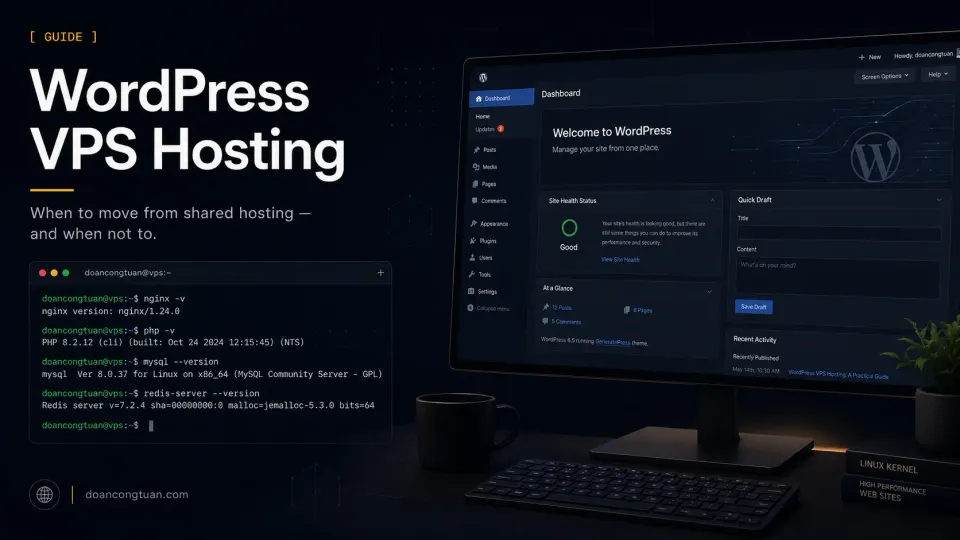
Official references: Use WordPress’s hosting requirements as the baseline for PHP, database, web server, and HTTPS support. For SSL setup on Nginx, Certbot’s Nginx instructions are the closest official reference for this stack.
What WordPress VPS Hosting Actually Means
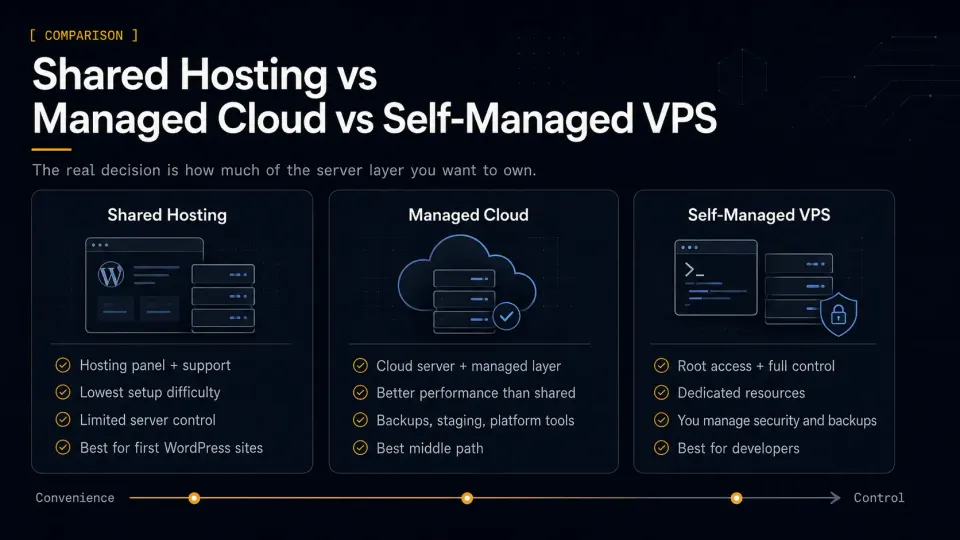
VPS stands for Virtual Private Server. You get a portion of a physical server with dedicated RAM, CPU, and storage — not shared with other customers the way shared hosting works.
What shared hosting gives you: A managed environment where the host handles the server. You get a panel (cPanel, hPanel), 1-click WordPress installs, and support when things break. You do not control the web server, PHP version choices, database configuration, or caching layers below the plugin level.
What self-managed VPS gives you: A blank Linux server. You install the operating system, configure the web server, set up PHP, install and configure the database, handle SSL, build backup workflows, and manage security. When something breaks, you fix it.
If you later add server-level caching or object caching, the technical primitives are documented in the Nginx FastCGI module docs and the Redis docs.
What managed cloud hosting (Cloudways) gives you: The middle path. Cloud infrastructure from providers like DigitalOcean or Vultr, with a managed server layer that gives you platform tools for backups, staging, security settings, and server configuration. You still manage the WordPress site itself — plugins, themes, content, and business logic — but you do not need to manage Linux directly.
The choice between these three paths depends on one question: how much of the server do you want to own?
Shared Hosting vs VPS vs Managed WordPress: A Practical Comparison
| Factor | Shared Hosting | Self-Managed VPS | Winner |
|---|---|---|---|
| Setup difficulty | Easy — control panel, 1-click install | Hard — Linux, Nginx, PHP, DB from scratch | Shared Hosting |
| Server control | Limited — panel only, no Nginx/PHP-FPM access | Full — root access, configure everything | Self-Managed VPS |
| Performance ceiling | Shared resources, limited by hosting plan | Dedicated resources, scales with your config | Self-Managed VPS |
| Cost | From $2-3/mo (promo), higher at renewal | From $6-12/mo, predictable pricing | Depends |
| Who handles problems | Hosting support | You | Shared Hosting |
| Redis, custom Nginx, PHP-FPM tuning | Not available on most shared plans | Full control | Self-Managed VPS |
| Right for beginners | Yes | No — requires Linux knowledge | Shared Hosting |
Managed cloud hosting (Cloudways) sits between these two: cloud infrastructure performance, with server management handled by the platform. Cloudways usually costs more than going directly to the cloud provider because you are paying for the managed layer. Check current pricing before choosing a plan.
When a WordPress Site Should Move to VPS
There is no single traffic number that triggers the decision. I have seen simple WordPress blogs run fine on shared hosting at thousands of visitors per day. I have also seen WooCommerce sites with heavy product data struggle at a few hundred.
The real signals are operational, not numerical:
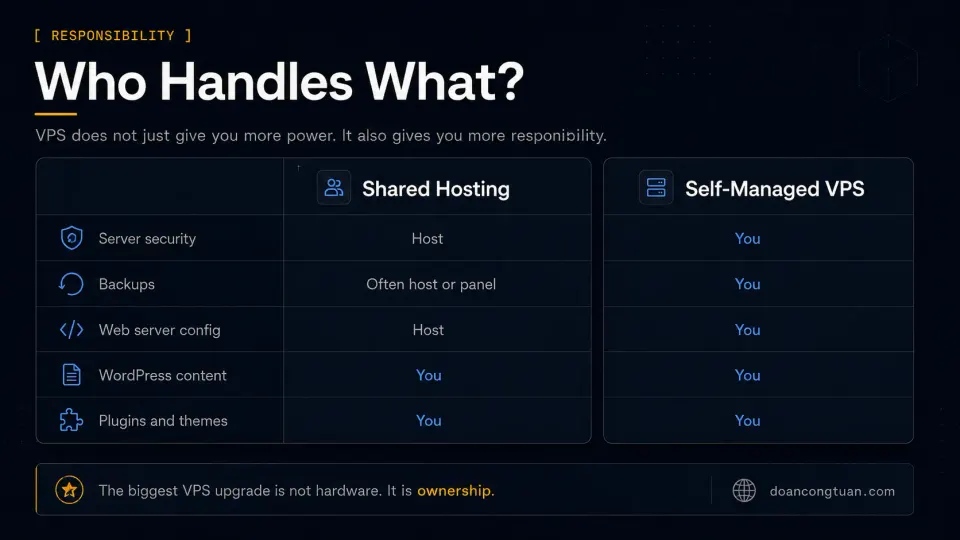
Your wp-admin dashboard is consistently slow. Not just occasionally — consistently. If navigating the backend feels painful every time, and the site is configured reasonably, the server is the bottleneck.
You are hitting hosting resource limits. CPU throttling errors, process limit notices, or your host warning you about excessive resource usage are clear signals that shared hosting is not sized for your workload.
You need server-level caching. Nginx FastCGI cache, Redis object cache, and PHP-FPM tuning are not available on most shared hosting environments. If you need these — for a WordPress site doing serious traffic, for a WooCommerce store, or for a product-heavy affiliate site — shared hosting is the wrong environment.
You are running multiple sites that no longer fit one shared account. Multiple WordPress installs with their own PHP-FPM pools, databases, Nginx server blocks, and cache layers start making more economic and operational sense on a single VPS than across several shared hosting accounts.
Your workflow requires things shared hosting blocks. SSH access, custom deploy scripts, static export workflows, cron job control, and specific PHP configuration that the hosting panel does not expose.
When VPS Is a Bad Idea
VPS is not always the right upgrade. It is wrong when:
You are building your first WordPress site. The learning curve of self-managed VPS is real. If you spend two weeks learning firewalld before writing your first post, that is two weeks of content not published. Shared hosting lets you focus on the site.
Your client needs to manage the site after handoff. Most small business clients — a tutoring center, a local shop, a personal blog — need a dashboard, not a terminal. They need fewer things to break, not more control. Putting a non-technical client on a self-managed VPS means every problem becomes your emergency.
You want convenience, not control. If the appeal of VPS is “it sounds more professional” rather than a specific technical requirement, it is probably not the right call yet. Move when hosting becomes the bottleneck, not when the server setup sounds impressive.
You do not have a backup plan. VPS comes with no automatic backups unless you configure them. No support team will restore your site. If your backup habit is not solid before you move to VPS, the risk profile is much higher than shared hosting.
Full disclosure: I avoided learning server management for years. Then my projects gave me no choice. It worked out, but I would not recommend that specific learning path to anyone.
My Practical WordPress VPS Stack
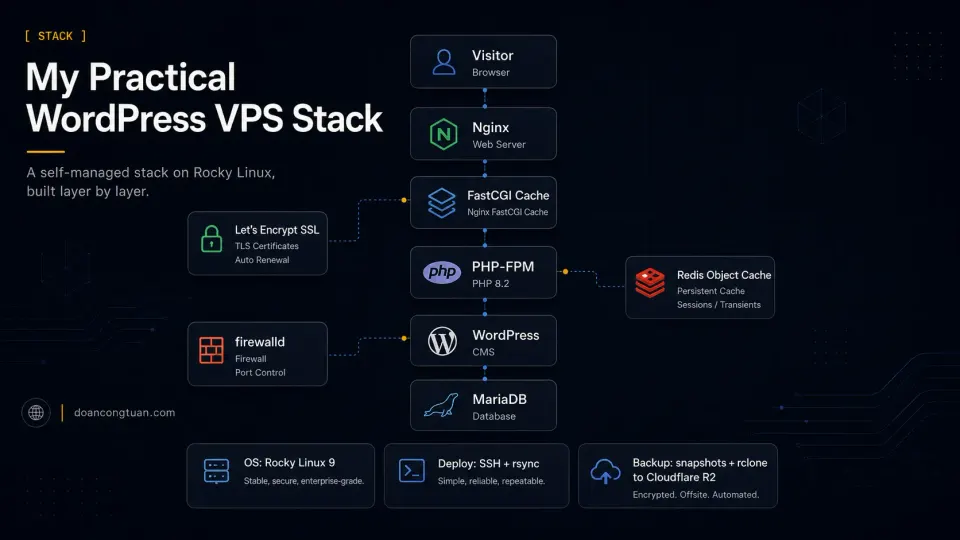
For reference: my current production VPS is a Vultr Cloud Compute instance running around $20/month in the Singapore data center. The stack:
- OS: Rocky Linux 9
- Web server: Nginx with FastCGI cache
- PHP: PHP-FPM
- Database: MariaDB
- Object cache: Redis
- SSL: Let’s Encrypt via Certbot
- Firewall: firewalld
- Deploy: SSH + rsync for Astro builds
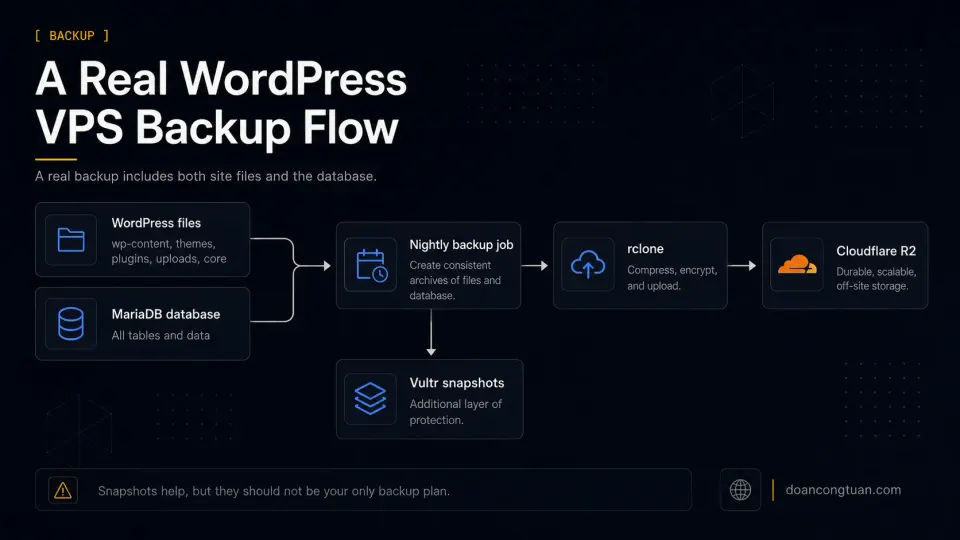
- Backup: Vultr snapshots + rclone to Cloudflare R2 nightly
I chose Rocky Linux because I started in the CentOS/HocVPS era and followed the community when it moved to Rocky Linux. This means my config examples use Rocky Linux paths — /etc/nginx/conf.d/, firewalld, the nginx user — which differ from Ubuntu-based tutorials. Both work. The path notation is different.
The full stack setup is documented in the WordPress VPS series, and the practical version I use is explained in my WordPress VPS stack. This pillar is about the decision, not the commands.
Vultr vs Cloudways vs Hostinger: Which Path Makes Sense?
These three represent three meaningfully different approaches, not three versions of the same thing.
| Path | Best for | Main advantage | Main trade-off | My recommendation |
|---|---|---|---|---|
| Hostinger | Beginners, first WordPress sites, simple blogs | Low cost, easy setup, hosting panel, support | Less server-level control | Start here if you do not know whether you need VPS yet. |
| Cloudways | Growing WordPress sites, agencies, people who want managed cloud | Cloud infrastructure with a managed server layer | Higher cost than direct VPS, still not fully hands-off WordPress management | Use this when shared hosting feels limiting but you do not want Linux admin work. |
| Vultr | Developers, technical site owners, multi-site or custom stacks | Full root access, control, predictable cloud VPS pricing | You manage performance, security, backups, email, and mistakes | Use this when you actually want control and are ready to own the stack. |
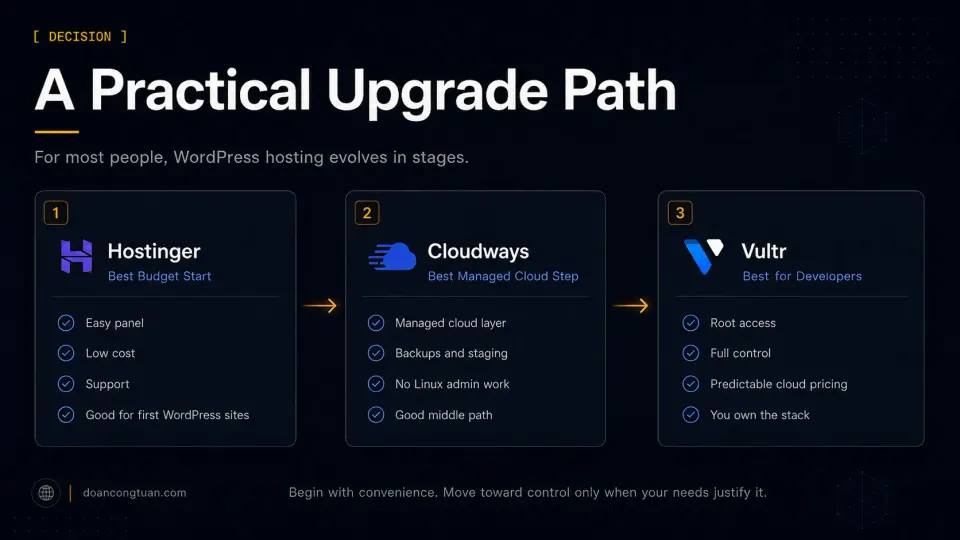
Hostinger is where I would point a complete beginner. It is budget shared hosting with LiteSpeed servers, hPanel for management, and pricing that makes sense for a first site. The performance is above average for the price tier. You do not need SSH. When something breaks, there is support. The LiteSpeed Cache plugin helps with performance without requiring server configuration. Start here if you are not sure whether you need a VPS yet.
Cloudways is the middle path. It runs on DigitalOcean, Vultr, AWS, or GCP infrastructure, but gives you a managed server layer: platform backups, staging, security settings, server configuration, and a clean dashboard. You do not need to configure Nginx directly. You still manage the WordPress side yourself — plugins, themes, content, updates, and business logic. The trade-off is a management fee on top of the underlying server cost. Based on documentation and community feedback, it is the option I would recommend for developers or agencies who want VPS-level performance but do not want to manage Linux.
Vultr (self-managed) is what I use. Full root access, configure everything, fix everything yourself. The hourly billing and clean control panel make it easy to test and iterate. Singapore and Tokyo data centers cover Southeast Asia latency well. The VPS starts at $6/mo but realistically runs $12-20/mo for a properly configured WordPress stack. You become the support team, which is a fair trade if you want to understand what is underneath your sites.
Self-managed cloud VPS. Full control, hourly billing, Southeast Asia data centers. What I run my own projects on.
Get Vultr →Affiliate link — I may earn a commission at no cost to you.
How Much RAM Does a WordPress VPS Need?
The question is worth answering directly because the range matters:
- $6/mo (1GB RAM): Enough for a static site or light testing. WordPress can run on it but gets tight with caching layers and any traffic.
- $12/mo (2GB RAM): A comfortable single-site WordPress setup. Nginx, PHP-FPM, MariaDB, and Redis all fit. One optimized site runs well here.
- $20-24/mo (4GB RAM): Multiple WordPress sites, WooCommerce with active sessions, or a busier single site. Current production comfort zone.
- Higher: Only when workload proves it is necessary.
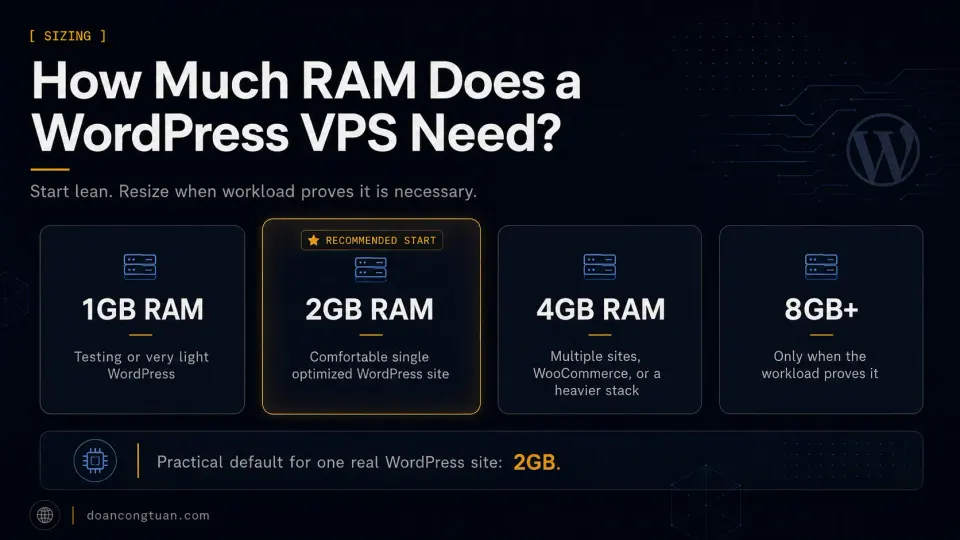
Start at 2GB and resize when traffic or workload pushes against it. Resizing a Vultr instance takes a few minutes. Do not over-provision for future traffic that may not arrive.
One practical note: if you run WP Rocket alongside Nginx FastCGI cache, WP Rocket generates static HTML files in wp-content/cache/. On a small instance, this can fill disk faster than expected. Run du -sh /var/www/*/wp-content/cache/ occasionally to check.
Security, Backups, Email, and Updates: The Hidden Work
This section is the part most VPS marketing skips. VPS is presented as “faster WordPress hosting.” Nobody mentions these four things until you actually have a server.
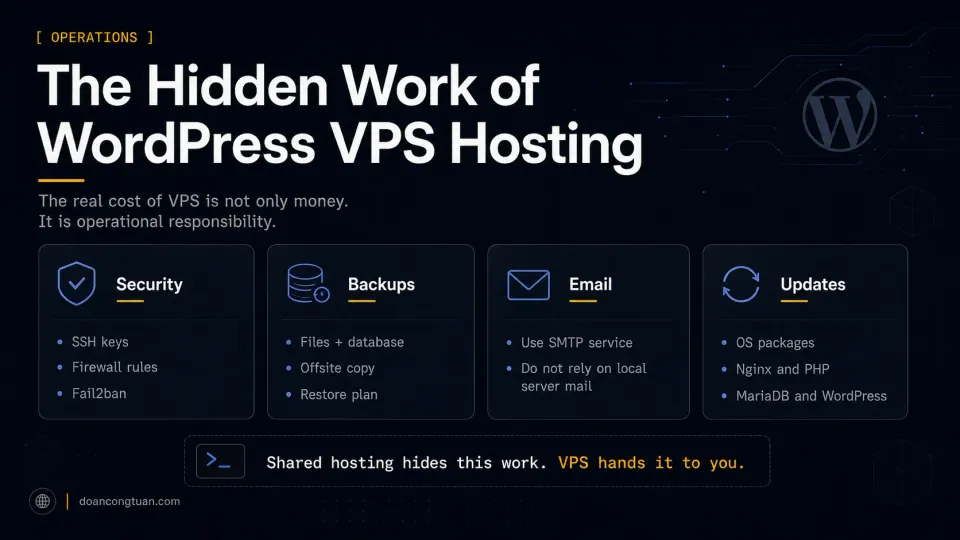
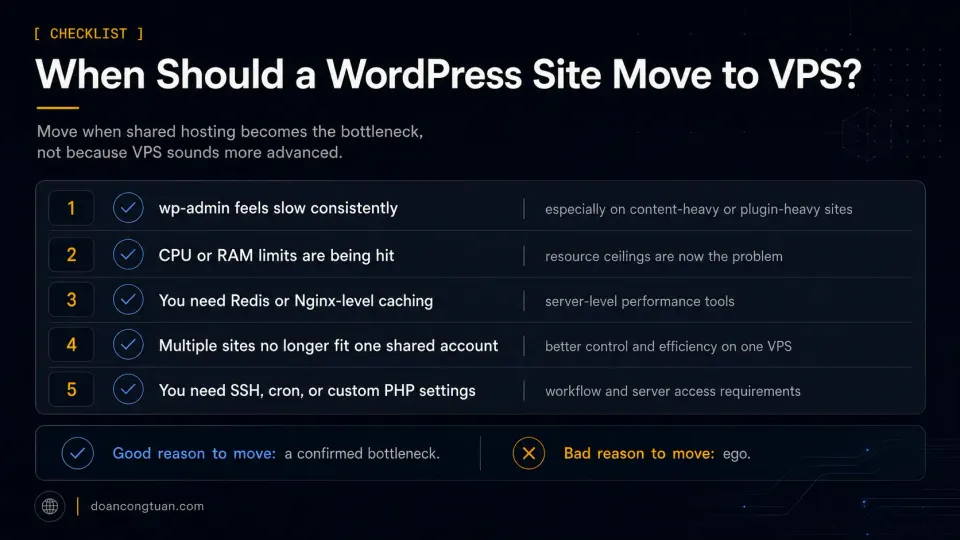
Security: On shared hosting, your host handles server-level security. On VPS, that is your job. This means: SSH keys (not just password), changing the default SSH port, firewalld or UFW rules, Fail2ban for brute-force protection, and staying on top of OS and package updates. I did not start caring about SSH security because a tutorial told me to. I started caring when I logged into the server and saw repeated failed login attempts from similar IP ranges. That changes how abstract security advice feels.
Backups: VPS providers do not automatically back up your site. Vultr has an optional backup add-on, and I also run rclone to Cloudflare R2 nightly. For WordPress specifically, a real backup means both files and database. Copying the files without the database is not a backup — WordPress stores posts, settings, users, and all plugin data in the database. Learn this before you need it, not after.
Email: Vultr blocks outbound mail server ports by default. This means WordPress contact forms and WooCommerce order emails will not send if you rely on the server’s local mail. The practical workaround is an SMTP plugin for WordPress connected to a third-party email service. A contact form can show “message sent” and still fail to reach anyone if SMTP is not configured correctly. Test it before going live.
Updates: On shared hosting, WordPress auto-updates are usually enabled or handled by the host. On VPS, you are also responsible for OS updates, Nginx updates, PHP version updates, and MariaDB updates — alongside the WordPress core and plugin updates you would handle anyway. The surface area for “things to keep updated” is larger.
Recommended Path for Beginners, Developers, and Affiliate Sites
Different situations call for different paths. Here is a straightforward mapping:
- This is your first WordPress site
- You need support when things break
- Your client manages the site after handoff
- Budget is under $10/month and traffic is modest
- You have not used SSH or a Linux terminal before
- Shared hosting is the confirmed bottleneck for performance
- You need Redis, Nginx, or PHP-FPM-level control
- You run multiple sites that have outgrown shared hosting
- You are ready to own backups, security, and server updates
- You have a specific reason shared hosting cannot solve
The practical upgrade path for most WordPress users:
Hostinger (shared) → Cloudways (managed cloud) → Vultr (self-managed VPS)
Not everyone reaches stage three, and that is fine. Cloudways covers most use cases where shared hosting runs out of headroom. Self-managed VPS is for people who want — or need — to go deeper.
The jump from shared hosting directly to self-managed VPS skips the middle and works better when you already have Linux experience or are willing to invest the time in learning it properly. The WordPress VPS series is the detailed version of how I set up the stack.
A faster server does not automatically create a faster WordPress site. A badly configured VPS running heavy themes and too many plugins can still be slower than a well-tuned shared WordPress install. Move when the hosting is the problem. Then fix the hosting.
Frequently Asked Questions
Is VPS hosting good for WordPress?
How much RAM does a WordPress VPS need?
Is Vultr good for WordPress?
Should beginners use VPS hosting for WordPress?
Is Cloudways easier than managing a VPS yourself?
When should I upgrade from shared hosting to VPS?
Related Pillar Guides
- WordPress performance stack — what to optimize after choosing hosting.
- Best WordPress tools for affiliate sites — themes, SEO, cache, and content tools that pair with hosting.
- WordPress vs modern stack — when WordPress still makes sense, and when Astro or Webflow may be better.
- Astro for WordPress developers — if you are considering static sites instead of running WordPress.
- Best WordPress themes for affiliate sites — theme choices that affect speed, layout, and monetization.