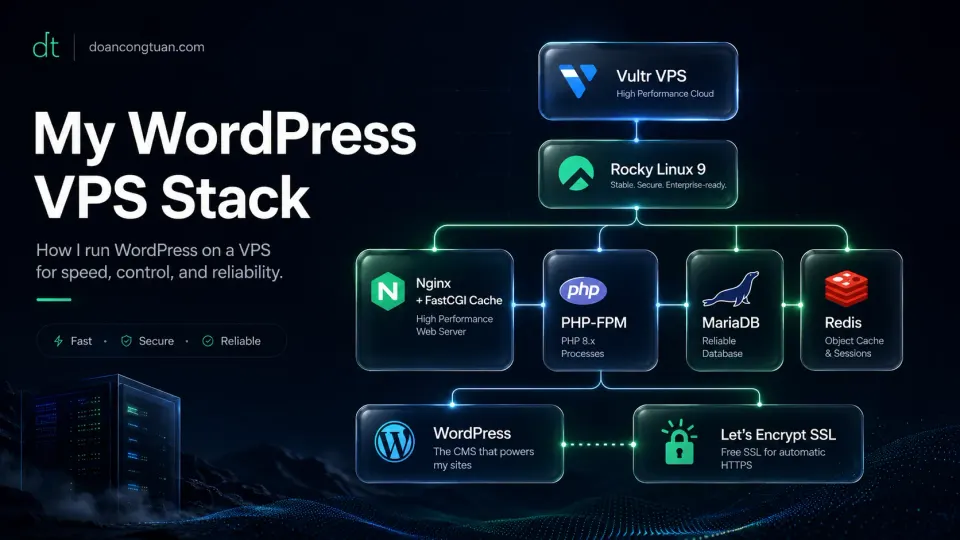
This is the specific stack I use. For the bigger hosting decision, see my WordPress VPS hosting guide. For the speed and bottleneck side, see the WordPress performance stack guide.
The first time I tried to configure Nginx on a VPS, I used a tutorial that was three years old and written for Ubuntu. I was on CentOS. The commands were different. The file paths were different. I spent four hours getting PHP-FPM to talk to Nginx, gave up, and rebuilt the server from scratch the next morning with a better tutorial.
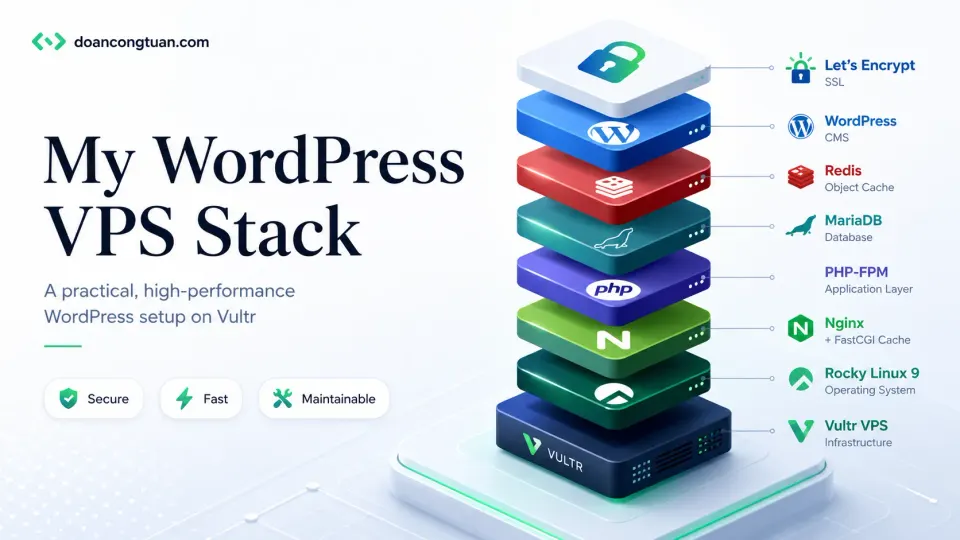
The second attempt worked. The site loaded. FastCGI cache served pages without touching PHP. Redis cut the admin load time noticeably. I sat there genuinely surprised that something I had been putting off for two years was now running, and that I had built it myself.
What I run now is not significantly different from what I had at the end of that second attempt. Rocky Linux instead of Ubuntu. A few more years of tuning. The fundamentals are the same.
Setting up my first VPS was humbling. I now know just enough to break things in more interesting ways.
Quick stack summary
Server:   Vultr Cloud Compute (~$20/mo)
OS:       Rocky Linux 9
Web:      Nginx with FastCGI page cache
PHP:      PHP-FPM (latest stable)
Database: MariaDB
Cache:    Redis (object cache via plugin)
SSL:      Let's Encrypt via Certbot
Deploy:   Custom shell scripts over SSH
Backup:   Vultr snapshots + cron archive script
This stack handles WordPress sites, static Astro builds, and a few small PHP projects all on the same VPS. It is not enterprise architecture. It is a practical setup that works reliably for the scale I need.
Why VPS instead of shared hosting
The short version: I needed server-level configuration that shared hosting does not allow. Custom Nginx rules, PHP-FPM worker pool tuning, Redis as an object cache, FastCGI page caching at the server level. None of that is possible on shared hosting regardless of provider.
The longer version is in When WordPress Outgrows Shared Hosting.
Why Vultr
Hourly billing, no multi-year lock-in, Singapore data center for Southeast Asia latency, and clean control panel. The full case is in the Vultr Review.
Rocky Linux
I use Rocky Linux mostly because of habit from earlier projects. Rocky Linux is a RHEL-compatible distribution that is stable and receives long-term support. It works well for this stack.
For anyone setting up their first VPS: use Ubuntu. Ubuntu has significantly more community documentation, more tutorials, and more StackOverflow answers for the specific errors you will encounter. The stack is identical. The learning curve difference is real.
I would not recommend Rocky Linux specifically to a beginner. I use it because I know it, not because it is the only right answer.
Nginx and FastCGI cache
Nginx is the web server. It handles incoming HTTP requests, serves static files directly, and proxies PHP requests to PHP-FPM.
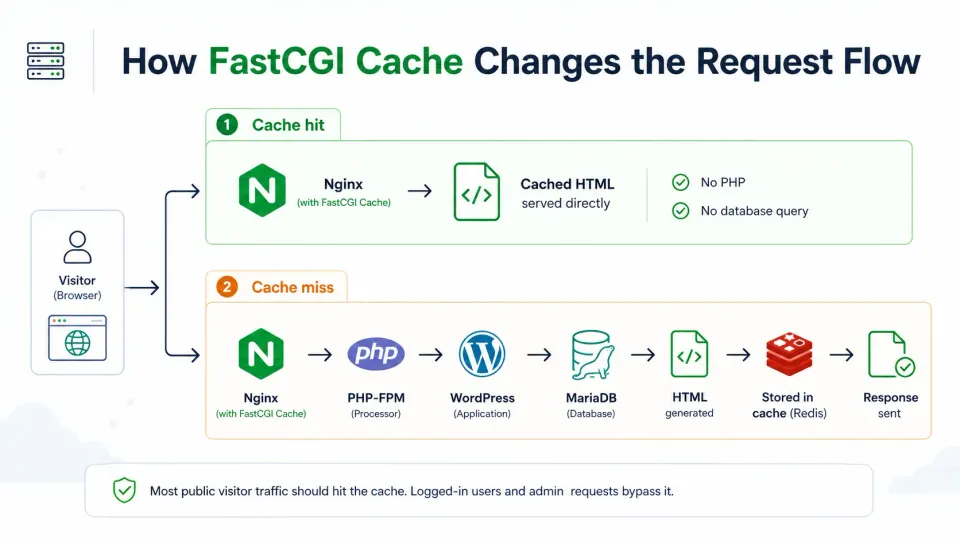
The part that makes the most practical difference: FastCGI cache. Nginx can store complete HTML pages as cached files on disk. When a visitor requests a cached page, Nginx serves it directly without invoking PHP or the database. For WordPress pages with no dynamic per-user content, this means the server handles the request entirely at the web server level.
The performance difference between a cached and uncached WordPress page on this stack is significant. Cached pages return in single-digit milliseconds. Uncached pages that require PHP and database work take considerably longer.
FastCGI cache needs to be configured to skip caching for logged-in users, cart pages, and admin areas. If you cache admin pages, WordPress breaks. The Nginx configuration for this is not complex, but it requires understanding what you are doing.
PHP-FPM
PHP-FPM (FastCGI Process Manager) handles PHP execution. Unlike Apache’s mod_php, PHP-FPM runs as a separate service and manages a pool of PHP worker processes. Nginx passes PHP requests to PHP-FPM via a Unix socket or TCP port.
The practical tuning that matters: worker pool size. PHP-FPM’s pm.max_children setting controls how many PHP processes can run simultaneously. Too low and requests queue up under load. Too high and the server runs out of memory. The right number depends on how much RAM each WordPress process uses on your specific site, which varies based on active plugins and theme.
I tune this based on actual memory usage rather than guessing. The command to see per-process PHP memory:
ps aux --sort=-%mem | grep php-fpmSet pm.max_children to something realistic given your available RAM, with headroom for other services.
MariaDB
MariaDB is a MySQL-compatible database that stores all WordPress content: posts, users, options, and transient data.
The important configuration for a low-resource VPS is limiting MariaDB’s memory usage. Default MariaDB configuration assumes more RAM than a $12/mo VPS has available. The settings that matter most: innodb_buffer_pool_size and query_cache_size. On a 2GB VPS shared with Nginx and PHP-FPM, keeping innodb_buffer_pool_size under 256MB is sensible.
MySQL and MariaDB are interchangeable for WordPress. I use MariaDB because it is the default on Rocky Linux’s repositories and because the licensing is cleaner.
Redis for object cache
Redis is an in-memory data store. For WordPress, it acts as an object cache: it stores the results of database queries in memory so WordPress can retrieve them without repeating the query.
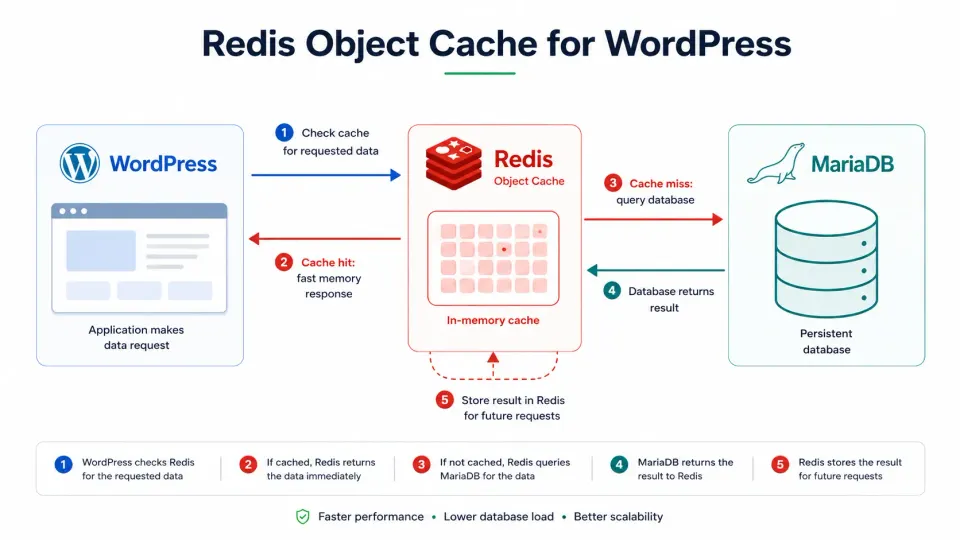
WordPress without an object cache hits the database for the same data repeatedly across a single page load: user data, options, post metadata, term information. Redis stores those results in memory on first request. Subsequent requests within the same (or future) page loads retrieve from memory instead of the database.
The impact is most visible in the WordPress admin, on pages with complex queries, and on sites with many active plugins that each trigger database reads.
To use Redis for WordPress object cache, you need the Redis PHP extension installed on the server and the Redis Object Cache plugin activated in WordPress. The plugin connects to the Redis server and handles cache invalidation when content changes.
Let’s Encrypt SSL
Let’s Encrypt provides free SSL certificates via Certbot. On Rocky Linux with Nginx, the setup is:
dnf install certbot python3-certbot-nginx
certbot --nginx -d yourdomain.com -d www.yourdomain.com
Certbot auto-renews certificates via a systemd timer. I check renewal is working periodically. Running certbot renew --dry-run confirms without actually renewing.
Backup workflow
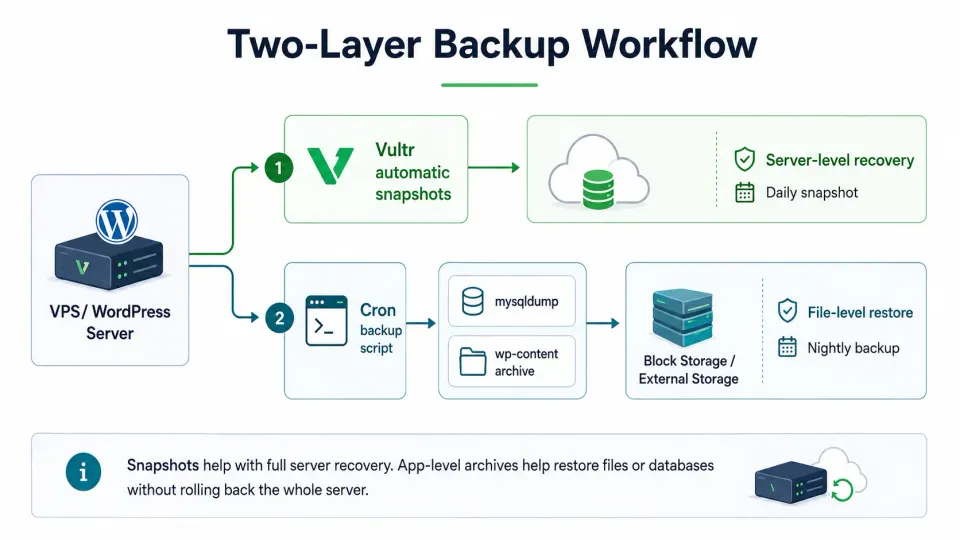
Two layers:
Vultr snapshots: I enable Vultr’s automatic backup add-on for the instance. This creates daily server-level snapshots that can restore the entire server in minutes. Cost is a percentage add-on on the instance price.
Application-level backup script: A cron job runs nightly that dumps the MariaDB databases and archives the WordPress files directory, then copies the archive to block storage. This gives file-level restore capability separate from the full server snapshot.
SSH and deploy workflow
All server management is via SSH. I do not use a control panel. This is a preference, not a requirement. Control panels like CloudPanel or ServerPilot are legitimate options that make VPS management more accessible.
For deploying static Astro builds to the same server:
# Build locally
npm run build

# Deploy via rsync over SSH
rsync -avz --delete dist/ user@server:/var/www/sitename/
The deploy script checks for build errors before syncing. A failed build does not push broken files.
What AI helps me with
I use Claude Code and ChatGPT for server configuration tasks: writing Nginx server block configs, debugging PHP-FPM pool settings, writing cron backup scripts, and troubleshooting errors I have not seen before.
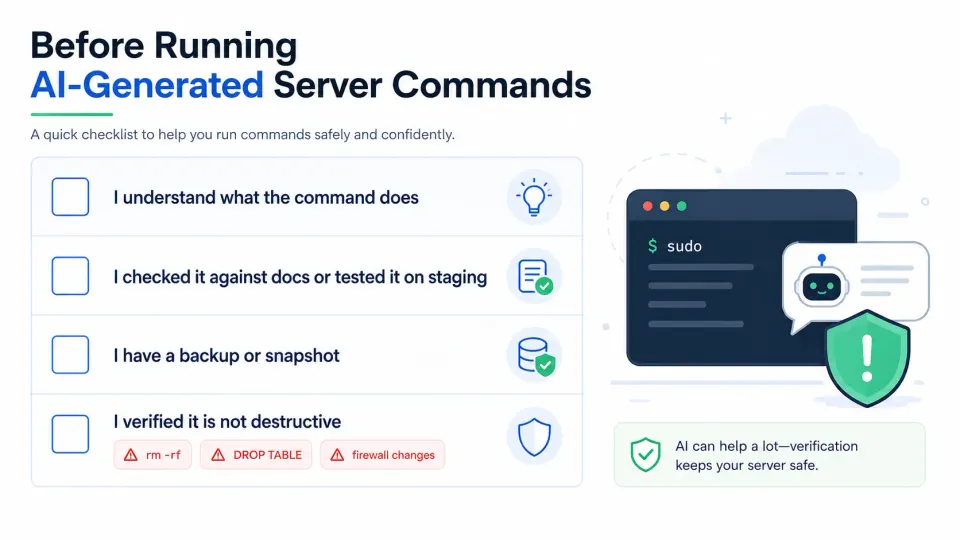
AI-generated server commands are useful. They are not always correct. The workflow I use:
- Ask for the command or config
- Read it and understand what it does
- Test on a staging instance or review against documentation
- Run only when I understand the intent
Never run a command from an AI that you do not understand. The cost of a wrong rm -rf or a misconfigured firewall rule is higher than the time it takes to read the documentation.
What I would not recommend copying blindly
Rocky Linux if this is your first VPS. Use Ubuntu. More documentation, more help.
This exact PHP-FPM pool configuration without tuning. Worker count depends on your server’s RAM and your site’s memory footprint. Defaults are not optimal.
What I would not recommend copying blindly
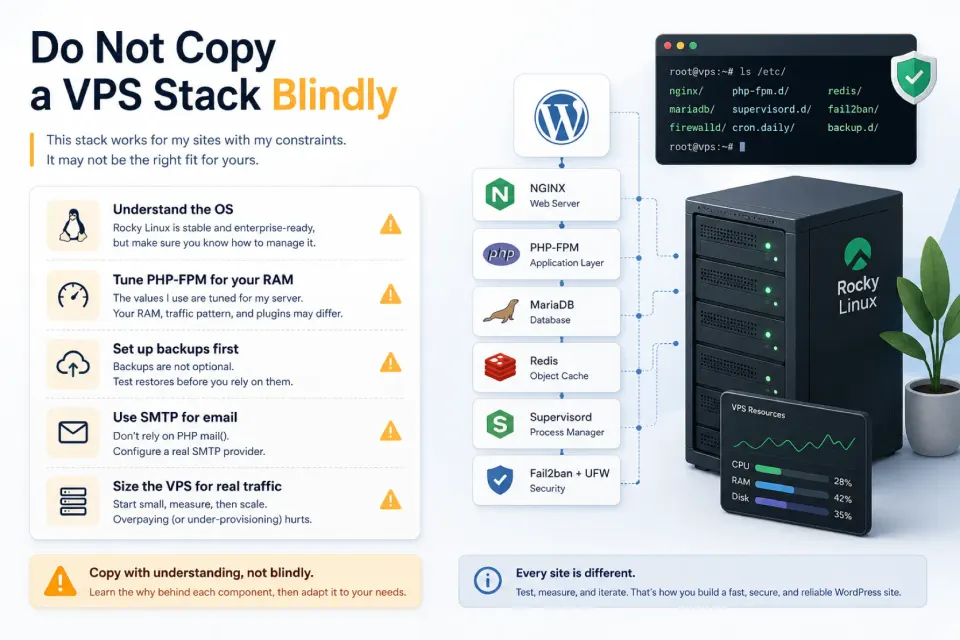
Running without backups. The question is not whether something will break. It is when.
Skipping the SMTP workaround. WordPress email does not work on Vultr by default. Set up an SMTP plugin and external mail service before you assume email is working.
Multiple large WordPress sites on a $6/mo VPS. It will work until it does not. Size your instance based on actual resource usage.
This is my working stack, not the only correct stack
Ubuntu with Apache and mod_php works. Debian with OpenLiteSpeed works. AlmaLinux with MariaDB and Redis works. The specific distribution and web server matter less than whether you understand what each piece does and can diagnose it when something breaks.
What I have described here is what I run because I understand it well enough to fix it. That is the real criteria for any server stack.
Video resource
For Nginx WordPress VPS setup: a verified tutorial video will be added when confirmed. Most available videos use Ubuntu and Apache, which is equally valid for the database and cache layers.
Video needed. Not yet verified. Do not use an unverified URL.
The VPS this stack runs on. Hourly billing, Singapore data center, clean control panel. Full server control, no managed layer.
Get Vultr →Affiliate link — I may earn a commission at no cost to you.