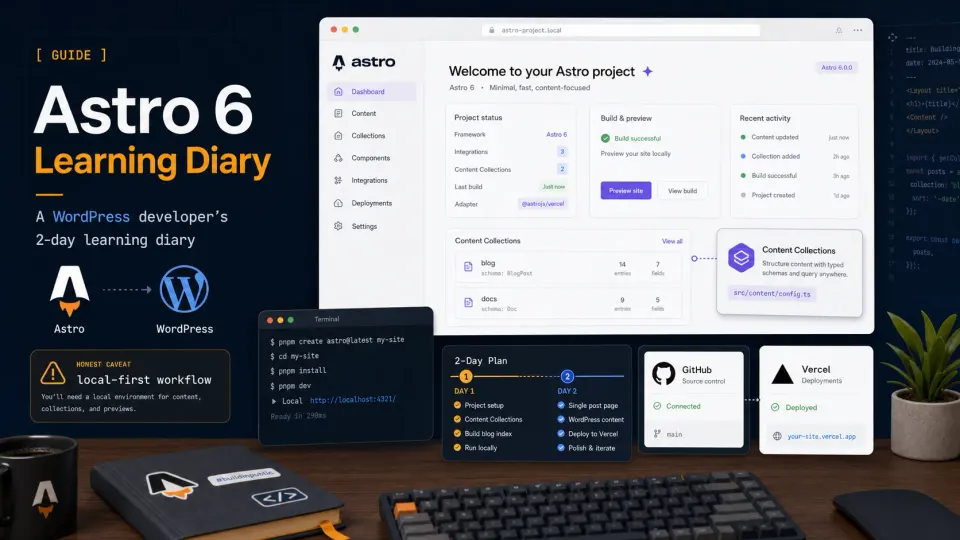
Version note: I built this project with Astro 6.4.7. Astro 7 is now available, and the core local-development, file-based routing, layout, GitHub, and Vercel workflow in this diary still applies. The later Content Collections notes are version-specific, so check the Astro 7 upgrade guide and current documentation before copying that code.
I’ve been building WordPress sites since 2013. Client blogs, WooCommerce stores, coupon sites, affiliate sites. I’ve done all of it. I know the WordPress dashboard the way I know my own kitchen.
One of those sites, a price comparison site, got too heavy to keep fast no matter what I threw at it. That’s what pushed me to research Astro in the first place. Researching a framework and actually building with it are two different things, though. I kept putting off the “actually build something” part.
Then I finally sat down to do it. I thought: how hard can it be? I already know what Astro is supposed to do. I’ll follow a tutorial, spend an afternoon, have something running by dinner.
Two days later, I understood how Astro actually works: local dev, pages, layouts, the mental model shift away from WordPress. Not a finished site. Just enough to stop feeling lost. The full site you’ll see through this series (the blog, reviews, comparisons, and guides) came together over the weeks that followed, as I worked through the rest of this series.
This is the diary of those first two days.
Day 1: The Setup Problem Nobody Warns You About
The first thing that tripped me up wasn’t code. It was workflow.
With WordPress, I work directly on a server. Open cPanel or an SFTP client, edit the file, save it, reload the browser. Done. The “dev environment” is the live server.
In the GitHub-and-Vercel workflow used throughout this series, I run the project locally first, push the code to GitHub, and let Vercel deploy it. That sequence felt backwards to me at first.
Even before I touched any code, I had to make peace with the idea that my laptop would run the development server for this project.
If you’re setting up Astro today, check the official Astro installation guide first. As of this July 2026 update, it requires Node.js 22.12.0 or higher and recommends VS Code with the official Astro extension. Requirements can change, so treat the official guide as the source of truth.
If Node.js is missing on your machine, use the official Node.js website instead of random installer links.
The first actual mistake: the folder name.
The better command is to pass the project name directly:
npm create astro@latest astro-content-labBut the first time I tried Astro, I didn’t know that shortcut. I only ran:
npm create astro@latestAstro asked where to create the project and showed a default name like ./steadfast-spiral. I hit Enter without reading it carefully.
Result: a folder named steadfast-spiral on my desktop instead of astro-content-lab.
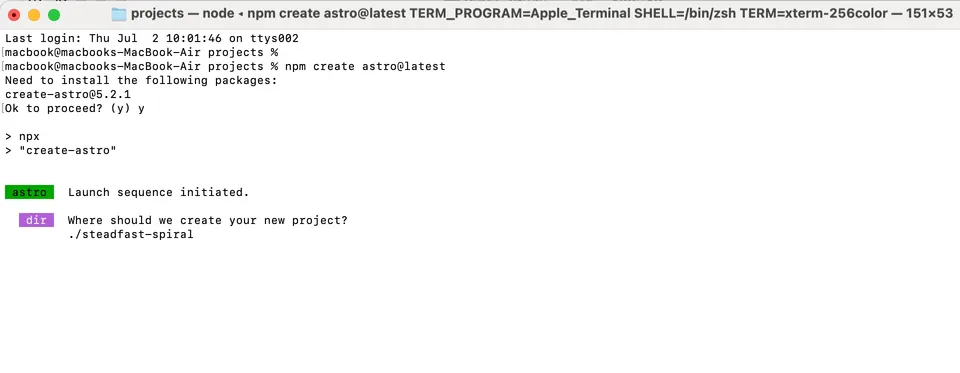
Fix was simple:
mv steadfast-spiral astro-content-lab
cd astro-content-lab
Lesson learned: either pass the project name in the first command, or read what Astro is asking before pressing Enter.
The Dev Server Confusion
After installation, I ran npm run dev and saw this in the terminal:
astro  v6.4.7 ready in 499 ms
┃ Local    http://localhost:4321/
┃ Network  use --host to expose
watching for file changes...
Then nothing happened. The terminal just sat there. I waited. Still nothing.
I assumed something was broken. I stared at it for a few minutes wondering if I should restart.
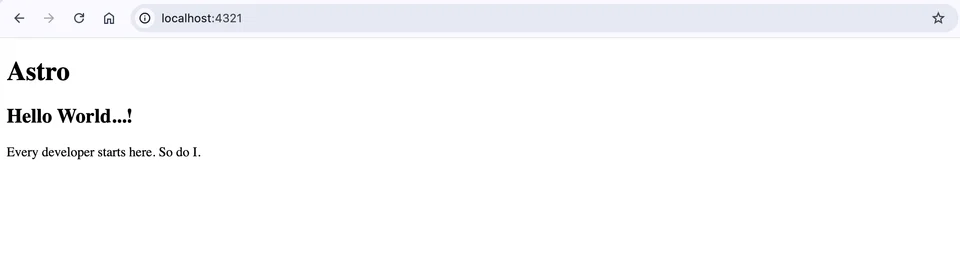
Then I realized: this isn’t a loading screen. It’s a running server. I was supposed to open my browser and go to http://localhost:4321/.
This is obvious if you’ve done local dev before. It wasn’t obvious to me.
In WordPress, Apache or Nginx is already running somewhere on your hosting account. You don’t think about the server because it is hidden behind cPanel, a dashboard, or a hosting panel.
In this project, the terminal window runs the development server. Close it, and localhost:4321 stops responding immediately.
It felt strange at first: the website was alive only because one terminal window was still open.
Important note: keep that terminal window open the whole time you’re working.
Choosing an Editor, and Finding the Terminal Inside It
I’ve been using Textmate for years. Quick file edits, nothing fancy. Works fine for WordPress template files.
For Astro, I moved to VS Code because the project is folder-based, component-based, and much easier to manage with a real project sidebar. If you’re new to this workflow, the step-by-step version is in my first Astro project setup guide.
The command to open a folder in VS Code from your terminal is:
code .Simple. Except it didn’t work for me at first. The terminal said zsh: command not found: code.
The fix was the one-time VS Code shell command setup. I also recommend installing the official Astro VS Code extension for syntax highlighting and editor support.
But the bigger discovery was the terminal inside VS Code.
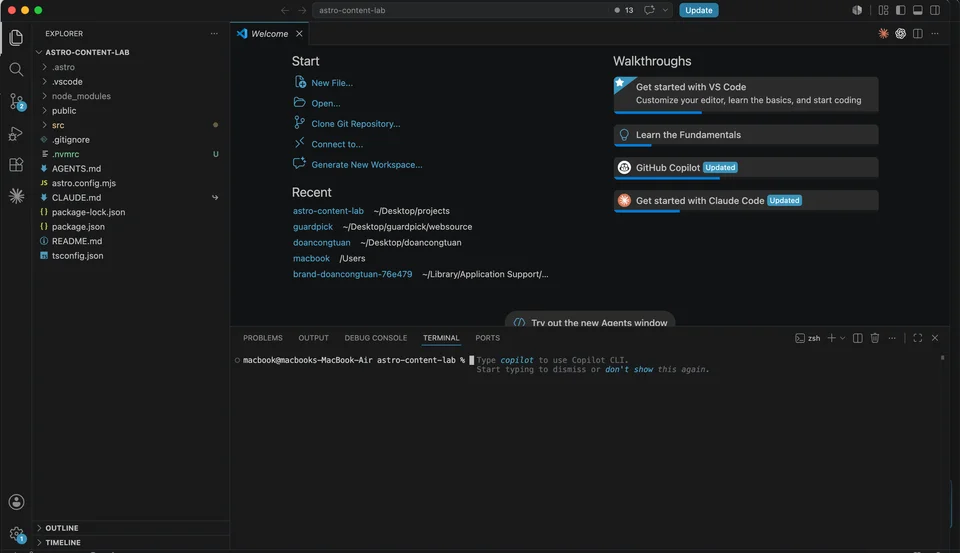
I already use terminal on my VPS: SSH in, run commands, manage servers. That’s my comfort zone. When I found the integrated terminal in VS Code (Ctrl + `), I realized: this is the same thing. Same commands. Same workflow. I can run npm run dev in one terminal tab, open another tab for Git commands, and stay inside VS Code the whole time.
Day 2: Pages, Layouts, and the <slot /> Mystery
Pages in Astro clicked fast. Create a file in src/pages/, get a URL. No routing config. No WordPress permalink settings. Just a file.
src/pages/index.astro   →   /
src/pages/about.astro   →   /about
src/pages/blog.astro    →   /blog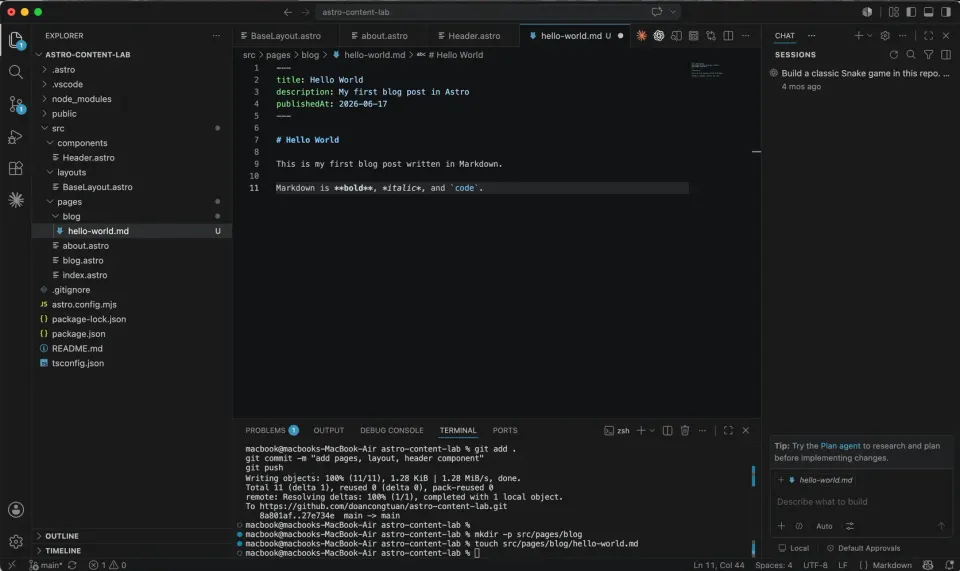
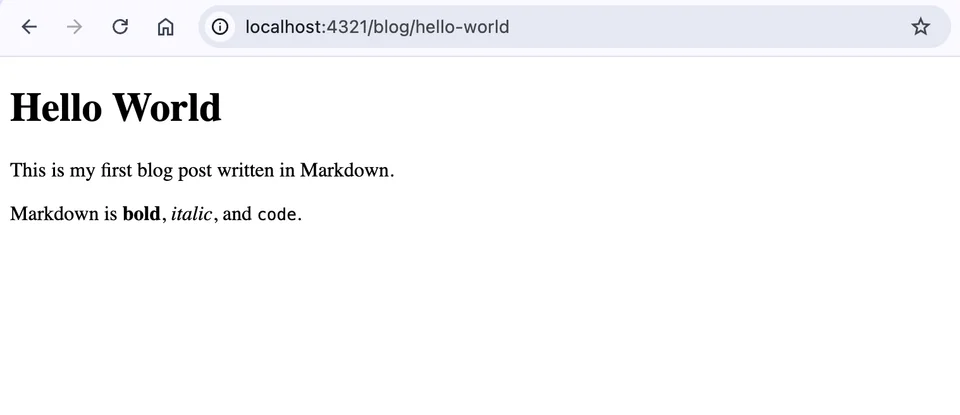
Layouts took longer to understand. The concept is simple, a shared HTML wrapper so you don’t repeat <html><head><body> in every page. But the <slot /> tag confused me.
What does <slot /> do exactly?
Short answer: it’s a placeholder. Whatever you put inside <BaseLayout> in your page file goes where <slot /> is in the layout.
// BaseLayout.astro
<body>
  <Header />
  <slot />   ← your page content goes here
</body>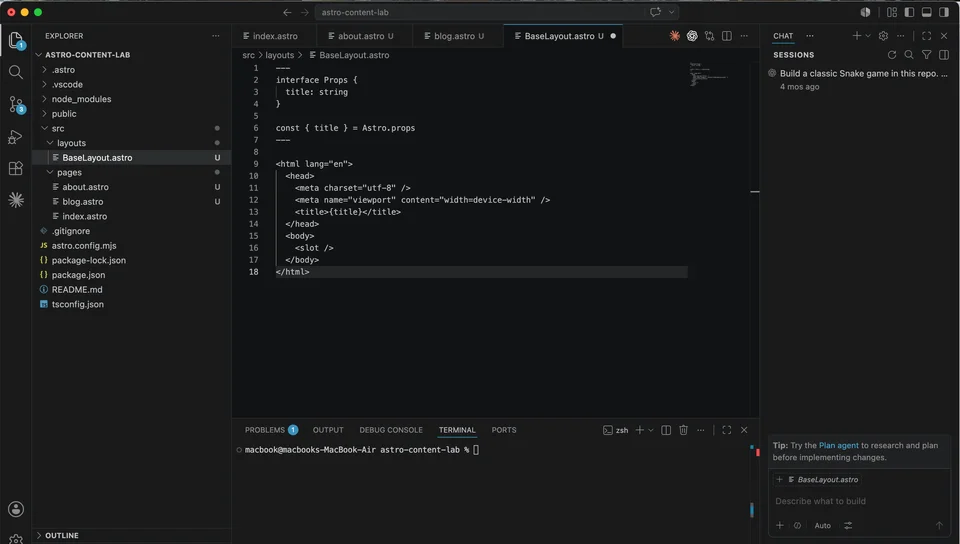
// about.astro
<BaseLayout title="About">
  <h1>About</h1>        ← this goes into the slot
  <p>This is me.</p>    ← this too
</BaseLayout>
The moment I understood that, everything else made sense. Think of <slot /> like a socket: the layout is the wall, and each page plugs into it.
The mistake that cost me 20 minutes: I edited BaseLayout.astro, saved the file, reloaded the browser, and saw a blank white page. Panicked.
The fix: I hadn’t actually saved the file. VS Code had an unsaved dot indicator in the tab. One Cmd + S later, everything was back.
Check your file is saved before you assume something is broken.
That covers the two days I set out to document: the point where Astro stopped feeling like a foreign language.
What Happened After Those First Two Days
The two-day diary ends here. Over the following weeks, I turned the small project into a content site with Markdown, MDX, Content Collections, dynamic routes, GitHub, and Vercel.
The full implementation belongs in the later tutorials. I am keeping only the mistakes that explain why the finished project looks different from many older Astro examples.
The Astro 6 Content Collections detour
Version-specific section: The following notes document the project on Astro 6.4.7. Astro 7 is now available, so check the current Content Collections guide and the Astro 7 upgrade guide before copying code from an older tutorial.
The older tutorials I followed used legacy patterns, which caused most of my errors. The differences that mattered in this project were:
- The content config moved from
src/content/config.tstosrc/content.config.ts. - File-based collections need a loader such as
glob(). - Rendering uses
render(entry)instead ofentry.render(). - Dynamic routes use
entry.idinstead of the oldentry.slugpattern. Astro.glob()was removed; non-collection file imports useimport.meta.glob().
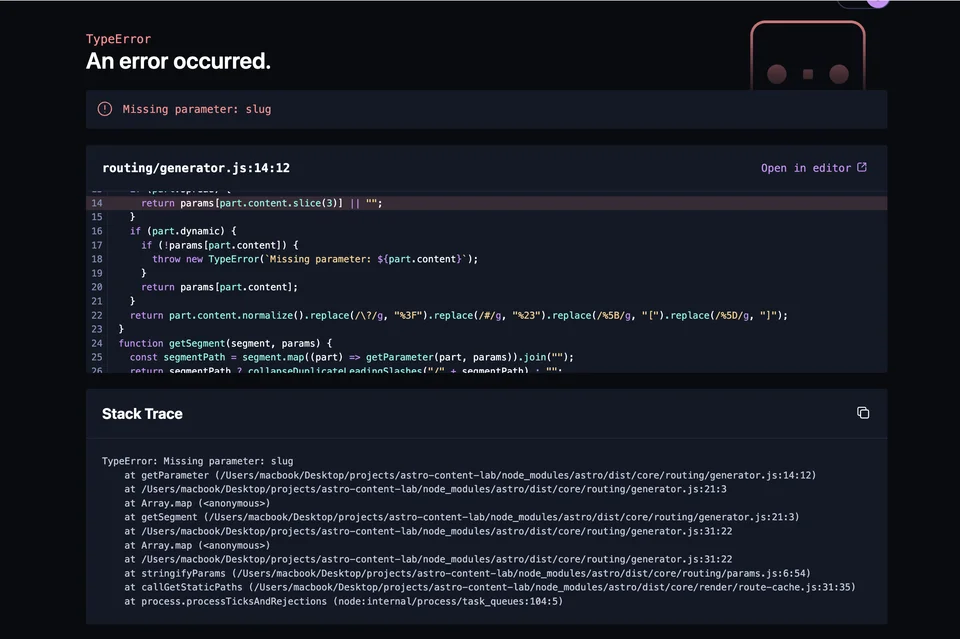
I also learned to restart the development server after changing collection definitions before assuming the schema was broken. In my case, restarting the server or removing the generated .astro cache cleared stale content metadata. I treat that as a troubleshooting step from this project, not as a universal Astro bug.
The First Push to GitHub
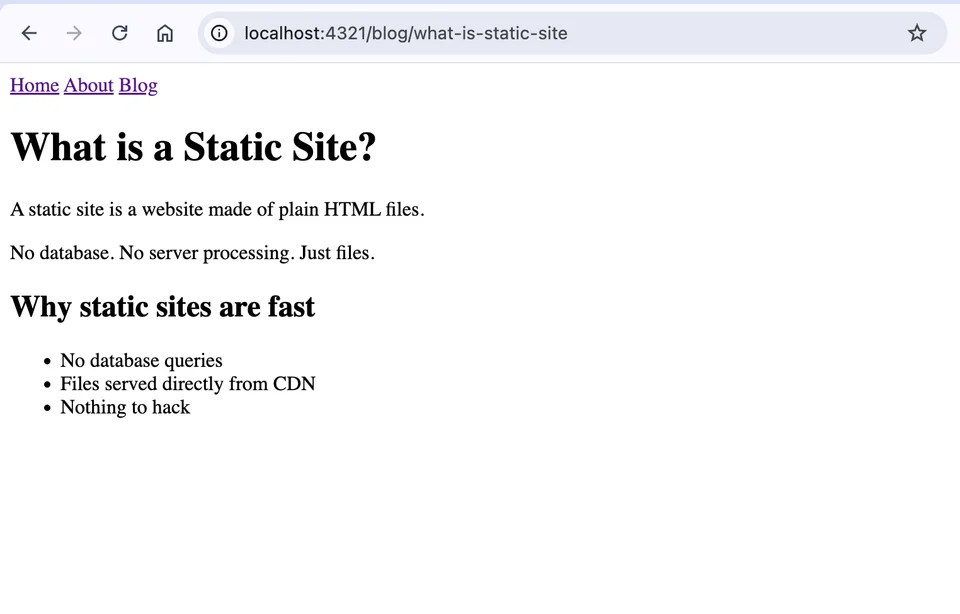
A few weeks later, once Content Collections clicked, I had a small working content site:
- Home, About, and Blog pages
- Content Collections for posts, reviews, comparisons, and guides
- Dynamic routes that turn content files into URLs
- A shared Header component
- A Vercel deployment connected to GitHub
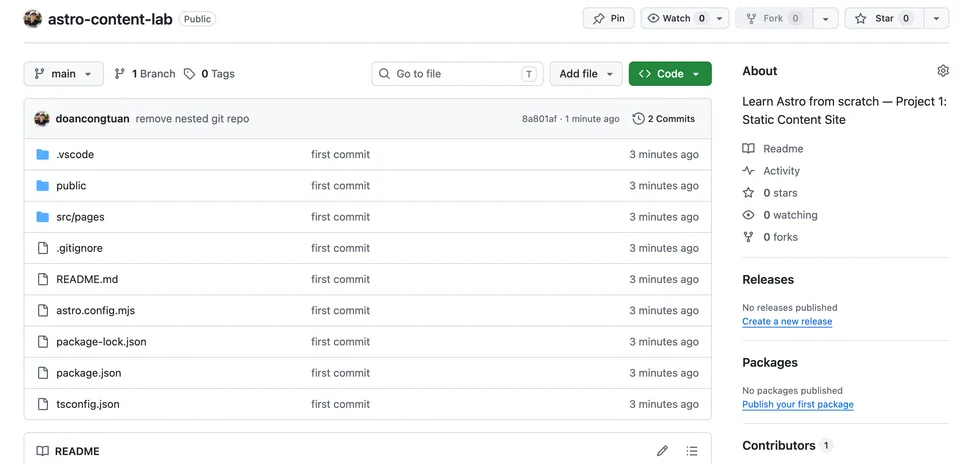
Before the automatic deployment worked, I first imported the GitHub repository into Vercel and connected it to a Vercel project. GitHub stores the code; Vercel watches the connected repository and creates a new deployment after a push. Pushing to GitHub by itself does not publish a website.
The first git push still felt underwhelming. The terminal printed some lines, said “done”, and that was it.
git add .
git commit -m "first commit"
git push -u origin main
Shortly afterward, I opened astro-content-lab.vercel.app and saw the updated site.
I’ve built and managed WordPress sites since 2013. I’ve transferred files with FTP, configured cPanel, and dealt with SSL certificates. Watching a connected GitHub repository trigger a Vercel deployment felt very different: no FTP upload and no manual server copy step.
I’m not going to say it changed my life. But I did sit there for a minute refreshing the live URL.
I spent more than a decade editing WordPress theme files in cPanel. Then I pushed to GitHub and Vercel handled the deployment. Totally normal.
What I Actually Learned
Coming from WordPress, the biggest adjustment wasn’t the syntax. It was the mental model.
In my old WordPress workflow: the remote server was already running, the database stored the content, and I usually edited through a browser, cPanel, or FTP.
In this static Astro project: my laptop runs the development server, the content lives in files, I edit in VS Code, and the public version changes only after a build and deployment.
That shift felt wrong at first. Then it started to feel natural.
Astro makes more of the site structure visible in the project files. Instead of hiding routing, layouts, and content structure behind an admin dashboard, this workflow let me see how those pieces fit together.
If you want the cleaner setup version of this story, read the step-by-step Astro setup guide. This diary is the messy version. The guide is the organized version.
The Source Code
The repository will continue to change as the series adds CSS, Tailwind, real images, SEO, TinaCMS, and later backend work. The live demo shows the latest version of the project, not the tiny first version from this diary. To keep this article reproducible, use the fixed first-commit snapshot when you want code that matches this stage.
- First commit snapshot: browse commit 77d100a
- Exact commit record: view the commit
- Latest project: open the main branch
- Latest live demo: open the deployed site
Use the first commit to reproduce this diary. Use the main branch and live demo to see what the project became later.