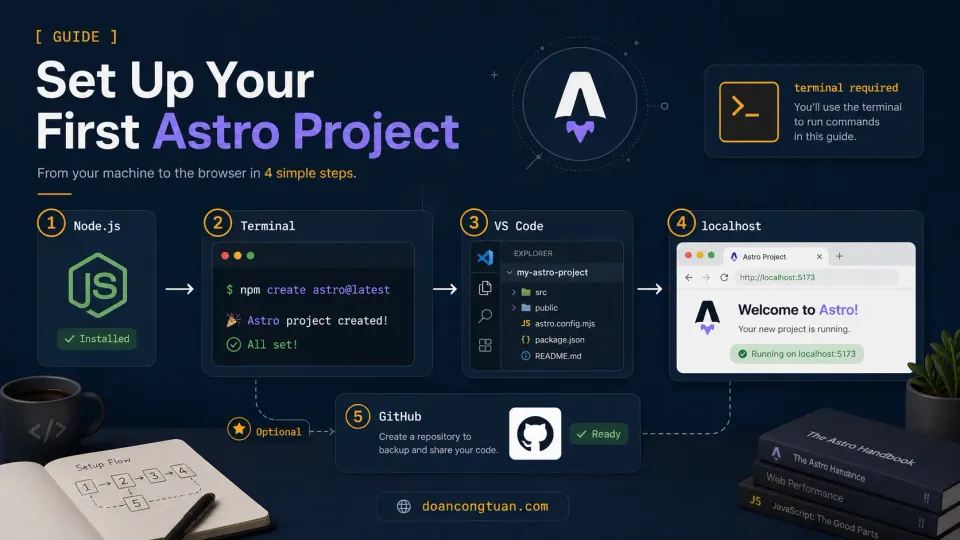
Version note — July 2026: The screenshots and original commit in this article use Astro 6.4.7. Running
npm create astro@latestnow installs Astro 7, so some wizard wording, generated files, and terminal output may look slightly different. The project creation, local development, build, Git, and GitHub workflow remains the same.
Quick command version
npm create astro@latest astro-content-lab
cd astro-content-lab
npm run dev
Open the exact Local URL shown in the terminal. It is normally:
http://localhost:4321After you edit the first page, verify the production build:
npm run buildAt this stage, nothing is live on the internet. You are running and building the site on your own computer.
| Task | Command |
|---|---|
| Create the Astro project | npm create astro@latest astro-content-lab |
| Enter the project folder | cd astro-content-lab |
| Start the development server | npm run dev |
| Stop the development server | Ctrl + C |
| Check the production build | npm run build |
| Open the folder in VS Code | code . |
The first time I set up an Astro project, I expected it to feel like installing a WordPress theme.
It did not.
Not because it was harder. The mental model was different. WordPress setup usually happens through a browser and hosting dashboard. Astro setup happens on your computer, inside a project folder, with a local development server that runs while you work.
Once that shift clicks, the rest is straightforward. This article focuses on the repeatable setup process. For the longer story of what surprised me during the first two days, read my first Astro project diary.
Prerequisites
Before running any commands, check that you have the following tools.
Node.js 22.12.0 or later
Astro needs Node.js to run. For this series, I use Node.js 24 LTS. The official Astro installation guide is the best place to confirm the current requirement.
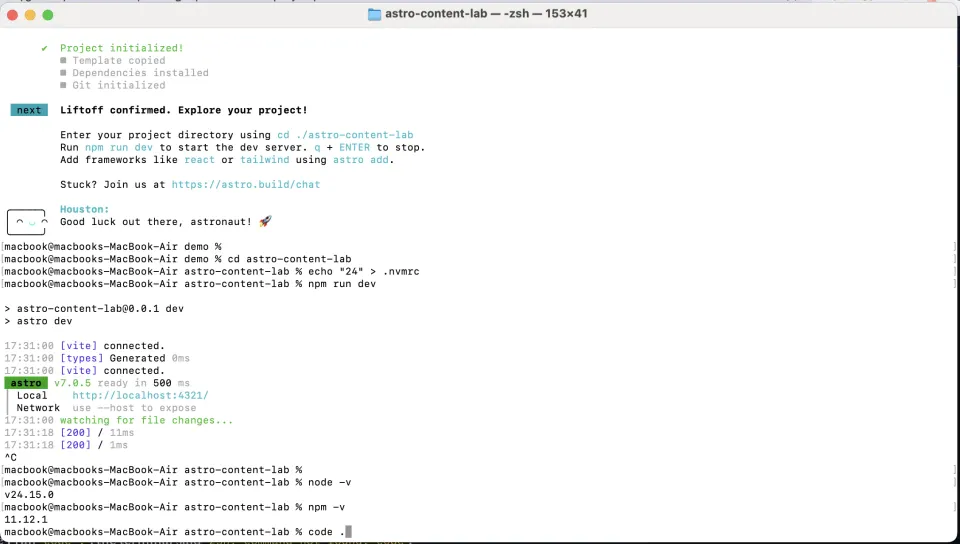
Check Node.js and npm:
node -v
npm -v
If node -v shows Node.js 22.12.0 or later and npm -v returns a version number without an error, you are ready to continue.
If Node.js is not installed, download an LTS release from nodejs.org.
A terminal
On macOS, use Terminal or iTerm2. On Windows, use PowerShell or Windows Terminal. If you have used SSH to manage a VPS, the basic interaction will already feel familiar.
Git and a GitHub account
Git tracks changes to the project on your computer. GitHub stores a remote copy online.
Check whether Git is installed:
git --versionYou also need a GitHub account for the push step later in the article.
VS Code
VS Code is not mandatory, but it is a practical editor for this series. Install it from code.visualstudio.com. We will add the official Astro extension after opening the project.
Step 1: Create your Astro project
Open your terminal, navigate to the parent folder where you keep projects, and run:
npm create astro@latest astro-content-labThis starts Astro’s setup wizard and tells it to create a folder named astro-content-lab.
The first time you run the command, npm may ask permission to install create-astro:
Need to install the following packages:
create-astro@...
Ok to proceed? (y)
Type y and press Enter.
The exact wording can change between Astro versions. For a small project that we will build step by step, choose the equivalent of:
- How would you like to start your new project? → Use minimal (empty) template
- Install dependencies? → Yes
- Initialize a new git repository? → Yes
Current Astro projects use a strict TypeScript configuration by default, so newer versions of the wizard may not ask separate TypeScript questions.
When the original Astro 6 setup finished, my terminal showed output similar to this:
astro  v6.4.7 ready
✔ Project initialized!
  ■ Template copied
  ■ Dependencies installed
  ■ Git initialized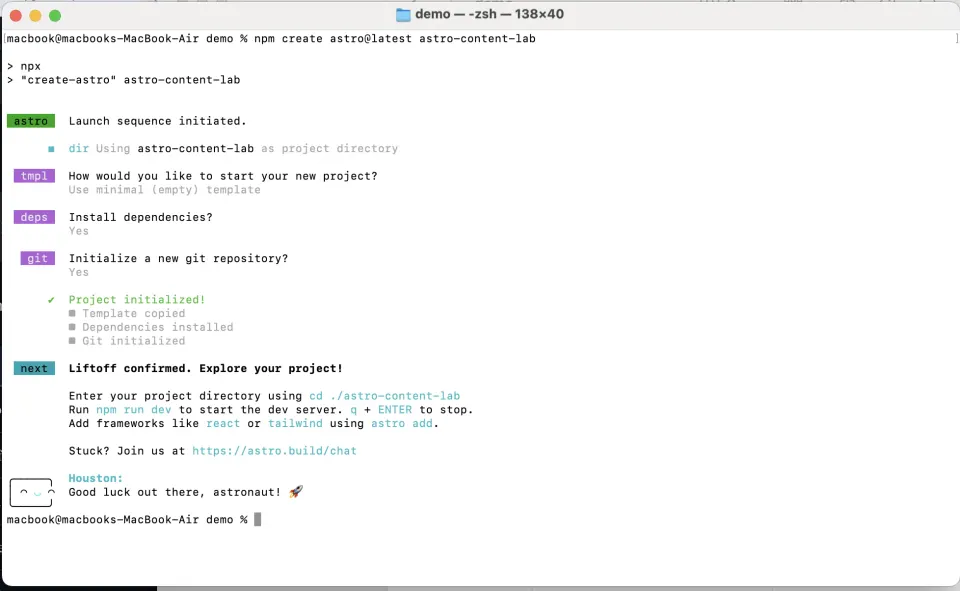
Enter the new project folder:
cd astro-content-labStep 2: Start the development server
Make sure you are inside the project folder, then run:
npm run devDuring the original walkthrough, Astro 6.4.7 displayed:
astro  v6.4.7 ready in 499 ms
┃ Local    http://localhost:4321/
┃ Network  use --host to expose
watching for file changes...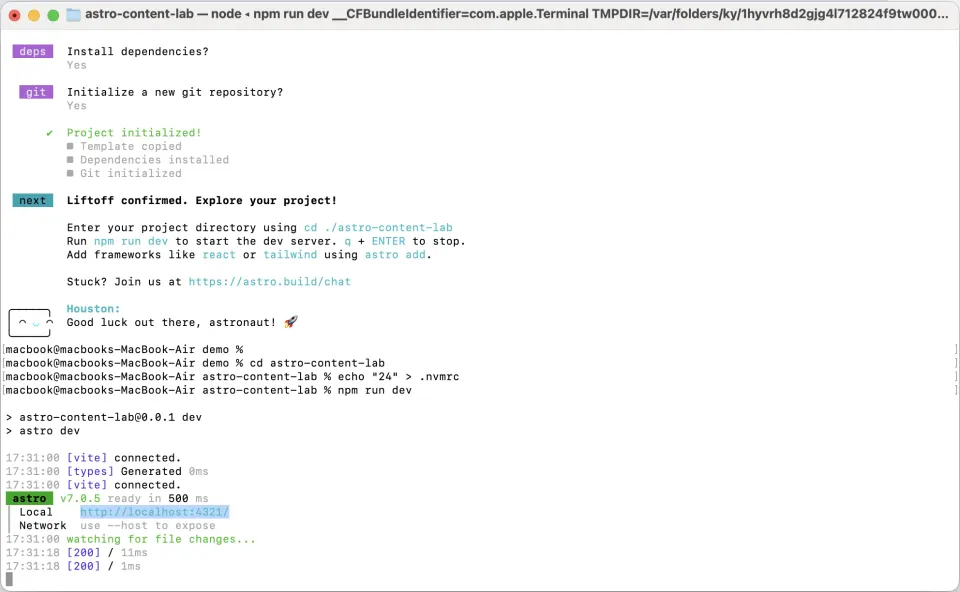
Then the terminal appears to do nothing.
That is normal. The server is running and waiting for file changes. Open the exact Local URL printed in your terminal. It will normally be:
http://localhost:4321If port 4321 is already in use, Astro may choose another port. In that case, use the URL Astro actually prints instead of forcing localhost:4321.
You should see the minimal Astro page.
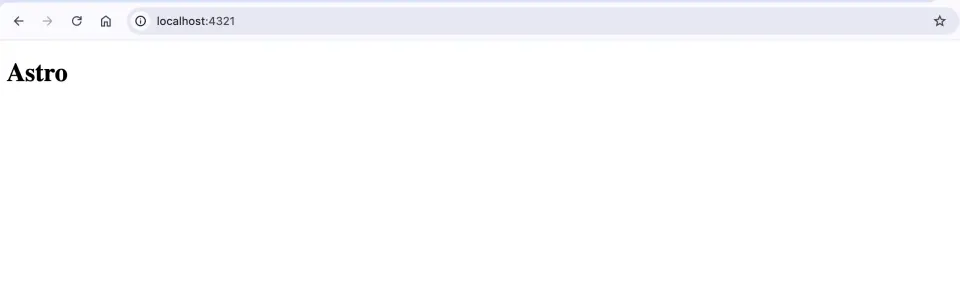
The local address is not a public website. By default, it is available only on your computer while the development server is running.
To stop the server, return to its terminal and press:
Ctrl + CRun npm run dev again whenever you want to restart it.
Step 3: Open the project in VS Code
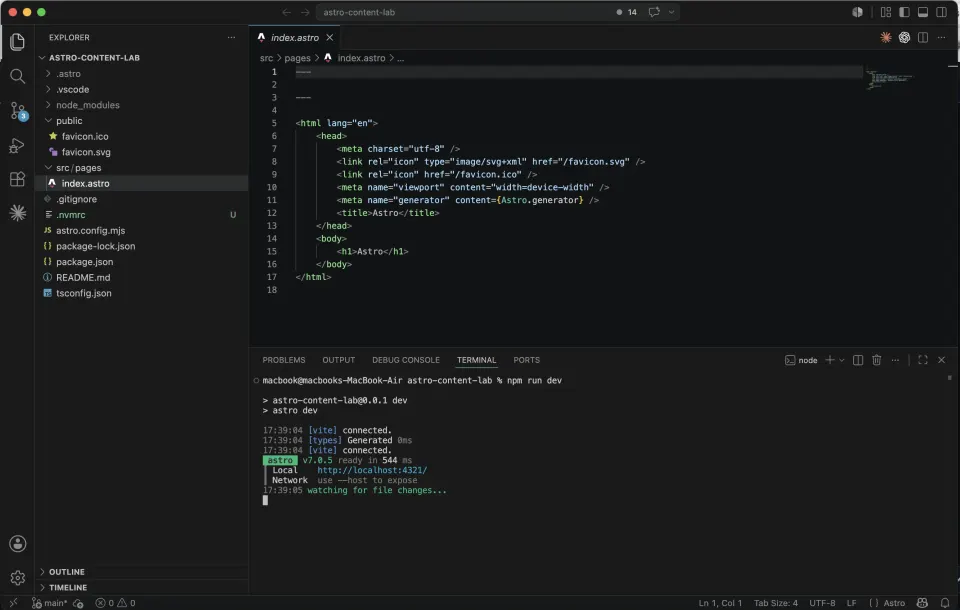
Keep the terminal running the development server open. Open another terminal tab or window, make sure it is inside astro-content-lab, and run:
code .This opens the project folder in VS Code.
Install the official Astro VS Code extension for syntax highlighting, diagnostics, and editor support.
VS Code also has an integrated terminal. Press Ctrl + ` to open it.
This is a new terminal session, normally opened at the root of your project. It does not replace the terminal that is already running npm run dev. You can keep both sessions open, or stop the external server with Ctrl + C and start it again inside VS Code.
Step 4: Understand the project structure
Here is a simplified view of the files that matter at this stage:
astro-content-lab/
├── public/                  ← static assets committed with the project
├── src/
│   └── pages/
│       └── index.astro      ← the home page
├── node_modules/            ← installed packages; generated locally
├── .gitignore               ← files Git should not track
├── astro.config.mjs         ← Astro configuration
├── package-lock.json        ← exact installed dependency versions
├── package.json             ← project scripts and dependencies
├── README.md                ← starter documentation
└── tsconfig.json            ← TypeScript configuration
Do not edit or commit node_modules/. Astro generates it when dependencies are installed, and .gitignore excludes it. Keep package-lock.json in Git because it records the dependency versions used by the project.
Newer versions of create-astro may generate additional files, including instructions for AI coding tools. Seeing extra files does not mean your setup is wrong.
For WordPress developers, the following are useful rough comparisons, not exact one-to-one equivalents:
| WordPress concept | Closest Astro concept |
|---|---|
| Theme source files | src/ |
| A page template | src/pages/index.astro |
| Reusable template parts | src/components/ |
| Site and build configuration | astro.config.mjs |
| Static assets stored with the project | public/ |
| WordPress admin and Media Library | Not included by default |
WordPress commonly combines theme templates with database content during a request. In the static workflow used in this series, Astro renders pages and components into HTML during the build.
That distinction is part of the larger transition explained in my Astro guide for WordPress developers.
Step 5: Edit your first .astro file
Open src/pages/index.astro. The minimal starter contains a small file similar to this:
---

---

<html lang="en">
  <head>
    <meta charset="utf-8" />
    <link rel="icon" type="image/svg+xml" href="/favicon.svg" />
    <meta name="viewport" content="width=device-width" />
    <meta name="generator" content={Astro.generator} />
    <title>Astro</title>
  </head>
  <body>
    <h1>Astro</h1>
  </body>
</html>
An .astro file can contain three useful sections:
Component script or frontmatter: Code between the --- fences. JavaScript or TypeScript here runs during rendering. In the static project built in this series, that normally means build time.
Template markup: The HTML-like content below the second ---. It can use variables and imported components from the frontmatter.
Optional component styles: A <style> element can contain CSS that Astro scopes to the component by default. Global CSS and the normal cascade can still affect the page when you explicitly use them.
Change:
<title>Astro</title>to:
<title>Astro Content Lab</title>Then change:
<h1>Astro</h1>to:
<h1>Astro Content Lab</h1>Save the file. The browser should update automatically while npm run dev is running.
Step 6: Check the production build
A page working in the development server is a good first check, but the project should also complete a production build.
Open another terminal in the project folder, or stop the development server with Ctrl + C, then run:
npm run buildA successful build creates the production output in dist/. That folder is generated and should remain excluded from Git.
Fix any reported error before moving on. This habit becomes more important as the project gains layouts, components, content collections, and deployment settings.
Step 7: Commit the changes and push to GitHub
Astro may create an initial Git commit during setup. You edited index.astro afterward, so check and commit the current state before pushing:
git status
git add .
git commit -m "Set up the initial Astro project"
Before each commit, review git status. Never commit passwords, API keys, access tokens, or .env files to a public repository.
If Git reports Author identity unknown, configure your name and email, then run the commit again:
git config --global user.name "Your Name"
git config --global user.email "you@example.com"

git add .
git commit -m "Set up the initial Astro project"
Now create an empty GitHub repository:
- Go to GitHub and click New repository.
- Name it
astro-content-lab. - Choose Public if you want other people to follow the code. A private repository also works.
- Do not add a README,
.gitignore, or license during repository creation because the local project already contains its own files. - Click Create repository.
Connect the local project and push it:
git remote add origin https://github.com/YOUR-USERNAME/astro-content-lab.git
git branch -M main
git push -u origin main
Replace YOUR-USERNAME with your GitHub username.
GitHub does not accept a normal account password for Git operations over HTTPS. Depending on your setup, authentication may use a browser sign-in, a credential manager, a personal access token, or SSH.
Pushing the repository stores the code and its history online. It does not deploy the website yet.
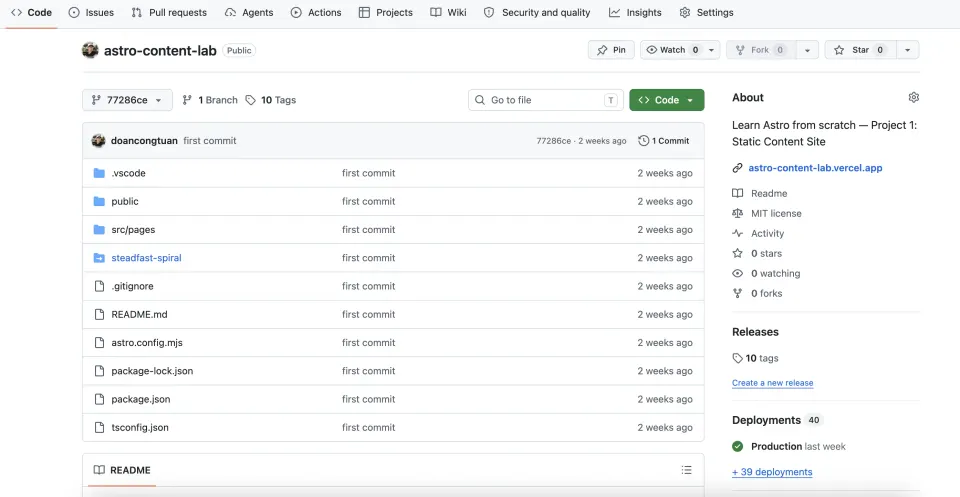
Code for this stage
This walkthrough was originally recorded with Astro 6.4.7.
The historical commit captures the project as I first created it. A new Astro 7 project may contain slightly different generated files.
What you have now
After completing the article, you have:
- An Astro project running at the Local URL shown in your terminal
- A home page at
src/pages/index.astro - A successful production build
- A Git repository containing your changes
- A GitHub repository storing the project online
- VS Code configured for editing Astro files
- A basic mental model for how the local Astro workflow differs from WordPress
The next article explains Astro pages, layouts, and components, the three concepts that organize the rest of this project.
What this article does not cover yet
This article only gets the project running locally, verifies the production build, and stores the code on GitHub. It does not cover deployment, custom domains, hosting, a CMS, content collections, or TinaCMS.
Those topics come later in the series.
Troubleshooting
npm: command not found
Node.js is not installed or is not available in your PATH. Install an LTS version from nodejs.org, close the terminal, and open it again.
code . does not open VS Code
Use the operating-system-specific instructions in Step 3, or open VS Code manually and choose File → Open Folder.
The local site cannot be reached
Confirm that npm run dev is still running. Then open the exact Local URL displayed in that terminal. Astro may use a port other than 4321 when the default port is occupied.
Git reports Author identity unknown
Set user.name and user.email using the commands in Step 7, then commit again.
GitHub asks for a password
Use the browser authentication or credential flow offered by your Git installation, a personal access token, or SSH. A normal GitHub account password will not work for Git over HTTPS.
remote origin already exists
The project already has a remote named origin. Check it with:
git remote -vIf it points to the correct repository, do not add it again. Continue with the branch and push commands.
npm run build reports an error
Read the first meaningful error and the file path it references. Fix that problem before committing. Build errors are often caused by invalid syntax, a missing import, or an incorrect path.