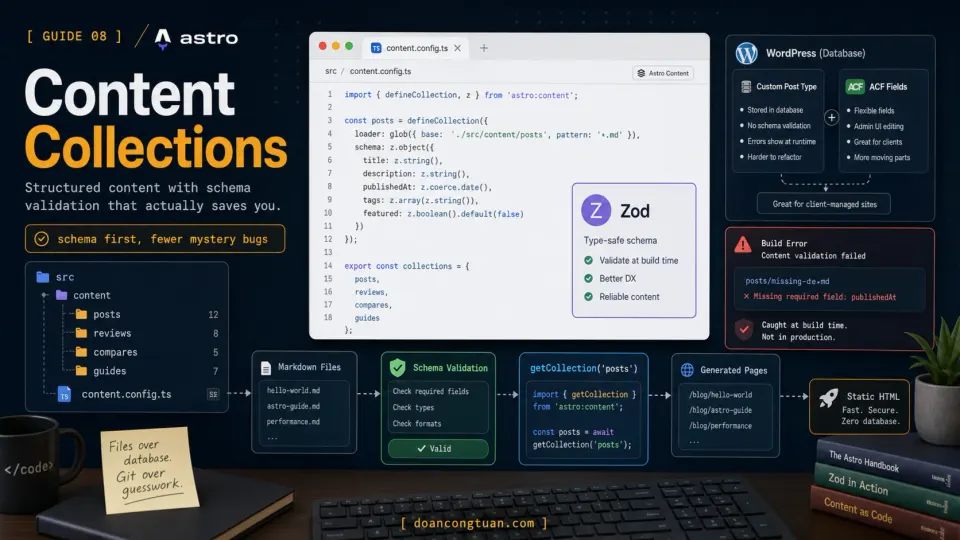
The previous article showed how to create blog posts as Markdown files in src/pages/blog/. That approach works - but it has a problem.
There’s nothing enforcing structure.
You can create a post with title and forget publishedAt. You can spell it tittle by mistake. You can add a rating field to one post but not another. Astro won’t complain. It will build whatever it finds.
This is fine when you have three posts. It becomes a maintenance problem when you have fifty. It becomes worse when you have multiple content types like blog posts, reviews, comparisons, and guides that all need different fields.
Content Collections solve this.
What Content Collections are
Content Collections are Astro’s system for managing structured content with schema validation.
Instead of putting content in src/pages/ and hoping the frontmatter is consistent, you:
- Define a schema for the fields each entry must have and what type they must be
- Put your content in
src/content/ - Fetch it with
getCollection()in your pages
If a content file doesn’t match the schema, Astro throws an error at build time. Missing required field, wrong data type, typo in a field name: all of these fail early instead of becoming a broken page later.
The closest WordPress equivalent is Custom Post Types with ACF. You define what fields a post type has, and content editors fill them in. Content Collections solve a similar problem for file-based content, with TypeScript validation added.
The modern Content Collections API
Before writing any code, check which Content Collections API a tutorial is using. Astro changed this area across recent versions, and many older tutorials still use patterns that do not match this project.
For this series and the local demo project, use this pattern:
| Older pattern you may see | Pattern used in this series |
|---|---|
src/content/config.ts | src/content.config.ts |
| No loader shown | loader: glob({...}) for local files |
post.render() | render(post) from astro:content |
post.slug | post.id |
Astro.glob() in page examples | import.meta.glob() or getCollection() depending on the task |
If you follow an old tutorial and hit errors, check these five things first. The newer API is cleaner once it is wired, but the file location and method names are easy to mix up.
Step 1: Create the config file
Create src/content.config.ts. Note carefully: this file goes in src/, not inside src/content/.
import { defineCollection, z } from 'astro:content'
import { glob } from 'astro/loaders'

const posts = defineCollection({
  loader: glob({ pattern: '**/*.{md,mdx}', base: './src/content/posts' }),
  schema: z.object({
    title: z.string(),
    description: z.string(),
    publishedAt: z.date(),
  }),
})

export const collections = {
  posts,
}
Breaking this down:
defineCollection wraps a collection definition. It takes a loader and a schema.
loader: glob({...}) tells Astro where to find the files. The pattern matches all .md and .mdx files. The base is the folder to look in.
schema: z.object({...}) defines what each entry must have. z.string() means the field must be a string. z.date() means it must be a valid date. z.number() means it must be a number.
export const collections exports all collection definitions. Astro reads this export to know what collections exist.
Understanding Zod schema types
Zod is the validation library Astro uses. You don’t need to learn all of it for this project. Start with these basics:
z.string()           // must be text: "Hello World"
z.number()           // must be a number: 4.5
z.boolean()          // must be true or false
z.date()             // must be a valid date: 2026-06-17T00:00:00Z
z.array(z.string())  // must be an array of strings: ["tag1", "tag2"]
z.enum(['a', 'b'])   // must be one of the listed values

// Optional fields (not required in frontmatter)
z.string().optional()
z.number().optional()
If a Markdown file has publishedAt: "last Tuesday" instead of a proper date, Zod rejects it at build time with a clear error message. That is the point: catch content problems before production.
Step 2: Create the content folder
mkdir -p src/content/postsMove any existing Markdown blog posts from src/pages/blog/ to src/content/posts/:
mv src/pages/blog/hello-world.md src/content/posts/Important: Remove the layout field from frontmatter if you added it earlier. Content Collections don’t use layout in frontmatter; the layout is applied in the dynamic route template instead.
Your post frontmatter should look like this:
---
title: Hello World
description: Every developer starts here. So do I.
publishedAt: 2026-06-17T00:00:00Z
---
Note the date format: 2026-06-17T00:00:00Z. If your schema uses z.date(), the full ISO 8601 format is the safest option.
Step 3: Update the blog listing page
Previously, src/pages/blog.astro used import.meta.glob. Replace it with getCollection:
---
import { getCollection } from 'astro:content'
import BaseLayout from '../layouts/BaseLayout.astro'

const posts = await getCollection('posts')
---

<BaseLayout title="Blog - Astro Content Lab">
  <h1>Blog</h1>
  <ul>
    {posts.map((post) => (
      <li>
        <a href={`/blog/${post.id}`}>{post.data.title}</a>
        <p>{post.data.description}</p>
      </li>
    ))}
  </ul>
</BaseLayout>
Two differences from the old approach:
post.data.titleinstead ofpost.frontmatter.title, because Content Collections usedatafor frontmatter fieldspost.idfor the file-based identifier/blog/${post.id}for the URL, matching what the dynamic route will use
If getCollection returns an empty array: Restart the dev server. Astro sometimes needs a restart to pick up new collection config. This is the most common gotcha.
Step 4: Create the dynamic route
Content files in src/content/ don’t have URLs automatically. You create them with a dynamic route.
Create src/pages/blog/[slug].astro:
---
import { getCollection, render } from 'astro:content'
import BaseLayout from '../../layouts/BaseLayout.astro'

export async function getStaticPaths() {
  const posts = await getCollection('posts')
  return posts.map((post) => ({
    params: { slug: post.id },
    props: { post },
  }))
}

const { post } = Astro.props
const { Content } = await render(post)

const publishedDate = new Date(post.data.publishedAt).toLocaleDateString('en-US', {
  year: 'numeric',
  month: 'long',
  day: 'numeric'
})
---

<BaseLayout title={`${post.data.title} - Astro Content Lab`}>
  <article>
    <a href="/blog">← Back to Blog</a>
    <h1>{post.data.title}</h1>
    <p>{post.data.description}</p>
    <p>Published {publishedDate}</p>
    <Content />
  </article>
</BaseLayout>
getStaticPaths() is required for dynamic routes in Astro. It tells Astro what URLs to generate at build time. For each post in the collection, create a page with slug set to post.id.
render(post) renders the collection entry. Import render from astro:content; it returns a Content component that renders the Markdown body.
<Content /> renders the full Markdown body of the post. The frontmatter fields (post.data.title, etc.) are separate, so you display them manually in the template.
Why this is better than src/pages/*.md
Before Content Collections:
src/pages/blog/hello-world.md     ← has URL /blog/hello-world
src/pages/blog/astro-guide.md     ← has URL /blog/astro-guide
Simple, but no validation, no TypeScript, no consistency guarantee.
With Content Collections:
src/content/posts/hello-world.md  ← data only, no automatic URL
src/content/posts/astro-guide.md  ← data only, no automatic URL
src/pages/blog/[slug].astro       ← one template creates all URLs
More setup, but:
- Schema enforces consistent frontmatter across all posts
- TypeScript knows exactly what fields exist, so autocomplete works
- Adding a post means adding a file, and the route generates automatically
- The template is defined once, used for every post
Adding more collections
The real power shows up when you add content types with different fields. A review needs rating, pros, cons. A guide needs difficulty and estimatedTime. A comparison needs itemA, itemB, winner.
Extend src/content.config.ts:
import { defineCollection, z } from 'astro:content'
import { glob } from 'astro/loaders'

const posts = defineCollection({
  loader: glob({ pattern: '**/*.{md,mdx}', base: './src/content/posts' }),
  schema: z.object({
    title: z.string(),
    description: z.string(),
    publishedAt: z.date(),
  }),
})

const reviews = defineCollection({
  loader: glob({ pattern: '**/*.{md,mdx}', base: './src/content/reviews' }),
  schema: z.object({
    title: z.string(),
    description: z.string(),
    productName: z.string(),
    rating: z.number(),
    pros: z.array(z.string()),
    cons: z.array(z.string()),
    verdict: z.string(),
    publishedAt: z.date(),
  }),
})

const guides = defineCollection({
  loader: glob({ pattern: '**/*.{md,mdx}', base: './src/content/guides' }),
  schema: z.object({
    title: z.string(),
    description: z.string(),
    difficulty: z.enum(['beginner', 'intermediate', 'advanced']),
    estimatedTime: z.string(),
    publishedAt: z.date(),
  }),
})

export const collections = {
  posts,
  reviews,
  guides,
}
Each collection gets its own schema. A review file missing rating throws an error. A guide with difficulty: 'easy' instead of 'beginner' throws an error because z.enum only accepts the exact values listed.
This is the equivalent mental model of ACF field groups in WordPress: each content type has defined fields, and content must match the definition.
Common mistakes and fixes
Config file in wrong location
For the API used in this series, use src/content.config.ts, not src/content/config.ts.
getCollection returns empty array Restart the dev server. Astro sometimes needs a restart to pick up new collection config.
Date format error
Use 2026-06-17T00:00:00Z format. 2026-06-17 alone can fail with z.date() in some cases.
Using post.slug instead of post.id
Use post.id with the newer collection entry shape. If you’re getting undefined slugs, check for this first.
Using post.render() instead of render(post)
Import render from astro:content and call render(post). The old method-style call no longer works.
TypeScript errors on post.data fields
Make sure the field exists in your schema. TypeScript uses the schema to know what fields exist - if you access post.data.rating but rating isn’t in the schema, TypeScript complains.