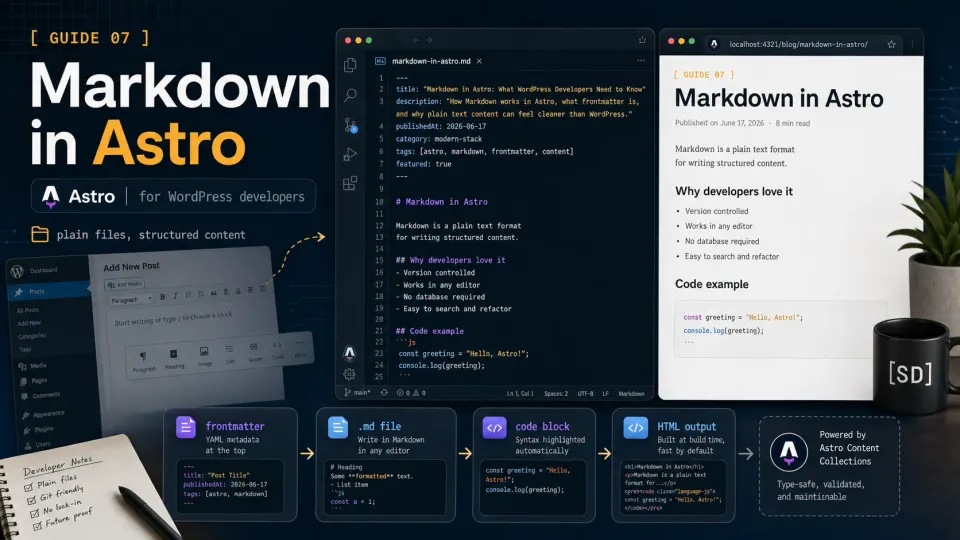
If you’ve spent years writing content in WordPress, clicking the block editor, dragging elements, and installing syntax highlighting plugins, Markdown might look like a downgrade.
It isn’t. It’s a different workflow. Simpler in some ways, more technical in others.
Once it clicks, the appeal is not the syntax itself. The appeal is that the content becomes a plain file you can search, review, commit, and fix without opening a dashboard.
What is Markdown?
Markdown is a plain text format for writing structured content. You write normal text with simple symbols for formatting, and a parser converts it to HTML.
A heading with ##. Bold text with **. A link with [text](url). That’s most of what you need.
## This is a heading

This is a paragraph with **bold** and *italic* text.

- List item one
- List item two
- List item three

[Link text](https://example.com)
Renders to:
<h2>This is a heading</h2>
<p>This is a paragraph with <strong>bold</strong> and <em>italic</em> text.</p>
<ul>
  <li>List item one</li>
  <li>List item two</li>
  <li>List item three</li>
</ul>
<a href="https://example.com">Link text</a>
You write human-readable text. Astro converts it to HTML. No button clicking, no block dragging.
The complete Markdown syntax you’ll actually use
Headings:
# H1 - page title
## H2 - major section
### H3 - subsection
Text formatting:
**bold text**
*italic text*
`inline code`
~~strikethrough~~
Lists:
- Unordered item
- Another item
  - Nested item

1. Ordered item
2. Second item
3. Third item
Links and images:
[Link text](https://example.com)
Blockquote:
> This is a blockquote.
> It can span multiple lines.
Horizontal rule:
---Code block:
```javascript
const greeting = "Hello World"
console.log(greeting)
```
The code block is the one to notice if you write technical content.
Code blocks with syntax highlighting
In WordPress, adding nicely formatted code to a post usually means adding a plugin. Prism.js wrappers, Code Syntax Highlighter, SyntaxHighlighter Evolved, and similar plugins can all work, but each adds another setting screen and another dependency.
In Astro, syntax highlighting is built in. No plugin. No configuration.
Write a code block with a language identifier:
```javascript
function greet(name) {
  return `Hello, ${name}!`
}
```
Astro uses Shiki under the hood, the same syntax highlighting engine used by VS Code, and renders colored, formatted code automatically.
The supported languages cover everything you’ll need: javascript, typescript, bash, html, css, json, markdown, astro, python, php, and dozens more.
What is frontmatter?
Every Markdown file in Astro can have a frontmatter block at the top. Think of it as structured metadata about the post.
Frontmatter goes between two sets of triple dashes at the very start of the file:
---
title: My First Blog Post
description: A beginner's guide to Astro
publishedAt: 2026-06-17
---

Post content starts here.
The data between the dashes is written in YAML, a simple key-value format. Astro reads this data and makes it available as a JavaScript object in your templates.
What can you store in frontmatter? Anything you want:
---
title: Hostinger Review 2026
description: Is Hostinger worth it for WordPress hosting?
publishedAt: 2026-06-17
tags: ["hosting", "wordpress", "review"]
rating: 4.2
featured: true
heroImage: /images/hostinger-hero.webp
---
This is how a simple .md file becomes structured data, not just text.
Creating your first blog post
Create the folder structure for blog posts:
mkdir src/pages/blog
touch src/pages/blog/hello-world.md
Open src/pages/blog/hello-world.md and add:
---
title: Hello World
description: Every developer starts here. So do I.
publishedAt: 2026-06-17
---

# Hello World

Every programming language. Every framework. Every tutorial.

They all start the same way.

**Hello World** is not a tutorial exercise. It is a declaration.
*I am here. I am starting. I don't know what I'm doing yet, but I showed up.*

## What Markdown looks like

This post is written in plain Markdown. No block editor. No drag and drop.

Just text, saved in a file.

A code block looks like this:

```javascript
console.log("Hello from Astro")
And this is a list:
- Astro renders Markdown to HTML automatically
- No plugin needed for syntax highlighting
- Every .md file in src/pages/ gets its own URL
Save the file and go to `localhost:4321/blog/hello-world`.

The page is live. Astro found the file, read the frontmatter, rendered the Markdown to HTML, and served it.

---

## Creating a blog listing page

You have a post. Now you need a page that lists all posts.

Create `src/pages/blog.astro`:

```astro
---
import BaseLayout from '../layouts/BaseLayout.astro'

const postFiles = import.meta.glob('./blog/*.md', { eager: true })
const posts = Object.values(postFiles)
---

<BaseLayout title="Blog - Astro Content Lab">
  <h1>Blog</h1>
  <ul>
    {posts.map((post: any) => (
      <li>
        <a href={post.url}>{post.frontmatter.title}</a>
        <p>{post.frontmatter.description}</p>
      </li>
    ))}
  </ul>
</BaseLayout>
import.meta.glob finds all .md files matching the pattern. Object.values() converts the result to an array. Each post object has a url (the page URL) and a frontmatter object containing all the data from between the --- dashes.
Note: This approach works for simple cases. The next article covers Content Collections, a better way to manage structured content with schema validation, TypeScript support, and more control. For now, import.meta.glob demonstrates the concept.
Tables in Markdown
Markdown tables need CSS to look presentable. The syntax:
| Column 1 | Column 2 | Column 3 |
|---|---|---|
| Row 1, Col 1 | Row 1, Col 2 | Row 1, Col 3 |
| Row 2, Col 1 | Row 2, Col 2 | Row 2, Col 3 |
Without CSS, this renders as plain text without borders or padding. Add table styles to global.css and it looks like a proper data table.
.md vs .mdx - when to use which
Use .md when:
- The post is text only: paragraphs, headings, lists, code blocks
- No custom UI components needed
- Simpler files are preferred
Use .mdx when:
- The post needs UI components: callout boxes, rating widgets, comparison tables
- You want to import and use Astro components inline in the content
- The post has interactive or visually distinct sections
Most blog posts can start as .md. Reach for .mdx when the article genuinely needs a component. I would not convert everything to MDX by default because .md files are simpler and easier to read in a code editor.
Article 10 covers MDX in detail with real examples.
What Markdown is not good at
Being honest about limitations:
Markdown is not good for non-technical editors. If a client needs to write and publish content, Markdown has a learning curve. WordPress’s visual editor is genuinely easier for non-developers.
Markdown has no built-in media management. Images need to be manually placed in the public/ folder and referenced by path. WordPress’s media library is far more convenient.
Markdown changes require a developer workflow. Edit file, save, commit, push, wait for deploy. WordPress’s admin is instant.
These limitations are real. A file-based workflow is great when the developer owns the content. If a future project needs non-technical editors or database-driven content, I would add a CMS layer instead of pretending Markdown solves every content problem.
For developer-owned content, Markdown is excellent. For client-managed content, you’ll need something on top of it.