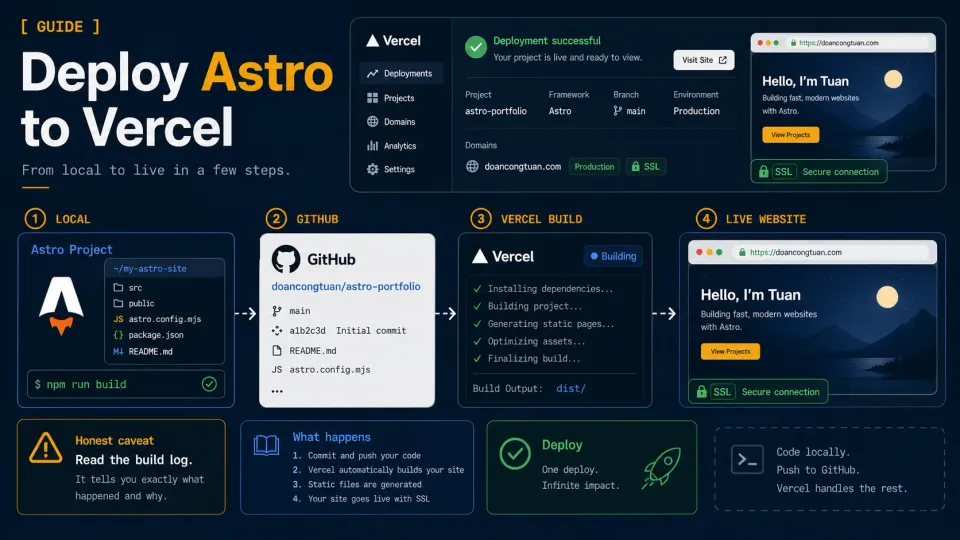
For the first decade of my web development work, “deploying a site” meant one of these:
- Uploading files via FTP to shared hosting
- Connecting to a VPS over SSH, pulling the latest Git changes, and restarting services
- Clicking through a hosting control panel and uploading a zip file
All of those approaches work. All of them also add friction. FTP is slow. A VPS gives you control but makes you responsible for the server. Control panels often add several manual steps.
Vercel uses a different workflow.
Connect a Git repository, import the project, and deploy. After that, pushes to the production branch can update the production site automatically, while work on other branches can be tested through preview deployments.
It took me an embarrassingly long time to trust that it could be this simple. This article is for anyone else who is equally skeptical.
Before you start
You need:
- An Astro project pushed to a Git repository that you own or can authorize Vercel to access
- A Vercel account created at vercel.com
This tutorial uses GitHub, but Vercel also supports other Git providers. The repository does not need to be public; Vercel only needs the correct permission to access it.
If you have not pushed the project to GitHub yet, return to Article 2: Setting Up Your First Astro Project and complete that step first.
Important plan note: Vercel’s Hobby plan is intended for personal, non-commercial use. It works for this learning project, but a client site, business site, ad-supported site, or affiliate site should use a plan that permits commercial usage. Always check Vercel’s current plan documentation and fair-use guidelines before choosing a plan for a real project.
Step 1: Create a Vercel account
Go to vercel.com and click Sign Up.
Choose Continue with GitHub if you want to follow the same workflow as this tutorial. Signing in through GitHub lets you authorize Vercel to access the repositories you select without manually configuring deployment credentials or SSH keys.
Follow the authorization prompts and choose which repositories or GitHub organization Vercel may access.
For this personal learning project, I used the Hobby plan. Do not treat that choice as a general recommendation for commercial production sites: select a plan based on the site’s actual use and Vercel’s current terms.
Step 2: Import your GitHub repository
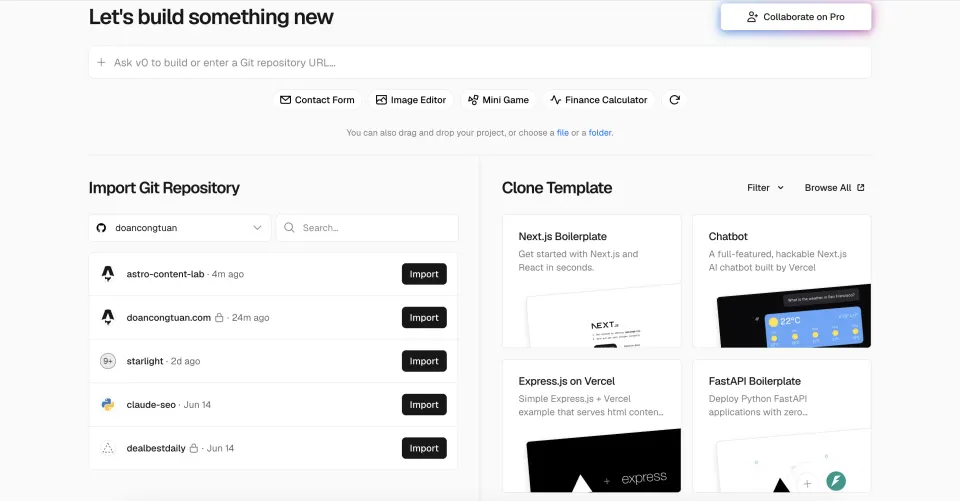
From the Vercel dashboard, click Add New → Project.
Vercel shows the repositories your GitHub authorization allows it to access. Find astro-content-lab and click Import.
Step 3: Review the project configuration
This is where Vercel feels much easier than a manual server deployment.
For this npm-based static project, Vercel detected Astro and showed settings similar to:
- Framework Preset: Astro
- Build Command:
astro build - Output Directory:
dist - Install Command:
npm install
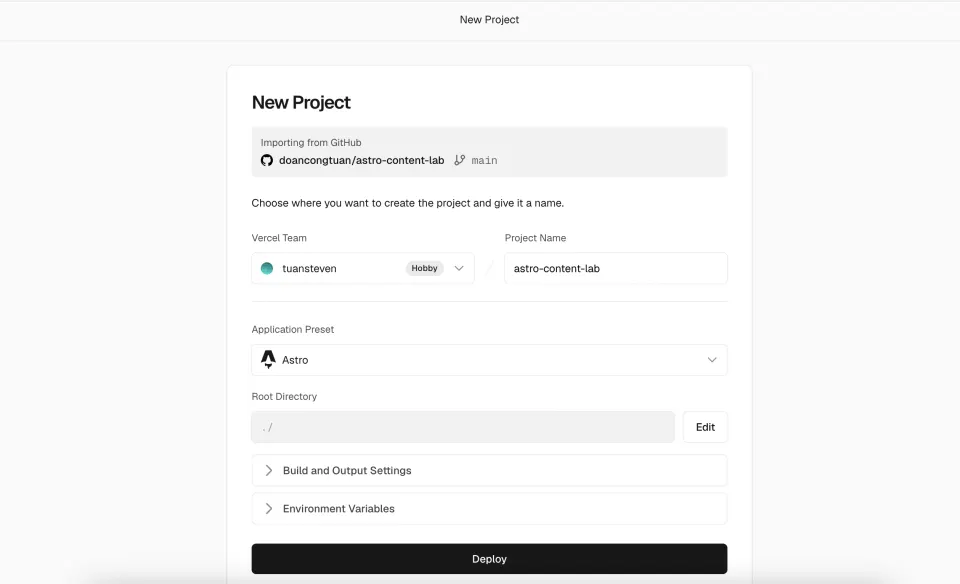
For this project, I did not override those settings. Your install command may differ when the repository uses pnpm, Yarn, or Bun, so review what Vercel detects instead of copying npm install blindly.
If the project uses environment variables, such as API keys or Supabase URLs, add them under Environment Variables. A local .env file is normally excluded from Git, so its values are not automatically available during the Vercel build.
This demo does not need environment variables.
Static Astro versus on-demand rendering
This project is a static Astro site, so it does not need the Vercel adapter. Astro generates the pages during the build, and Vercel serves the generated files from dist/.
A project using on-demand rendering or server features such as server islands, actions, or sessions needs the Vercel adapter. Astro can add it with:
npx astro add vercelUse that command only when the project actually needs server execution. The official Astro Vercel deployment guide explains both paths.
Step 4: Deploy
Click Deploy.
For this project, Vercel then:
- Pulled the code from GitHub
- Installed the npm dependencies
- Ran the Astro build
- Published the generated output
You can watch the live build log while the deployment runs:
[18:32:01] Running "npm install"...
[18:32:15] Running "astro build"...
[18:32:16] ▶ src/pages/index.astro
[18:32:16] ▶ src/pages/blog.astro
[18:32:16] ▶ src/pages/blog/hello-world
[18:32:16] ▶ src/pages/reviews/hostinger-review
...
[18:32:18] ✓ Built in 2.1s
[18:32:20] Deployment complete.
The exact duration depends on the number of pages, dependencies, cache state, and current build environment. My small demo deployed within a few minutes, but that is an example rather than a guaranteed Vercel build time.
When the deployment finishes, Vercel assigns the project a URL similar to:
https://astro-content-lab.vercel.app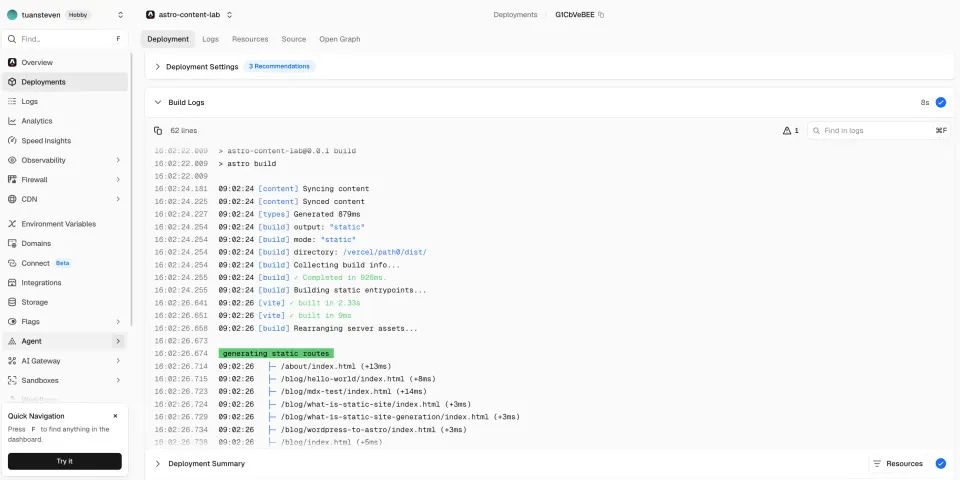
Open the URL and check the pages that matter most, especially the homepage, dynamic routes, images, and internal links.
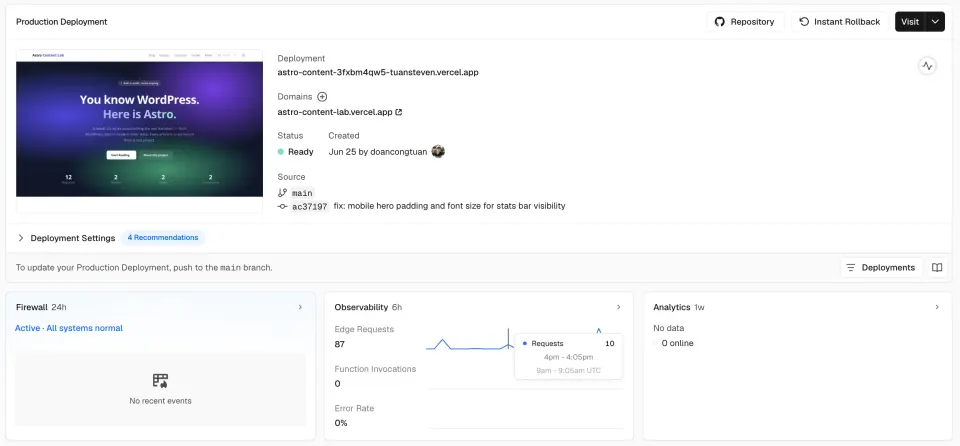
You can compare both deployed versions used in this series:
How Git-based deployments work from now on
Once the repository is connected, Vercel distinguishes between the production branch and other branches.
A push to the configured production branch, commonly main, creates a production deployment:
# Make changes to the site
# Edit content, fix a bug, or add a page

npm run build
git add .
git commit -m "add new blog post"
git push

# Vercel detects the push to the production branch
# Builds the project
# Publishes the new production deployment
A push to another branch normally creates a preview deployment instead of replacing the production site.
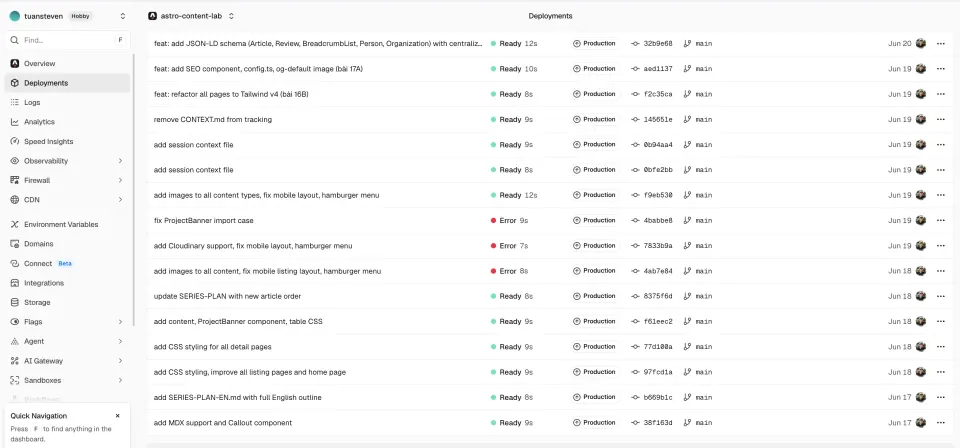
You can inspect each deployment in the Vercel dashboard, including its commit, branch, build status, target environment, and deployment URL.
Preview deployments for other branches
When you push to a branch other than the production branch, Vercel normally creates a preview deployment with a separate live URL.
git checkout -b add-new-feature
# Make changes
git push -u origin add-new-feature
The generated preview URL may look similar to:
https://astro-content-lab-git-add-new-feature-tuansteven.vercel.appThe exact URL format can vary. The important point is that the branch can be reviewed on a live deployment without replacing the production site.
You can share the preview with a collaborator, inspect it on a phone, or test changes in a hosted environment before merging the branch.
For a solo developer, preview deployments may feel optional at first. They become much more useful when a change touches layouts, content collections, environment variables, redirects, or other behavior that is worth checking outside the local machine.
Adding a custom domain
The vercel.app URL is enough for learning and testing. A public project normally uses its own domain.
In Vercel:
- Open the project dashboard
- Go to the project’s domain settings
- Enter the domain, such as
yourdomain.com - Add it to the project
Vercel then shows the DNS configuration required for that specific domain and project.
At your DNS provider:
- Open the DNS management page
- Create or update the records exactly as Vercel displays them
- Return to Vercel and wait for the domain to verify
Do not copy an A record or CNAME value from an old tutorial. Vercel may provide project-specific records, particularly for subdomains, and its recommended values can change. Copy the hostname, value, and trailing period exactly as they appear in your dashboard.
DNS changes are not always visible everywhere immediately. The verification time depends on the DNS provider, record configuration, caching, and TTL.
After the domain points to the project correctly, Vercel provisions and renews the TLS certificate automatically.
When the build fails
Builds fail. The useful part is that Vercel keeps the full build log for the failed deployment.
Open the deployment and read from the first meaningful error, not only the final line saying that the build exited.
Invalid content data
Error: Invalid content entry data in "posts/my-post.md"Open the referenced file and check the frontmatter for misspelled fields, invalid dates, wrong data types, or missing required values.
Missing environment variable
Error: Cannot read properties of undefined (reading 'url')A value available locally may be missing from the Vercel environment. Add the required variable under the project’s environment-variable settings, confirm which environments should receive it, and redeploy.
TypeScript or build error
Error: Type 'string' is not assignable to type 'number'Fix the type mismatch locally and run the production build again:
npm run buildRunning a local production build before pushing catches many avoidable problems, although it cannot reproduce every difference between your computer and Vercel’s build environment.
Dependency or command problem
sh: astro: command not foundCheck package.json, the lockfile, the detected package manager, and the install command. A package that exists only in your local node_modules folder is not enough; the deployment must be able to install it from the project manifest.
Could not resolve: capitalization in import paths
This one is sneaky. Most default macOS installations use a case-insensitive filesystem, while the Linux build environment is case-sensitive.
An import such as:
../../Components/ProjectBanner.astromay appear to work locally even when the real directory is named components. The Vercel build can then fail because Components and components are different paths on a case-sensitive filesystem.

Fix the import so its capitalization matches the actual file and directory names exactly. In VS Code, global search can help find every occurrence of the incorrect path.
I hit this twice in the same session: once in guides/[slug].astro, then again in blog/[slug].astro. Both imports used a capital C, both appeared fine locally, and both failed in Vercel.
The lesson was simple: run npm run build before pushing, but still read the hosted build log carefully when a deployment fails.
Comparing Astro deployment options
Vercel is not the only place to deploy Astro. A more useful comparison than a temporary price table is the type of workflow each option gives you:
| Platform | Setup style | Good fit |
|---|---|---|
| Vercel | Git-based deployment with Astro integration | Personal demos, static sites, previews, and supported on-demand Astro features |
| Netlify | Git-based deployment with Astro integration | Static sites, previews, and supported on-demand Astro features |
| Cloudflare | Git-based edge platform | Static Astro sites and projects using the Cloudflare ecosystem |
| GitHub Pages | Static hosting workflow | Simple static projects that do not need server execution |
| Self-managed server | Manual or custom automated deployment | Full server control, multiple services, or infrastructure you want to manage yourself |
Platform plans, included usage, adapter capabilities, and commercial-use rules can change. Check the current official documentation before choosing infrastructure for a production project.
For this series, Vercel is a convenient teaching choice because it detects the static Astro project, connects directly to Git, and makes preview deployments easy to observe.
What you have now
After this article:
- Your static Astro site is live on a public deployment URL
- Pushes to the production branch can update the production deployment
- Other branches can receive separate preview deployments
- A custom domain can be attached without manually managing certificate renewal
- Failed builds can be investigated through reproducible local builds and hosted logs
The workflow for this project is now:
Write content or code locally
→ Run npm run build
→ Commit the change
→ Push the branch
→ Vercel builds the corresponding deployment
→ Review preview or production result
The rest of the series builds on this foundation by adding richer content, styling, images, SEO, and eventually a CMS layer and backend. The deployment target may change in future experiments, but the habit remains useful: validate locally, commit a focused change, push it, and inspect the deployed result.