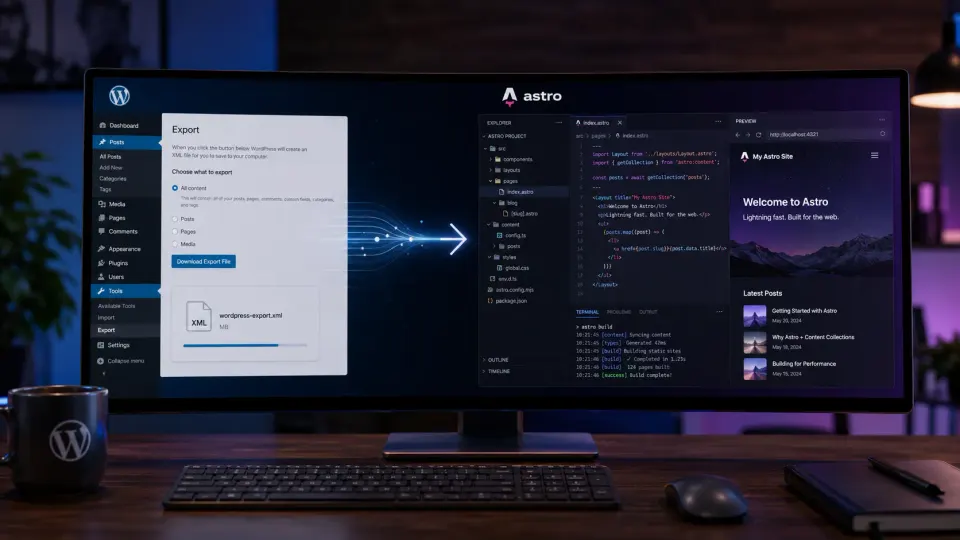
Before migrating, it helps to separate the platform decision from the migration process. I cover the bigger platform trade-off in my WordPress vs modern stack guide, and the WordPress-to-Astro learning path in Astro for WordPress developers.
Migrating from WordPress to Astro is a reasonable decision for the right project. It is not the right decision for most client sites. If you’re asking whether to migrate, the answer depends entirely on who edits the content and what features you actually need — not on which framework is newer or more interesting.
When migration makes sense
Before considering migration, be honest about these questions:
Do you manage all the content yourself? If yes, Astro’s MDX + Content Collections workflow is clean and manageable. If no — if a client or team member logs in to edit pages — you’re removing their ability to do that.
Is performance actually a problem for your current site? Migrating to fix a 2.5-second load time is worth it. Migrating because Astro is popular is not a good reason on its own.
Are you spending real time on WordPress maintenance? Plugin updates, security patches, and occasional conflicts can add up. Astro’s static output eliminates this entirely. If maintenance overhead is a real pain point, that’s a legitimate reason to consider migration.
Does your site use WordPress-specific features? WooCommerce, complex custom post types with heavy meta, membership plugins, form builders deeply integrated with CRM — these have no direct Astro equivalents and would need to be rebuilt or replaced.
What migration actually involves
People underestimate how much work a WordPress-to-Astro migration involves. Here’s what you’re actually doing:
1. Content export and conversion
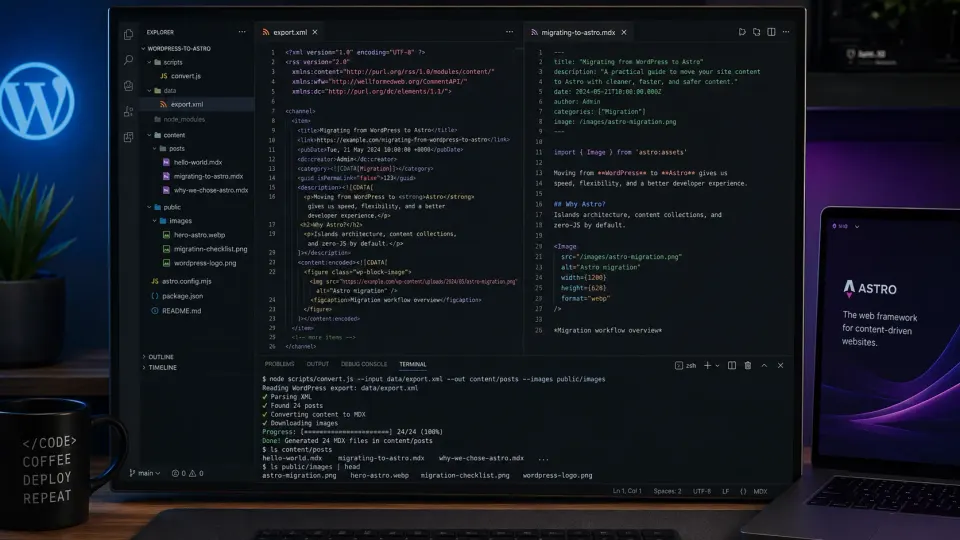
WordPress exports content as an XML file. Your posts, pages, and media references are in there. The problem is that WordPress content is stored as HTML (or Gutenberg blocks), not clean Markdown. Converting to MDX requires cleanup.
For a 50-post blog, expect 2–4 hours of cleanup after running a conversion script. Shortcodes, custom blocks, galleries, and embedded content need manual attention.
2. Images and media
WordPress stores media in /wp-content/uploads/. In Astro, you’ll organize these under /public/images/. You’ll need to download all media from your server and reorganize it.
For a site with hundreds of posts and thousands of images, this step alone can take a day.
3. URL preservation
This is critical for SEO. Your WordPress URLs must map exactly to your Astro output URLs — or you need 301 redirects for every changed URL. Getting this wrong means losing search rankings built over years.
Astro’s static output gives you full control over URL structure. Set slug in your Content Collections to match your WordPress slugs exactly.
4. Rebuilding custom functionality
Every WordPress plugin you’re using needs an equivalent in Astro — or the feature gets dropped. Contact forms, newsletter signup forms, search, comments, analytics — these all need to be re-evaluated and re-implemented.
Most of these have clean solutions:
- Forms → Netlify Forms, Formspree, or a simple
fetchto a form API - Search → Pagefind (static search that works beautifully with Astro)
- Comments → drop them, or use a third-party solution
- Analytics → a script tag in BaseLayout
5. Testing and SEO validation
Before switching DNS, validate that all URLs are correct, all metadata is right, and all redirects work. Use Screaming Frog or a sitemap diff to compare the old and new site.
Who should not migrate
Be direct with yourself here:
- You control all content and edit via files/Git
- Performance or maintenance overhead are real pain points
- No client needs to log in and edit content
- You're not using WooCommerce or complex WordPress plugins
- You want to own the full stack with no CMS
- Clients or non-technical editors log in to update content
- You have WooCommerce or complex membership/plugin features
- You'd be migrating because Astro is trendy, not because it solves a problem
- Your WordPress site already performs well and causes no maintenance issues
- You don't have time for a proper migration with URL preservation
The migration path, step by step
If you’ve decided to migrate, here’s a clean sequence:
- Audit your current site. List every URL, every custom feature, every plugin dependency. Be realistic about what needs to be rebuilt.
- Export WordPress content. Use WordPress’s built-in XML exporter.
- Set up your Astro project. Astro 5 with Content Collections, MDX, and Tailwind.
- Convert content. Run a conversion script, then do manual cleanup. Keep all slugs identical to preserve URLs.
- Move media. Download all WordPress uploads, organize under
/public/images/. - Rebuild functionality. Forms, search, analytics, whatever you need.
- Build and test locally.
npm run build, check every page, compare URLs against your WordPress sitemap. - Set up Nginx or your static host. Configure 301 redirects for any URLs that changed.
- Switch DNS. Update your DNS, wait for propagation.
- Monitor for 404s and ranking changes. Check Google Search Console for crawl errors in the first week.
Hosting for your Astro site
If you’re moving to a VPS with Nginx (which is what I use), you don’t need a specialized static host. Astro builds to plain HTML in the dist/ folder. Nginx serves it directly.
If you prefer managed static hosting, Netlify and Vercel both have generous free tiers. For a VPS-based setup, Hostinger’s VPS is a reasonable budget option if you need your own server.
Budget VPS and shared hosting. Works well for static Astro sites or WordPress if you're keeping both in your stack.
Get Hostinger →Affiliate link — I may earn a commission at no cost to you.
The honest reality
WordPress-to-Astro migration is satisfying when it’s the right decision. The result is genuinely faster, simpler to maintain, and cleaner to reason about.
But “migration” gets romanticized in developer circles. The actual work is tedious — content cleanup, URL matching, redirect testing, rebuilding forms. Budget the time honestly.
If you’re migrating your own blog or personal site: go for it. It’s worth the weekend investment.
If you’re thinking about migrating a client site: think very carefully about whether the client can live without a CMS. Most cannot.