Three commands. WordPress goes from zero to extracted on your server faster than any FTP upload.
Step 1 — Create the Web Root Directory
If it doesn’t exist yet:
sudo mkdir -p /var/www/yourdomain.com
sudo chown nginx:nginx /var/www/yourdomain.com
Navigate into it:
cd /var/www/yourdomain.comStep 2 — Download WordPress
sudo wget https://wordpress.org/latest.tar.gzOr with curl if you prefer:
sudo curl -O https://wordpress.org/latest.tar.gzBoth do the same thing. wget is slightly simpler syntax for this use case — no flags needed. Either works.
Always download from wordpress.org/latest.tar.gz — the official source, always the current stable version.
Step 3 — Extract
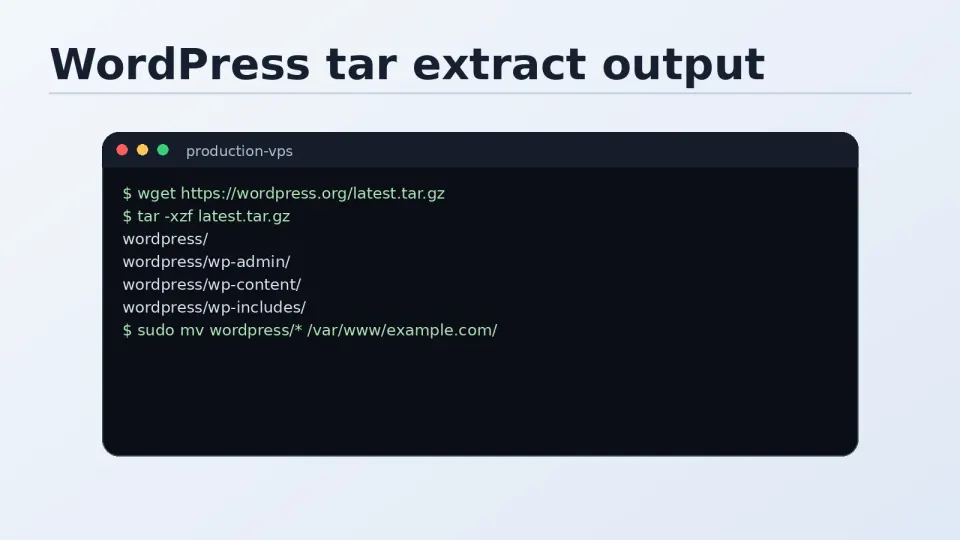
sudo tar -xzf latest.tar.gzThe tar flags: -x extract, -z decompress gzip, -f specify the file. One command, done. You’ll see a brief scroll of filenames as it extracts — that’s latest.tar.gz unpacking into a wordpress/ subdirectory.
Step 4 — Move Files Into Place
The extraction creates a wordpress/ subdirectory. Move its contents up into the web root:
sudo mv wordpress/* .
sudo rm -rf wordpress/
sudo rm latest.tar.gz
Verify the files are in the right place:
lsYou should see WordPress core files directly in /var/www/yourdomain.com/:
index.php wp-admin/ wp-config-sample.php wp-content/ wp-includes/ ...Step 5 — Set Correct Ownership
WordPress needs to write files for updates, plugin installations, and media uploads:
sudo chown -R nginx:nginx /var/www/yourdomain.com/
sudo find /var/www/yourdomain.com/ -type f -exec chmod 644 {} \;
sudo find /var/www/yourdomain.com/ -type d -exec chmod 755 {} \;
Three commands:
chown— give Nginx ownership of all filesfind+chmod 644— files readable by all, writable only by ownerfind+chmod 755— directories traversable by Nginx
Quick Verification
ls -la /var/www/yourdomain.com/ | head -10The owner column should show nginx nginx for the files.
WordPress files are in place. The next step is wp-config.php — connecting WordPress to the MariaDB database you created in Part 4.