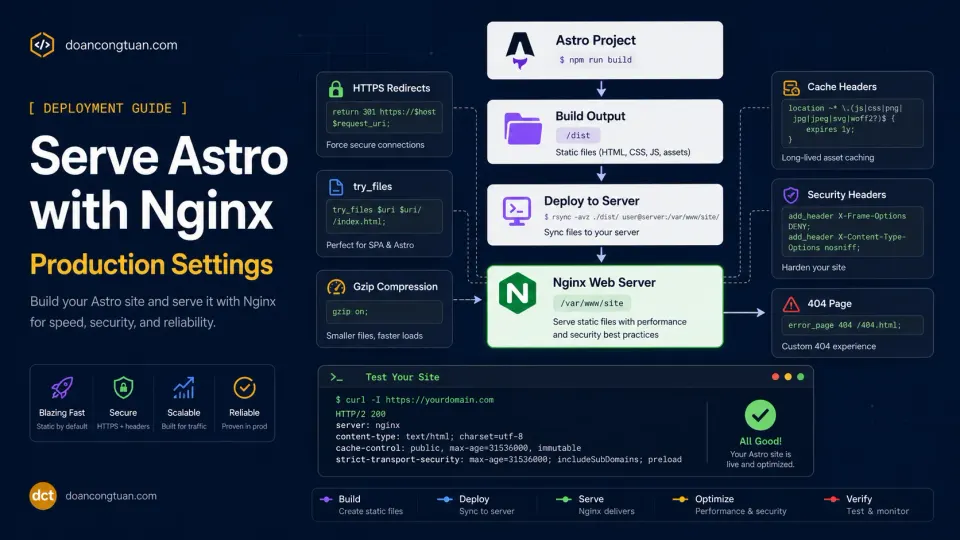
Learning how to serve Astro with Nginx made deployment feel almost too simple: run a build command, get a dist/ folder, put that folder on a server, done. That simplicity is one of the reasons I like Astro.
But after optimizing doancongtuan.com for Lighthouse, I learned one important lesson:
A static site is only as good as the way you serve it.
Astro can generate clean HTML, CSS, JavaScript, and assets. But Nginx still has to serve those files correctly. If compression is missing, redirects are messy, cache headers are weak, or the 404 behavior is wrong, the site can still feel unfinished in production. This article is the Nginx side of my Astro performance cleanup. Not a giant enterprise config, but the small set of server settings that actually mattered for my own site.
How do I serve Astro with Nginx in production?
doancongtuan.com runs as a static Astro site on a VPS. No Node.js app in production, no long-running process to babysit. The workflow is simple:
Astro project
→ npm run build
→ dist/ folder
→ rsync to VPS web root
→ Nginx serves static files
My deploy command looks like this:
npm run build
rsync -av --delete dist/ /home/doancongtuan.com/public_html/
That is it. No PM2, no Node process manager, no SSR server, no PHP, no database. Just static files served directly by Nginx.
But that does not mean the server config is irrelevant. Nginx still controls:
HTTPS redirects
www vs non-www redirects
file resolution
404 behavior
compression
cache headers
security headers
static asset delivery
Those details are easy to ignore. Until Lighthouse, Search Console, or a browser waterfall makes them impossible to.
The minimal Nginx shape for Astro
A normal static Astro site needs a very simple Nginx server block. At the core, it looks like this:
server {
    listen 443 ssl http2;
    server_name example.com;

    root /home/example.com/public_html;
    index index.html;

    location / {
        try_files $uri $uri/ $uri.html =404;
    }
}
The important line is the try_files directive:
try_files $uri $uri/ $uri.html =404;This tells Nginx to try:
1. The exact file
2. The directory index
3. The .html version
4. A real 404 if nothing matches
For Astro static output, that is usually enough. If your build creates:
/about/index.html
/blog/my-post/index.html
then /about/ and /blog/my-post/ can resolve cleanly. And if your build creates flat files like:
/about.htmlthen $uri.html handles that too.
Redirect HTTP to HTTPS
The first production rule is simple: HTTP should always redirect to HTTPS.
server {
    listen 80;
    server_name example.com www.example.com;

    return 301 https://example.com$request_uri;
}
I prefer forcing the canonical version at the same time. For this site, I use non-www, so HTTP and www both end up on the clean https://doancongtuan.com/ version.
Redirect www to non-www
If you use the non-www version, redirect www to non-www:
server {
    listen 443 ssl http2;
    server_name www.example.com;

    ssl_certificate /etc/letsencrypt/live/example.com/fullchain.pem;
    ssl_certificate_key /etc/letsencrypt/live/example.com/privkey.pem;

    return 301 https://example.com$request_uri;
}
This matters beyond cosmetics. It prevents duplicate versions of the same page from floating around. You want one canonical host, not four:
http://example.com/page/
http://www.example.com/page/
https://example.com/page/
https://www.example.com/page/
Pick one and redirect the rest. For SEO and analytics, that ambiguity adds up quickly.
The main Astro server block
Here is a practical version of the main server block:
server {
    listen 443 ssl http2;
    server_name example.com;

    root /home/example.com/public_html;
    index index.html;

    ssl_certificate /etc/letsencrypt/live/example.com/fullchain.pem;
    ssl_certificate_key /etc/letsencrypt/live/example.com/privkey.pem;

    location / {
        try_files $uri $uri/ $uri.html =404;
    }

    error_page 404 /404.html;
}
This assumes your deployed files live at /home/example.com/public_html/. Change that path to match your own server. The important thing is that Nginx’s root should point to the deployed Astro output, not the source project directory.
Wrong idea:
/home/example.com/app/my-astro-project/Right idea:
/home/example.com/public_html/That is where the dist/ folder should be synced after each build.
Add a real 404 page
Astro can generate a 404.html page. Make sure Nginx actually uses it:
error_page 404 /404.html;Then your location / should end in =404:
location / {
    try_files $uri $uri/ $uri.html =404;
}
That gives you a real 404 response instead of silently sending users back to the homepage. A missing page should return 404, not a 200 that looks like the homepage. That confusion matters for SEO and for crawlers trying to understand your site structure.
To test:
curl -sI https://example.com/this-page-should-not-exist/ | headYou want to see:
HTTP/2 404not:
HTTP/2 200Enable gzip compression
This was one of the first things I checked during the Lighthouse cleanup. A static site can still be served without compression if Nginx is not configured for it. I like putting gzip in a global include file instead of repeating it in every vhost config.
Example:
gzip on;
gzip_vary on;
gzip_proxied any;
gzip_comp_level 6;
gzip_min_length 1024;
gzip_http_version 1.1;

gzip_types
    text/plain
    text/css
    text/xml
    application/xml
    application/json
    application/javascript
    text/javascript
    image/svg+xml
    application/rss+xml
    application/atom+xml
    application/manifest+json;
Test it with:
curl -sD - -o /dev/null -H 'Accept-Encoding: gzip' https://example.com/ \
  | grep -Ei 'content-type|content-encoding|vary'
A good response includes:
vary: Accept-Encoding
content-encoding: gzip
If you do not see content-encoding: gzip, do not assume compression is working. Check the live response. Config files lie by omission; curl tells the truth.
Add cache headers carefully
Cache headers are useful, but they should not be copied blindly. Astro outputs hashed assets inside /_astro/. Those filenames change when the content changes, which makes them safe candidates for long-term immutable caching.
Example:
location /_astro/ {
    expires 1y;
    add_header Cache-Control "public, max-age=31536000, immutable" always;
}
That is safe for hashed build assets. For normal public images, be more careful. If your filenames are stable, like:
/images/posts/my-post/hero.webpand you later replace the image without changing the filename, aggressive immutable caching will leave visitors staring at the old version for months. A safer rule for public images:
location ~* \.(webp|jpg|jpeg|png|svg|ico)$ {
    expires 30d;
    add_header Cache-Control "public, max-age=2592000" always;
}
For HTML, I prefer not to cache too aggressively at the browser level:
location ~* \.html$ {
    add_header Cache-Control "no-cache" always;
}
The simple rule: hashed assets get long cache plus immutable, HTML gets no-cache, public images get moderate cache unless their filenames are versioned. That balance keeps performance solid without making deploys a headache.
Add basic security headers
For a static Astro site, basic security headers are simple to add and worth having. A minimal set:
add_header X-Content-Type-Options "nosniff" always;
add_header X-Frame-Options "SAMEORIGIN" always;
add_header Referrer-Policy "strict-origin-when-cross-origin" always;
add_header Permissions-Policy "camera=(), microphone=(), geolocation=()" always;
These are not magic and they do not make a site invincible, but they clean up common browser-level protections and improve best-practice audit scores. I usually avoid adding a strict Content Security Policy too early. CSP is powerful, but if you copy a random config without understanding it, it will break analytics, images, inline scripts, and embeds. Start with the safe headers, then add CSP later when you have time to test it properly.
Hide Nginx version
This is a small hardening step. In /etc/nginx/nginx.conf, inside the http block:
server_tokens off;Then reload:
nginx -t
systemctl reload nginx
This hides the exact Nginx version from default error pages and response headers. Not a major security feature on its own, but a reasonable cleanup that takes one line.
A practical full example
Here is a simplified example for a non-www Astro site. Use it as a starting point, not something to paste blindly.
# HTTP → HTTPS non-www
server {
    listen 80;
    server_name example.com www.example.com;

    return 301 https://example.com$request_uri;
}

# HTTPS www → non-www
server {
    listen 443 ssl http2;
    server_name www.example.com;

    ssl_certificate /etc/letsencrypt/live/example.com/fullchain.pem;
    ssl_certificate_key /etc/letsencrypt/live/example.com/privkey.pem;

    return 301 https://example.com$request_uri;
}

# Main site
server {
    listen 443 ssl http2;
    server_name example.com;

    root /home/example.com/public_html;
    index index.html;

    ssl_certificate /etc/letsencrypt/live/example.com/fullchain.pem;
    ssl_certificate_key /etc/letsencrypt/live/example.com/privkey.pem;

    add_header X-Content-Type-Options "nosniff" always;
    add_header X-Frame-Options "SAMEORIGIN" always;
    add_header Referrer-Policy "strict-origin-when-cross-origin" always;
    add_header Permissions-Policy "camera=(), microphone=(), geolocation=()" always;

    location / {
        try_files $uri $uri/ $uri.html =404;
    }

    location /_astro/ {
        expires 1y;
        add_header Cache-Control "public, max-age=31536000, immutable" always;
    }

    location ~* \.(webp|jpg|jpeg|png|svg|ico)$ {
        expires 30d;
        add_header Cache-Control "public, max-age=2592000" always;
    }

    location ~* \.html$ {
        add_header Cache-Control "no-cache" always;
    }

    error_page 404 /404.html;
}
If you already have global gzip and security header include files, do not duplicate everything inside each vhost. Keep your config clean.
Test before reload
Always test the Nginx config before reloading:
nginx -tIf the test passes, reload. Don’t restart unless you have a reason to:
systemctl reload nginxA reload applies config changes without dropping active connections. Restart is heavier than it needs to be for a config update.
Test the live site
After deploying and reloading, check the live site. Don’t skip this step.
Check redirect
curl -sI http://example.com/ | grep -Ei 'HTTP/|location'Expected:
HTTP/1.1 301 Moved Permanently
location: https://example.com/
Check www redirect
curl -sI https://www.example.com/ | grep -Ei 'HTTP/|location'Expected:
HTTP/2 301
location: https://example.com/
Check gzip
curl -sD - -o /dev/null -H 'Accept-Encoding: gzip' https://example.com/ \
  | grep -Ei 'content-type|content-encoding|vary'
Expected:
content-type: text/html
vary: Accept-Encoding
content-encoding: gzip
Check 404
curl -sI https://example.com/this-page-should-not-exist/ | headExpected:
HTTP/2 404Check security headers
curl -sI https://example.com/ \
  | grep -Ei 'x-content-type-options|x-frame-options|referrer-policy|permissions-policy'
Expected:
x-content-type-options: nosniff
x-frame-options: SAMEORIGIN
referrer-policy: strict-origin-when-cross-origin
permissions-policy: camera=(), microphone=(), geolocation=()
These checks are boring, but they are the difference between “I think the site is configured correctly” and “I know the live server is sending the right response.”
Where Nginx fits into Lighthouse
Nginx alone will not give you a perfect Lighthouse score. It does not fix bad images, remove render-blocking fonts, delay analytics, or improve text contrast. But it controls several important foundations:
Compression
redirect behavior
static file delivery
cache headers
404 status codes
security headers
During my Lighthouse cleanup, the Nginx part was one layer, not the whole story. The full case study is here: How I Took My Astro Site from Good to 100 Lighthouse Scores. The image-specific deep dive is here: Astro Image Optimization with Sharp.
The Nginx layer matters because static files are only the output. The server is how users actually receive them.
Should you use Nginx or a static hosting platform?
Not everyone needs a VPS. For many Astro sites, Cloudflare Pages, Vercel, or Netlify is simpler. I cover that in detail in Best Hosting for Astro Sites. The short version:
Use Cloudflare Pages if you want the easiest global static hosting.
Use Vercel or Netlify if you want a smooth Git-based workflow.
Use VPS + Nginx if you want control, already manage servers, or host multiple sites.
For my own workflow, VPS + Nginx makes sense. I already run a VPS, I like having control over the server, I can host multiple small static sites on one machine, and deploying is just a rsync. If you are new to VPS setup, the VPS series covers the full stack from your first SSH connection to running WordPress, and the Nginx foundation there applies equally to Astro static sites. That said, it is not the best answer for everyone. It is just the one that fits me.
Common mistakes
Here are the mistakes I would avoid.
Pointing Nginx to the source project
Serve the generated output, not the Astro source directory. Build first, then sync dist/ to the public web root. Wrong idea: /home/example.com/app/my-astro-project/. Right idea: /home/example.com/public_html/.
Caching HTML too aggressively
Long cache is great for hashed assets, not always great for HTML. If you cache HTML too aggressively in the browser, users may keep seeing old pages after you deploy updates. Be careful with immutable. Use it only where filenames change with content.
Returning 200 for missing pages
Do not send every missing URL to the homepage. That creates soft 404 problems that confuse crawlers and give you no useful signal about broken links. A missing page should return a real 404.
Forgetting to test live headers
Your config file is not the final truth. The live response is. Use curl.
Copying a strict CSP too early
A Content Security Policy can be very useful, but a bad one will break analytics, images, inline scripts, external scripts, and embeds. Start with safer headers first. Add CSP later when you are ready to actually test it.
The honest bottom line
Astro makes production simpler because the output is just static files, but “just static files” does not mean the server no longer matters. Nginx still controls how those files are delivered, and for my own site the important pieces were not complicated:
HTTPS redirects
non-www canonical host
correct root path
try_files
real 404
gzip
cache headers
security headers
live curl tests
That is the boring checklist, but boring checklists are what make fast static sites actually feel production-ready.