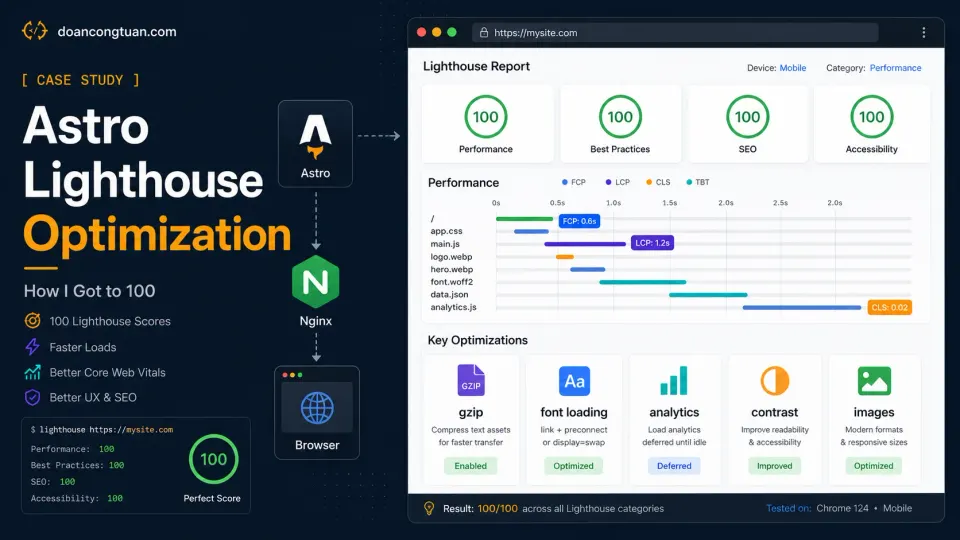
This Astro Lighthouse optimization pass did not start with a slow website. That is the important part of this story.
doancongtuan.com was already running on Astro. The site was static, with no PHP rendering on every request, no MySQL database, no page builder, and no WordPress plugin stack. So I expected Lighthouse to be easy.
It was good. But it was not perfect. Some pages were already fast in real life, but Lighthouse still found issues: the homepage was close but not clean enough, image-heavy posts could still drop into the 80s, and some pages were better than others. The pattern was clear: Astro gave me a strong foundation, but I still had to fix the last production details myself.
That became the real lesson of this optimization pass:
Astro does not automatically give you 100 Lighthouse scores. It gives you fewer things to fight.
Why did Astro Lighthouse optimization feel different from WordPress?
I have used WordPress for years, and I am not writing this article to say it is bad or slow. That would be unfair. WordPress can be very fast in the hands of someone who deeply understands themes, plugins, caching, image pipelines, server configuration, and frontend output. I have seen people optimize WordPress sites to 95 or even 100 Lighthouse scores. But that was not my normal reality.
One of the hardest cases for me was a coupon site. It used PremiumPress, a WordPress theme built for coupon and deal websites. That kind of site is not a simple blog. It needs coupon layouts, offer cards, copy-code interactions, affiliate buttons, popups, tracking, and a lot of frontend behavior. The theme did its job, but it also shipped a lot of JavaScript and frontend complexity. For a coupon site, that is not surprising. The features have to come from somewhere.
My usual WordPress scores were often around the 70–80 range. With WP Rocket and Smush Pro, I could improve things a lot. Some pages could go above 90, and that already felt like a win. But pushing a real WordPress affiliate or coupon site to a stable 95–100 was a different level entirely.
That is the part many people miss. A page can feel fast and still have Lighthouse issues. A WordPress site can be served from a strong VPS and still carry too much frontend baggage, and a static export can make delivery faster, but it does not automatically rewrite every CSS file, JavaScript dependency, image tag, or accessibility issue.
That was my frustration. Not that WordPress could not be fast, but that making it perfect required more control than I realistically had in that workflow.
How did Astro change the performance problem?
Astro changed the shape of the problem for me. Instead of trying to control a full WordPress output layer, I was working with files, components, layouts, and static HTML.
My production workflow became simple:
Astro source files
→ npm run build
→ dist/ folder
→ rsync to VPS
→ Nginx serves static files
No PHP runtime in production. No database. No plugin stack. No page builder output. No theme system generating markup I did not fully control.
This did not make optimization automatic, but it made the problems easier to reason about. When Lighthouse complained, I could usually trace the issue to one of these places:
A server setting
A layout file
A component
A CSS rule
A script loading decision
An image workflow problem
That is a much smaller battlefield, and that matters more than it sounds.
The starting point: good, but not perfect
Before this cleanup, the site was not terrible. That matters. Astro had already removed a lot of the weight I used to fight in WordPress: static pages, simple HTML, a much lighter frontend than my older coupon and affiliate sites. But Lighthouse was still not where I wanted it.
The common issues were:
Google Fonts were still render-blocking.
Google Analytics loaded too early.
Nginx gzip was not active globally for this site.
Some accessibility contrast checks failed.
Image-heavy pages had oversized image delivery warnings.
Hero images did not always have responsive srcset.
Old MDX posts still used Markdown image syntax.
None of these were Astro’s fault. They were production details. That is exactly why this article is not titled “Astro is magically fast.” A better title would be:
Astro got me close.
The boring details got me to 100.
Fix 1: Enable gzip correctly in Nginx
The first surprise was gzip. I assumed compression was already working because I had other Nginx configs on the server, but when I tested the live site, the response did not show content-encoding: gzip. That meant HTML, CSS, JavaScript, JSON, and SVG responses could be larger than necessary.
The fix was to add a global gzip config:
gzip on;
gzip_vary on;
gzip_proxied any;
gzip_comp_level 6;
gzip_min_length 1024;
gzip_http_version 1.1;

gzip_types
  text/plain
  text/css
  text/xml
  application/xml
  application/json
  application/javascript
  text/javascript
  image/svg+xml
  application/rss+xml
  application/atom+xml
  application/manifest+json;
Then reload Nginx:
nginx -t
systemctl reload nginx
And test with:
curl -sD - -o /dev/null -H 'Accept-Encoding: gzip' https://doancongtuan.com/ \
  | grep -Ei 'content-type|content-encoding|vary'
The result should include:
vary: Accept-Encoding
content-encoding: gzip
This was a good reminder: a static site still depends on the server. Astro can generate clean files, but Nginx still has to serve them well. If the full Nginx setup is new to you, the VPS series covers it from scratch: Rocky Linux, Nginx, PHP-FPM, caching, and SSL.
Fix 2: Optimize Google Fonts loading
The next issue was font loading. I was using an @import inside the global CSS file to load IBM Plex Mono, Fraunces, and DM Sans from Google Fonts. That creates a blocking cascade: browser downloads the page CSS, finds the @import, fetches the Google Fonts stylesheet, then fetches the actual font files. Text cannot render until the whole chain resolves.
The fix had two parts. First, move the font <link> element into the HTML <head> directly, with preconnect hints:
<link rel="preconnect" href="https://fonts.googleapis.com" />
<link rel="preconnect" href="https://fonts.gstatic.com" crossorigin />
<link
  href="https://fonts.googleapis.com/css2?family=IBM+Plex+Mono:wght@400;500;600;700&family=Fraunces:opsz,wght@9..144,400;9..144,600&family=DM+Sans:opsz,wght@9..40,400;9..40,600&display=swap"
  rel="stylesheet"
/>
The preconnect tags tell the browser to warm up the connection to Google Fonts early, before the font request shows up in the waterfall. The display=swap in the URL ensures font-display: swap behavior: text renders immediately with a system fallback, then the custom font swaps in when it loads. Second, remove the @import from the CSS file. That is the actual root cause. The @import blocks CSS parsing; the <link> element in HTML does not.
The more complete fix is to self-host the font files on the VPS, which eliminates the external dependency entirely:
@font-face {
  font-family: 'IBM Plex Mono';
  src: url('/fonts/ibm-plex-mono-600.woff2') format('woff2');
  font-weight: 600;
  font-display: swap;
}
I have not moved to self-hosted fonts yet. The preconnect approach was the practical first step. Self-hosting is the cleaner answer (one fewer external request, no Google Fonts CDN dependency, works offline), but it also means downloading and maintaining the font files yourself. For this site the tradeoff is real: I want the custom typography, so the preconnect fix was the right interim move.
Fix 3: Delay Google Analytics
Analytics is useful, but it should not be more important than the first render. Before optimization, Google Analytics loaded too early. Lighthouse could see the third-party script cost. So I changed the loading behavior: instead of loading the GA script immediately in the head, I delayed it until after page load and idle time.
The idea is simple:
Let the content load first.
Let the browser breathe.
Then load analytics.
A simplified version looks like this:
window.dataLayer = window.dataLayer || []
function gtag(){dataLayer.push(arguments)}

const loadAnalytics = () => {
  const script = document.createElement('script')
  script.src = 'https://www.googletagmanager.com/gtag/js?id=G-XXXXXXX'
  script.async = true
  document.head.appendChild(script)

  gtag('js', new Date())
  gtag('config', 'G-XXXXXXX')
}

window.addEventListener('load', () => {
  if ('requestIdleCallback' in window) {
    requestIdleCallback(loadAnalytics)
  } else {
    setTimeout(loadAnalytics, 2000)
  }
})
This can slightly reduce tracking for very short visits, but I accept that tradeoff. For this site, speed and user experience matter more than counting every bounce perfectly.
Fix 4: Improve accessibility contrast
This one was not about speed. Lighthouse also checks accessibility. The site had a few contrast issues: muted text, badges, footer links, and small labels that looked fine visually but did not pass contrast checks cleanly. So I strengthened some colors:
.featured-comp-desc,
.featured-verdict-text,
.featured-post-desc,
.post-card-desc,
.review-card-desc,
.comp-card-desc,
.footer-tagline,
.footer-copy,
.footer-disclosure {
  color: #374151 !important;
}

.featured-comp-label,
.featured-verdict-label,
.featured-post-date,
.post-card-date,
.review-card-product,
.footer-nav-label {
  color: #1f2937 !important;
}

.featured-comp-cta,
.featured-post-cta,
.section-link,
.footer-tagline-link {
  color: #1d4ed8 !important;
  text-decoration: underline !important;
  text-underline-offset: 0.16em;
  text-decoration-thickness: 1px;
  font-weight: 700;
}
This is not the glamorous part of optimization, but it matters. A site can be fast and still fail basic readability checks. If text is too light, that is not a design detail, that is a user problem. After this pass, the homepage accessibility score improved.
Fix 5: Build a real image workflow
Images were the biggest technical cleanup. This site uses a lot of screenshots, diagrams, review images, and hero images, and even with Astro, images can still hurt performance if the browser receives the wrong file size.
The problems were:
Some screenshots were too large for their display size.
Body images did not always use srcset.
Hero images did not always use responsive variants.
Some older MDX files used Markdown image syntax.
Image dimensions were not consistently set.
The fix became a full image system:
Sharp script
→ generates 640 / 960 / 1280 WebP variants

ArticleImage component
→ renders body images with srcset, sizes, width, height, lazy loading

HeroImage component
→ renders hero images with srcset, sizes, width, height, eager loading, fetchpriority high

prebuild script
→ runs image generation automatically before npm run build
This part deserves its own article. The implementation is longer and more technical. I wrote the full breakdown here:
Astro Image Optimization with Sharp: How I Automated Responsive Images and Hit 100 Lighthouse Scores
The short version is this:
Do not rely on memory.
Make the build process generate the image variants.
Make the component render the right HTML.
After this change, a normal article image rendered like this:
<img
  src="/images/posts/example/screenshot-960.webp"
  srcset="/images/posts/example/screenshot-640.webp 640w, /images/posts/example/screenshot-960.webp 960w, /images/posts/example/screenshot-1280.webp 1280w"
  sizes="(max-width: 760px) calc(100vw - 32px), 720px"
  width="1600"
  height="900"
  alt="Screenshot description"
  loading="lazy"
  decoding="async"
/>
And the hero image rendered like this:
<img
  src="/images/posts/example/hero-960.webp"
  srcset="/images/posts/example/hero-640.webp 640w, /images/posts/example/hero-960.webp 960w, /images/posts/example/hero-1280.webp 1280w"
  sizes="(max-width: 760px) calc(100vw - 32px), 960px"
  width="1600"
  height="900"
  alt="Hero image description"
  loading="eager"
  decoding="async"
  fetchpriority="high"
/>
That distinction matters. Body images should usually be lazy; the hero image should load early. Do not give every image high priority. That just confuses the browser about what actually needs to be there first.
How to verify the fixes actually worked
I did not only trust the Lighthouse UI or PageSpeed Insights score. I also tested the actual HTML the server was sending.
For gzip:
curl -sD - -o /dev/null -H 'Accept-Encoding: gzip' https://doancongtuan.com/ \
  | grep -Ei 'content-type|content-encoding|vary'
For hero image srcset:
curl -s https://doancongtuan.com/blog/best-hosting-for-astro-sites/ \
  | grep -o 'hero-[0-9]*\.webp [0-9]*w' \
  | head
For body image srcset:
curl -s https://doancongtuan.com/blog/best-hosting-for-astro-sites/ \
  | grep -o 'srcset="[^"]*"' \
  | head -3
For image loading attributes:
curl -s https://doancongtuan.com/blog/best-hosting-for-astro-sites/ \
  | grep -o 'fetchpriority="high"\|loading="eager"\|loading="lazy"\|decoding="async"' \
  | sort | uniq -c
For old Markdown images:
grep -RInF '![' src/content || echo "OK: no markdown images"This kind of testing is simple but powerful. For the score itself, I ran both Lighthouse in DevTools and PageSpeed Insights on the same pages. DevTools usually scores higher because it runs locally, while PageSpeed Insights tests from Google’s servers, closer to what Google actually sees. Both showed improvement after the fixes. Lighthouse tells you the symptom. Shell commands confirm what your site is actually sending. PageSpeed Insights tells you what Google actually measures.
The result
After the cleanup, the site was in a much better place. The homepage reached near-perfect Lighthouse scores, several important pages reached 98–100 depending on page type, image-heavy posts improved after the responsive image workflow, and accessibility improved after the contrast fixes. The server confirmed gzip. The live HTML confirmed srcset, sizes, width, height, lazy-loaded body images, and high-priority hero images.
That is the part I care about most. The score was only the visible part. What actually changed was the system.
Before:
Good Astro foundation
But Google Fonts blocked render
Analytics loaded too early
Gzip was not applied globally
Some contrast checks failed
Images were inconsistent
Old Markdown images bypassed components
After:
Optimized font loading (preconnect + display=swap, no @import)
Delayed analytics
Global gzip
Stronger contrast
Responsive body images
Responsive hero images
Automated Sharp variants
Cleaner Lighthouse results
This is what I mean by taking an Astro site from good to 100. Astro did the heavy lifting by removing entire categories of complexity. The final score came from boring production details.
A quick note about the numbers
When I mention 98–100 Lighthouse results in this article, I am talking about my own testing on doancongtuan.com during this optimization pass. This is a case study, not a universal promise. My homepage reached near-perfect scores, and several important pages tested in the 98–100 range after the cleanup. But Lighthouse scores can change depending on the page type, image weight, third-party scripts, test device, network conditions, and Lighthouse version.
The point is not that Astro guarantees 100. The point is that Astro gave me a cleaner foundation, and the final improvements came from fixing production details one by one: gzip, fonts, analytics, accessibility contrast, and images.
What 100 Lighthouse does not mean
A 100 Lighthouse score is not magic. It does not mean Google will rank the article, the content is better, the site has authority, or that every real user on every network will get the same experience. Lighthouse is a lab test, useful, but not the whole truth.
The honest value of a clean Lighthouse score is this:
Your technical foundation is probably not the thing holding you back.For a content site, that is worth a lot. It means when an article does not rank, I can focus on search intent, content quality, topical authority, internal links, and backlinks, instead of wondering whether my frontend is secretly broken.
What I would tell another Astro user
If you are building an Astro content site, do not assume the framework will do everything. Astro gives you a fast default, but production always surfaces details it cannot handle for you. The things I had to fix manually: gzip on the server, font loading method, analytics timing, image sizing, image loading priorities, color contrast, and cleaning up old Markdown images that bypassed the proper component. None of that has anything to do with Astro’s output. It is all about the production environment and the workflow around the build.
The pattern I keep coming back to: Astro removes the categories of complexity that come from WordPress’s runtime, plugin stack, and theme system. What remains is a smaller set of problems that are fully yours to solve, and that is a much better position to be in. It does not mean zero work. It means the work is tractable.
My final Astro Lighthouse checklist
Here is the simplified version of what I would do again:
1. Start with Astro static output.
2. Serve it with Nginx, Cloudflare Pages, Vercel, or another fast static host.
3. Enable gzip or Brotli.
4. Avoid render-blocking external fonts if possible.
5. Delay analytics until after load or idle.
6. Use strong enough text contrast.
7. Use responsive image components.
8. Generate image variants automatically.
9. Give only the hero image high priority.
10. Test both Lighthouse and live HTML output.
The most important point is number 10. Do not only look at the score. Look at the HTML, look at the headers, look at what the browser actually receives.
The honest bottom line
WordPress can be fast. A skilled WordPress developer can make it very fast. But in my own workflow, with coupon sites, affiliate themes, plugins, tracking, page templates, and years of accumulated frontend complexity, getting consistent 95–100 Lighthouse scores was very difficult.
Astro did not make me a performance expert overnight. It simply reduced the number of moving parts. That made the final 10–20 points feel possible, and for this site, that was the difference.